



Drawing Image Sample Tags
Feature Description
Drawing image sample tags is the core step in sample creation. You can outline target areas on the image in various ways and assign category information. SuperMap iDesktopX provides tools such as marking of fishing nets, simple objects, batch draw, etc., to adapt to different annotation scenarios and efficiency needs.
Operation Instructions
- Select the image in the sample library list that needs to have sample tags drawn.
- In the objects group of the manage image sample tab, choose the drawing method for sample tags:
- Marking of fishing nets: By creating a fishnet, the image is divided into grids, and each grid is annotated individually, with progress controlled through status management. For details, refer to Marking of fishing nets.
- AI Label: Use PaddleSeg or SegmentAnything models to quickly extract samples. Details see AI Label
- Simple Objects: Directly use drawing tools to draw objects such as Line, Polygon, Orthogonal Polygon, etc., as samples on the image.
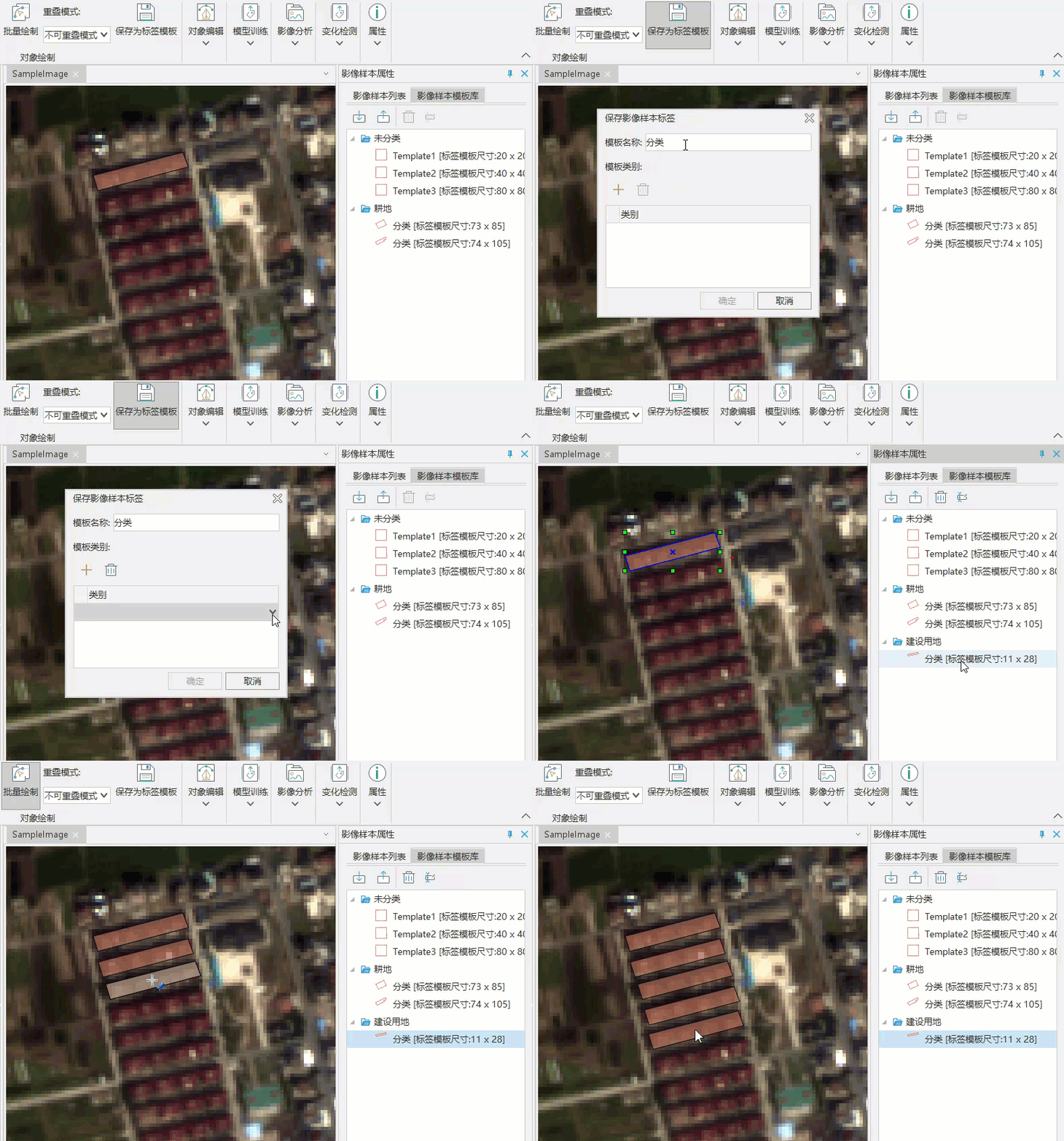
- Batch Draw: Suitable for scenarios where sample sizes and shapes are similar (e.g., rectangular buildings). After setting fixed width, height, and label category, click on the target location to quickly add rectangular labels.
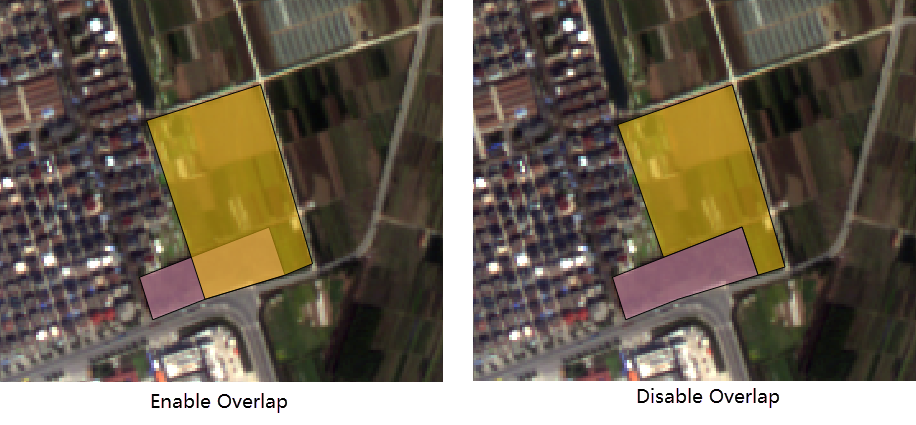
- Overlap Mode: Controls whether the drawn sample objects can overlap.
- Overlap Mode: Allows objects to intersect and overlap.
- Disable Overlap: Objects can at most share boundaries and cannot intersect.
- Save as Label Template: Common label settings (such as size, category) can be saved as a template, which can be directly called during subsequent drawing to improve efficiency.
-
Edit sample tags: If some drawn labels need to modify shape or attributes, you can use the tools in the Edit Objects group for editing.
Related Topics