



Feature Description
Many businesses in real life require goods distribution to other locations. For example, fast-food services need to select the quickest delivery routes based on customer locations, while supermarket shuttle buses need to plan multiple routes to transport customers to various communities at minimal cost. The Multiple Traveling Salesman Problem (MTSP) Analysis function in SuperMap identifies optimal delivery routes based on specified MTSP center stops and MTSP stops.
Steps
- Open the network dataset to be analyzed.
- In the "Transport Analysis" Tab's "Route Analysis" group, check the "Environment Settings" checkbox to pop up the "Environment Settings" window. Configure basic parameters for MTSP analysis (e.g., weight field, node/edge ID field), analyst result parameters, and tracking analysis parameters (required only for tracking analysis) in this window. For details, see Network Analysis Environment Settings Window.
- Create a new MTSP analysis instance. In the "Transport Analysis" Tab's "Route Analysis" group, click the Gallery drop-down button and select "Multiple Traveling Salesman Problem (MTSP) Analysis" from the list. Upon successful creation, the Instance Manager window will automatically appear, and the mouse cursor will switch to drawing mode for adding MTSP center stops and MTSP stops. See Instance Manager Window for details.
- Add MTSP center stops to the current network layer. Two methods are available: drawing directly on the network layer or importing stops. For specifics, refer to Add Site.
Each added center point will automatically appear in the "MTSP Center Stops" node list of the Instance Manager window.
Note: To delete an MTSP center stop, right-click it and select "Remove" from the context menu, or select the stop and press the Delete key.
- Similarly add MTSP stops and barrier points. For barrier management, see Barrier Management.
- In the MTSP Instance Manager window, click the "Parameter Settings" button to open the "MTSP Analysis Settings" dialog. Configure delivery parameters and result information here:
- Delivery Solution Selection: Two options are provided: Least Total Cost and Overall Average Cost. The former minimizes the sum of all route costs but may result in uneven cost distribution among center stops. The latter balances costs across routes but may not achieve the minimum total cost.
- Save Node Information: Choose whether to save all node information from analysis results. When enabled, saves as a point dataset in the network dataset's datasource. Fields include NodeID (network node ID) and RouteID (route identifier).
- Save Arc Information: Choose whether to save all arc information. When enabled, saves as a line dataset in the network dataset's datasource. Field EdgeID indicates MTSP route identifiers.
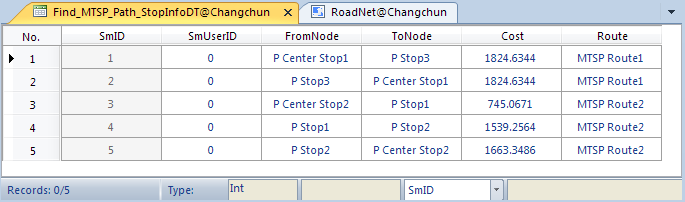
- Stop Statistics Information: Choose whether to store statistical information for MTSP center stops and MTSP stops. When enabled, saves as an attribute dataset containing statistics like start/end stops and costs.
The following figure shows an MTSP stop statistics table, recording each stop's sequence and cost per route. FormNode/ToNode indicate start/end stops, Cost shows path expenses, ViaOrder indicates stop sequence on a route segment, and Route_ID identifies the generated route.
- Enable Path Guide: Choose whether to generate route guides during analysis. Route guides record path information in transportation analysis results, with each object corresponding to a travel route from start to end. When enabled, exports path information to the Route Guide window. See Route Guide for details.
- After completing all parameter settings, click "Execute" in the "Route Analysis" group or Instance Manager window to run the analysis. Results will display immediately on the map and can be saved as datasets for future use.
 Caution:
 - MTSP center stops and MTSP stops can be exported as point datasets for future analysis.
- These stops can be placed on network edges/nodes or within the snap tolerance range.
- To modify stop locations, click the "Move Stop by Mouse" button in the Instance Manager toolbar, then drag stops to new positions.
- Barrier points set in network analysis layers will appear in the "Barrier Points" node list of the Instance Manager window. For adding barriers, see Barrier Management.
Related Topics
Multiple Traveling Salesman Problem (MTSP) Analysis Overview