



Route guide records the results information of best path analysis, closest facilities location, TSP analysis, logistics and distribution, etc. A route guide object corresponds to a driving route from the start point to the end point.
Introduction to Route Guide Window
In the Transport Analysis Tab -> Route Analysis group -> check the Route Guide checkbox to display the "Route Guide" dock bars.
Before performing network analysis functions, click the "Parameter Settings" button in the "Instance Manager" window and check the "Enable Driving Guide" checkbox. After completing network analysis functions, the Route Guide window will display the route guide report.
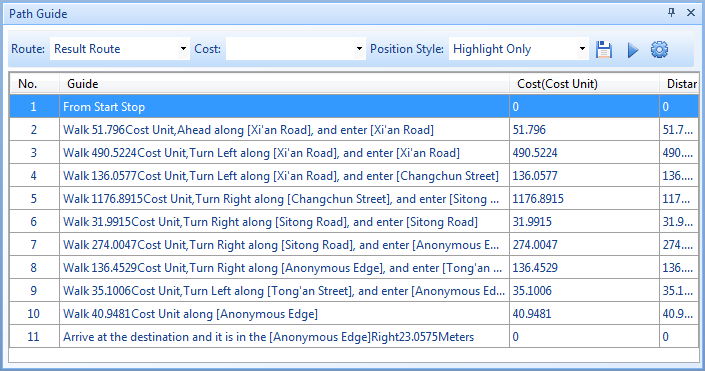
Toolbar Description
Path: Select analysis path in current analyst results.
- For optimal path analysis: Used to select path when there are two or more optimal paths (occurring when costs are identical). Typically only one optimal path exists.
- For TSP analysis: Used to select path when multiple routes exist (occurring when costs are identical). Typically only one route exists.
- For closest facility search: The number of paths is determined by "Search Parameters" in the "Find Closest Facilities" dialog, usually less than or equal to the "Number of Facilities to Find" value. Selecting different paths will display corresponding driving instructions in the list box.
Cost: Select cost unit from dropdown. Supported units: Seconds, Minutes, Hours (time); Miles, Feet, Inches, Yards, Degrees, Millimeters, Centimeters, Decimeters, Meters, Kilometers (length). Note: Custom units can be input directly (e.g., Min, Sec). After setting, guide text will automatically update with new units.
Positioning Mode: Determines how nodes and arcs are located when clicking "View", including: Highlight Only, Display Objects in Center, Full Screen. Switching from Full Screen to other modes maintains current map scale.
- Highlight Only: Highlights elements without changing map scale.
- Display Objects in Center: Highlights and centers elements without changing map scale.
- Full Screen: Highlights elements and fits to window, increasing map scale.
Save: Click to open "Export Route Guide File" dialog. Select save type, input filename, and click "OK" to export report as (*.html) format.
Play/Pause: Click "Play" to animate driving path from start to end. Click "Pause" to halt animation.
Settings: Click to open "Set Play Parameters" dialog for animation configuration:
- Total Cost: Overall cost from start to end (in cost units).
- Total Time: Duration from start to end.
- Speed: Per-frame speed (default: ** cost units/second).
- Marker Symbol: Opens "Marker Symbol Selector" dialog for custom animation marker styling.
Route Guide List Description
ID: Sequence number of inflection points from start to end.
Guide: Driving instructions starting with "From start point" and ending with "Arrive at destination".
Cost: Travel cost between two inflection points (related to forward/reverse resistance fields) in cost units.
Distance: Actual distance between two inflection points.