



Feature Description
In the Matrix Label Thematic Map dock bar, users can modify the various parameters of the matrix label thematic map to achieve a thematic effect that better meets their needs.
Functional Entry
- Layer Manager -> Matrix label thematic map context menu -> Modify Thematic Map....
- Layer Manager -> Double-click the matrix label thematic map layer.
Parameter Description
- Matrix Row/Column Count: By default, in the generated matrix label thematic map, each matrix label object has a matrix size of 1 row and 2 columns. Users can modify the row and column count of the matrix as needed.
Users can directly input values in the text box to specify the row and column count for restructuring the matrix format. Press the Enter key or when the text box loses focus to apply the row and column count settings. Users can also change the value in the text box using the spinner buttons, and the result will be displayed on the thematic map in real-time.
- Matrix Label Thematic Map Combo Box: Arranges the matrix according to the set row and column count. Different labels can be set for each matrix cell. Supports Symbol Label, Picture Label, Uniform Label, Single-value Label, and Range Label. Note: When the Matrix Label Thematic Map combo box or a matrix cell is selected, the selected objects are displayed in light blue.
When the user selects the entire Matrix Label Thematic Map combo box, the corresponding parameter display area shows the properties of the entire label matrix, which users can set according to their needs.
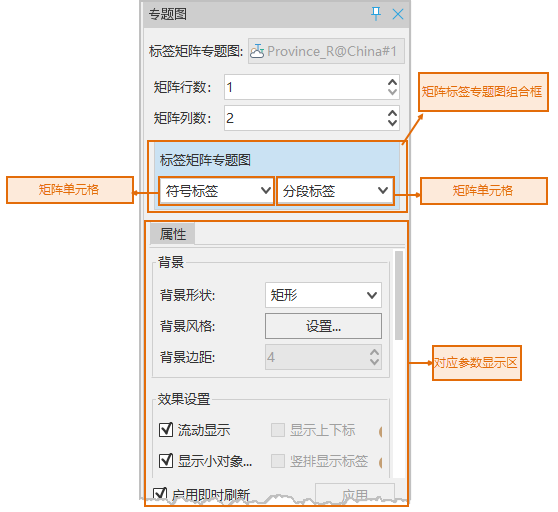
When the user selects a matrix cell and double-clicks it, a drop-down menu pops up for selecting the label type, allowing modification of the label type for that matrix cell. Different label types have different parameters. Selecting different labels displays different parameters in the corresponding parameter area. Details are as follows:
- Symbol Label
- Symbol: Sets the displayed Code ID. The ID value can be entered manually, or a field containing the Code ID can be selected. The fields in the drop-down list here default to displaying as Field Alias. If needed, it can be switched to the field name in the File tab -> Options group. For details, please refer to the Preference Settings document. The symbol ID can be viewed in the Resource node -> Marker Symbol Library.
- Marker Size: Sets the display size of the symbol shown in the cell. The input value is an integer, and the unit is millimeters.
- Color: Sets the color of the symbol shown in the cell. Click this button to pop up the color dialog for selecting and setting the desired color.
- Rotation Angle: Sets the rotation angle of the symbol shown in the cell. The input value is an integer, and the unit is degrees.
-
The parameters for uniform label include three tabs: Property, Style, and Advanced, supporting the setting of label expression, offset, font, color, and other parameters. Its content and usage are the same as the uniform label thematic map. For details, please refer to: Modify Uniform Label Thematic Map.
-
Single-value Label
The parameters for single-value label include three tabs: Property, Style, and Advanced, supporting the setting of label expression, offset, font, color, and other parameters. Its content and usage are the same as the unique value label thematic map. For details, please refer to: Modify Unique Value Label Thematic Map.
-
Range Label
The parameters for range label include three tabs: Property, Style, and Advanced, supporting the setting of label expression, offset, font, color, and other parameters. Its content and usage are the same as the ranges label thematic map. For details, please refer to: Modify Ranges Label Thematic Map.
-
Picture Label
- Picture Path: Sets the thematic variable for the picture label thematic map, i.e., the property field. The attribute content of the field value is the relative path where the picture is saved. The fields in the drop-down list here default to displaying as Field Alias. If needed, it can be switched to the field name in the File tab -> Options group. For details, please refer to the Preference Settings document.
For example: The data source where the Capital_P dataset is located is stored in the E:\SampleData\China folder, and the pictures are saved in the E:\SampleData\China\WeatherForecast folder. Then, simply write the relative path of the picture in the Path_1 field, such as: WeatherForecast\a4.bmp.
- Rotation Angle: Sets the rotation angle of the picture shown in the cell. The input value is an integer, and the unit is degrees.
- Keep Original Size: Check this box to display the picture at its original size within the matrix cell.
- Picture Width: Sets the width of the picture shown in the cell. The input value is an integer.
- Picture Height: Sets the height of the picture shown in the cell. The input value is an integer.
 Note:
Note:- When setting the picture path field for a picture label, the attribute content of the field value is the relative path of the picture; absolute paths are not supported. The relative path search order is:
- Check if the absolute path of the picture exists based on the current workspace path.
- Check if the absolute path of the picture exists based on the current component bin package path.
- Check if the absolute path of the picture exists based on the current file database.
If not found in any of the above, the picture label will not draw that picture.
-
Both created and modified matrix label thematic maps can be saved as templates for application to thematic map creation in other layers. For details on saving as a thematic map template, please refer to Save To Thematic Map Template Library.
-
Matrix label thematic map supports superscript/subscript. The superscript/subscript function is available when the matrix cell type in the matrix label thematic map is Uniform Label or Ranges Label. For specific usage, please refer to the Property tab introduction in Uniform Label Thematic Map and Ranges Label Thematic Map.
- When setting the picture path field for a picture label, the attribute content of the field value is the relative path of the picture; absolute paths are not supported. The relative path search order is:
- Picture Path: Sets the thematic variable for the picture label thematic map, i.e., the property field. The attribute content of the field value is the relative path where the picture is saved. The fields in the drop-down list here default to displaying as Field Alias. If needed, it can be switched to the field name in the File tab -> Options group. For details, please refer to the Preference Settings document.
- Symbol Label
Related Topics