



In the File tab -> Options group, various preferences of the software are centrally managed. You can adjust them according to your personal usage habits to improve operational efficiency and software experience. All settings are saved on the current computer, and you do not need to reconfigure them even if you change the product package.
Common
Operations
- Auto open window for dataset
- Checked (Default): When double-clicking a dataset in the workspace manager, a new map window is automatically opened to browse the data information.
- Unchecked: When double-clicking a dataset in the workspace manager, the data is opened directly in the current map.
- Prompt to save on close
- Checked (Default): When closing windows such as maps, scenes, or layouts that contain unsaved content, a prompt appears asking whether to save.
- Unchecked: Closes directly without a save prompt.
- Prompt to save workspace on close
- Checked (Default): When closing a workspace that contains unsaved content, a prompt appears asking whether to save.
- Unchecked: Closes the workspace directly without a save prompt.
- Warn memory datasource on close
- Checked (Default): When closing a workspace containing an EMS datasource, a confirmation prompt appears to avoid data loss.
- Unchecked: Closes the workspace directly without a prompt.
- Auto close empty map
- Checked: When all layers are removed from a map, the map is closed automatically.
- Unchecked (Default): When a map has no layers, the map is still retained.
- Multi-line display window
- Checked: When there are too many window titles, they are automatically displayed on a new line.
- Unchecked (Default): When there are too many window titles, the excess is collected into a drop-down menu.
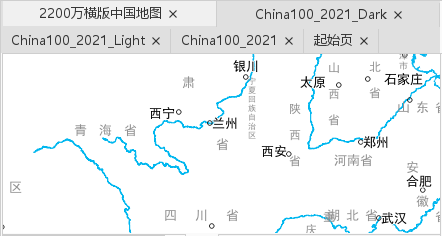
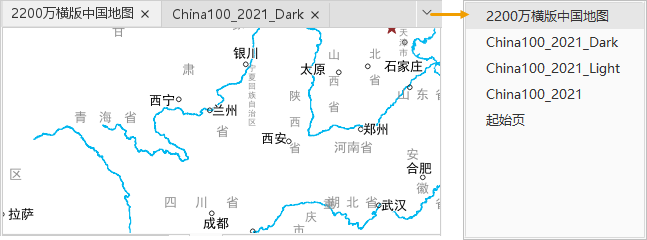
Figure: Multi-line display window checked Figure: Multi-line display window unchecked
- Auto close dialog on success
- Checked (Default): After a tool runs successfully, the parameters dialog box is closed automatically.
- Unchecked: After a tool runs successfully, the parameters dialog box is retained.
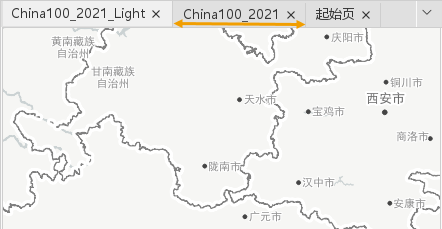
- Maximum window title length: Sets the maximum display length of window titles for maps, attribute tables, scenes, etc. The default is 400 pixels.
- Show lightweight output
- Checked (Default): The latest output information is automatically displayed in the output window at the bottom.
- Unchecked: Output information is not displayed automatically; you need to manually click the output window to view it.
- Enable map & layer anti-aliasing
- Checked (Default): When opening data into a map, the line and text anti-aliasing function is enabled by default.
- Unchecked: When opening data into a map, the line and text anti-aliasing function is not enabled.
- Refresh interval when map size changes: Sets the redraw waiting time when zooming a map. The default is 0 milliseconds (redraw immediately after zooming is completed).
- Load template layer name
- Default Layer Name: Uses "Dataset@Datasource" as the layer name.
- From template file: The layer name is consistent with the name in the template file.
- Thematic map field display: Used to set the display method of selected fields in thematic maps. The default display isField Alias, and it supports switching tofield.
- Enable User Experience Plan
- Checked (Default): Allows automatically sending product operation information to SuperMap when connected to the internet.
- Unchecked: Does not send any product operation information.
Selection Style
- Point Style: Click the point symbol setting button to set the shape and color of selected points in the marker symbol selector.
- Line Style: Click the line symbol setting button to set the shape and color of selected lines in the line selector.
- Fill Style: Click the symbol setting button to set the shape and color of selected fills in the fill symbol selector.
Environment
Basic Settings
- Desktop title: Sets the display name at the top of the software window. The default is the current version name, followed by unchangeable license information.
- Visible decimal places: Controls the number of decimal places displayed for numerical values. The default is 6.
- Parallel computing threads: Specifies the number of threads that can be used for parallel computing. The range is [1,16], and the default value is 2. A reasonable setting can fully utilize multi-core CPU resources and improve computing efficiency.
- Analysis memory mode
- Standard mode (Default): Forces the use of the recordset method to read stored data.
- Large Memory: Forces the use of the memory method to read data, unaffected by the remaining physical memory.
- Scene rendering engine
- V1 (Default): Uses the 3D scene rendering engine V1 based on OpenGL.
- V2: Uses the 3D scene rendering engine V2 based on Vulkan.
- Scene Anti-Alias
- Checked (Default): Used to optimize the display of model edges and reduce aliasing. The anti-aliasing coefficient defaults to 2, with a value range of [0,16].
- Unchecked: The scene anti-aliasing function is not enabled.
- Customize Watermark
- Checked: When enabled, a customized watermark can be displayed when creating tiles or exporting maps. Only PNG format images are supported, and the size must not exceed 128×128 pixels.
- Unchecked (Default): Uses the default watermark or no watermark, depending on the Type.
- GPU Acceleration
- Checked (Default): For some analysis functions, when hardware conditions are met, GPU acceleration is enabled to improve analysis performance.
- Unchecked: GPU acceleration is not used.
- Use Thousand Separator
- Checked (Default): Automatically adds a thousands separator to numerical values exceeding one thousand.
- Unchecked: Does not use the thousand separator.
- Match Dataset & Table Names
- Checked: The dataset alias cannot be changed and remains consistent with the table name.
- Unchecked (Default): Allows setting the dataset alias separately.
- Auto-Compact New Datasource
- Checked (Default): When creating a new UDB/UDBX datasource, the data compaction function is automatically enabled. If data is deleted, disk space is automatically reclaimed.
- Unchecked: The data compaction function is not enabled.
- Async Mapping
- Checked (Default): Draws points, lines, polygons, and other maps in a separate thread to improve response performance.
- Unchecked: Draws points, lines, polygons, and other maps in the main thread.
Runtime Settings
- File tiles path:: Sets the storage path for cache files in the workspace.
- Component log level: Sets the recording level of error logs, including the following options:
- DEBUG: For development programmers, contains all information.
- ERROR (Default): For users, contains errors that may be caused by illegal operations, etc.
- FATAL: Contains severe errors.
- INFO: Contains detailed log information.
- WARNING: Contains all warning messages.
- Output Info:
- Output Info:
- Checked (Default): Outputs prompts from the execution log, such as successfully creating a dataset.
- Unchecked: Does not output prompts.
- Exceptions:
- Checked: Outputs exception information from the execution log.
- Unchecked (Default): Does not output exception information.
- Output Info:
Save
Specifies whether to automatically back up the workspace.
- Checked (Default): The workspace and symbol library will be saved according to the specified time interval.
- Workspace save interval: Sets the time interval for backing up the workspace. The default is 30 minutes.
- Symbol library save interval: Sets the time interval for backing up the symbol library. The default is 60 minutes.
- Show auto save workspace information: Checked by default, meaning a prompt is given in the output window when saving the workspace. For example: workspace "China" saved successfully.
- Unchecked: The automatic workspace backup function is not enabled.
System Env
Used to set the system environment variables of the software. The instructions for adding system environment variables are as follows:
- Click the Add button to pop up the Add Environment Variable dialog box.
- Enter the Variable and Value (separate multiple variable values with English semicolons (;)).
- After confirming it is correct, click the OK button.
Language
Used to switch the interface language of the current software.
Download and extract the language pack, then copy the folder in the package to the root directory of the software installation. After that, you can switch the language through the interface. The language pack download address is: https://pan.baidu.com/s/1S1vr9jz49l-8I80sxITyWw, and the extraction code is: 4u5m.
- Interface language: Switch between different interface language types through the drop-down menu. Supports Simplified Chinese, English, and Français.
- After switching the interface language, a prompt will be displayed below: "Restart the desktop to make the interface language change take effect." After restarting the iDesktopX software, the interface language switch takes effect.
Experience function
New version GPA canvas
SuperMap iDesktopX 2025 has comprehensively upgraded the model building canvas. The output port is directly integrated into the tool/variable node, greatly reducing redundant nodes and visual interference, making the data processing logic more intuitive and clear.
After checking this checkbox, restart the iDesktopX software to experience the new version of the GPA canvas style.
AI Assistant
The AI Assistant function launched by SuperMap iDesktopX 2025 is based on advanced large language models. It aims to lower the threshold for GIS use, improve user operational efficiency, and open a new era of intelligent interaction through natural language operation, automated processes, and intelligent guidance.
Click this link to get more help on the AI Assistant.
Crash feedback
When a product crash occurs, this provides a way to feed back crash information. It supports saving crash logs to a local directory and also supports automatically sending crash logs to SuperMap.
- Save crash reports offline only: Used to set the handling method for crash information feedback. This item is not checked by default.
- Checked - After a crash, when iDesktopX is started again, the Crash Report dialog box will pop up to set the handling method of the crash information, including three methods: Export, Process later, and Do not remind again. If you choose Export, you can save the crash log to a specified local directory; if you choose Process later, you can process pending reports in File->Options->Crash Handling; if you choose Do not remind again, the crash report dialog box will no longer pop up.
- Unchecked - After a crash, if the computer is connected to the internet, the crash information will be automatically sent to SuperMap when iDesktopX is started again.
 Note:
Note:Crash information is sent automatically only when the User Experience Improvement Plan is enabled and the computer is online. The plan is disabled by default. To enable it, go to File > Options > Common and check the option. If the plan is not enabled, after restarting iDesktopX following a crash, you must manually choose an action in the crash report dialog: Send, Export, Process later, or Do not remind again.
Remote Sensing Environment
Organizes unified configuration parameters for remote sensing data processing, including the parallel count and parallel strategy. This avoids repeated settings each time data is processed, simplifies the workflow, and improves processing efficiency.
- Parallel Count: Specifies how many processes are started simultaneously to execute data processing functions. The default value is 6.
- Parallel Strategy: Provides two strategies, Block Parallel and File Parallel, to improve file processing efficiency.
- Block Parallel: When the computer disk performance is slow or the imagery does not have pyramid files, the block parallel strategy is recommended.
- File Parallel: When the computer disk performance is high and the number of files is large, the file parallel strategy is recommended.
Related Topics