



When displaying mosaic datasets containing massive image data in the map window, they default to full view with only outlines shown. When zooming to specific scale levels, the system dynamically reads and stitches image files within the visible bounds for display.
The initial browsing may be slower, but after the first view, the system will build a cache, making subsequent views highly efficient.
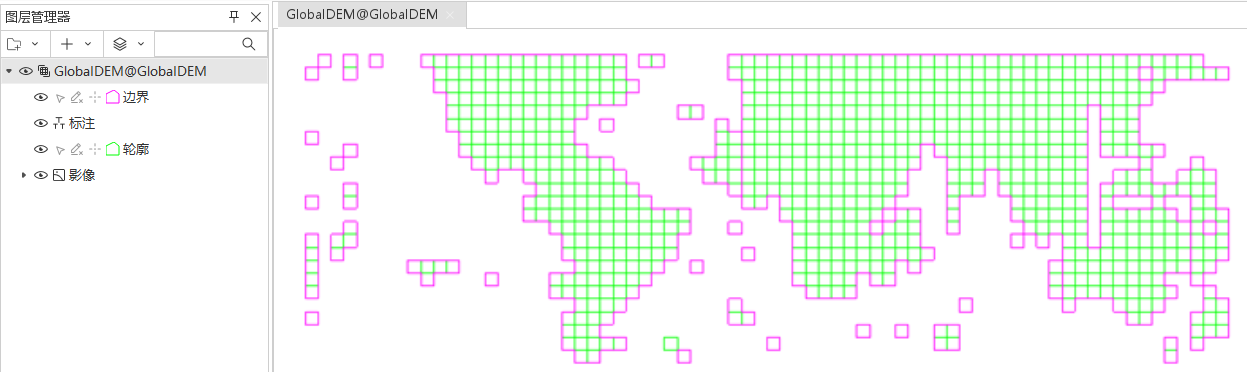 |
| Figure: Full View Mosaic Dataset |
In SuperMap ImageX Pro , use the mosaic dataset layer properties panel to control image display methods. This section introduces common parameters. For other parameters, refer to Setting Image Layer Properties.
Removing Image No-Data Values
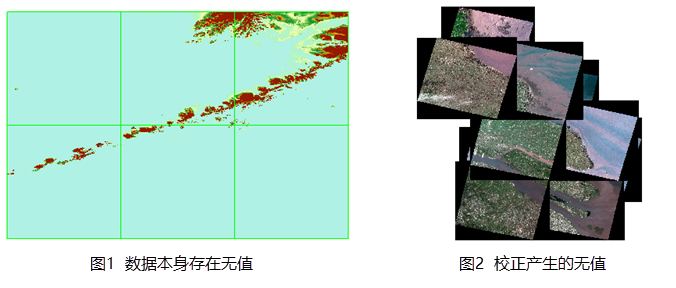
Some remote sensing imagery may contain no-data areas after correction, affecting mosaic display effects. These no-data areas need to be removed through appropriate settings.
No-data scenarios fall into two categories: internal no-data areas (Figure 1) and no-data regions generated by geometric correction outside valid coverage (Figure 2).
 |
Two methods are available for no-data removal: No-Value Transparent and clipping display. Choose the appropriate method based on no-data characteristics.
- No-Value Transparent Method: Removes inherent no-data values.
- Select the mosaic dataset image layer in Layer Manager and open Layer Properties.
- Specify pixel values in the No Value field under Image Parameters.
- Enable No Value Transparent to remove no-data areas.
- Clipping Display Method: Uses clipping regions to display only valid ranges.
- Select the mosaic dataset image layer in Layer Manager and open Layer Properties.
- Set Crop Type to Dataset Clip in the Advance Settings group.
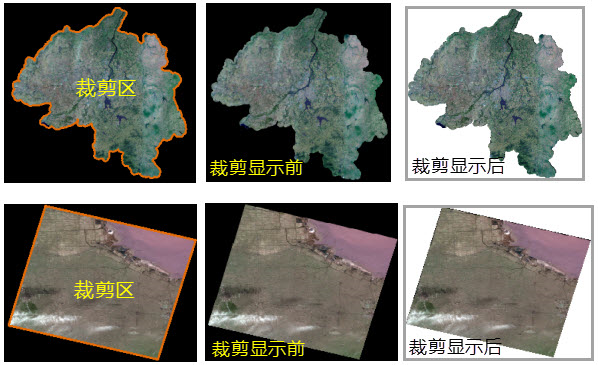 |
| Figure: Removing Correction-Induced No-Data via Clipping Display |
Display Filter
Sets display filters for current layer to show only qualified features.
Crop Type
While mosaic datasets enable rapid configuration of national/global image maps, localized displays are sometimes required (e.g., showing only Hebei Province coverage).
The mosaic dataset layer properties panel provides three clipping methods: Boundary Clip, Dataset Clip, and Footprint Clip to control visible bounds.
- Boundary Clip: Uses boundary data constructed from image outlines. Displays all images within boundary lines.
- Dataset Clip: Clips images based on data from Rebuild Bounds.
- Footprint Clip: Uses footprints based on mosaic dataset's spatial reference, reflecting actual image boundaries. Displays images within footprint ranges.
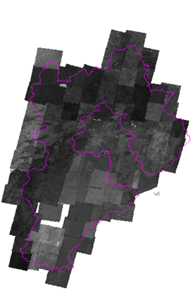 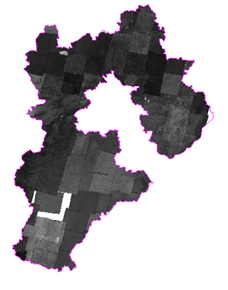 |
| Figure: Before and After Dataset Clipping |
Display Order Setting
Adjust SmZOrder field values in the footprint dataset to control image display order. Details refer to Feature Display Order Field.
File Handle Cache
The file handle cache stores file handles of mosaic dataset images to reduce repetitive file-opening operations and improve rendering performance. By default, file handles reopen for each display operation. Enabling caching preserves opened handles, reducing repetition but increasing memory usage.
Default cache size is 100 files. Adjust this value based on actual needs (dataset size and hardware capability) to balance memory usage and performance optimization.
Related Topics