



Build Mosaic Dataset
Feature Description
Managing mosaic datasets through the image management process can be regarded as image import. The import process involves adding multiple images in different formats (*.tif, *.tiff, *.img, *.ecw, *.pix, *.sid) to the same mosaic dataset.
The efficiency of import lies in the fact that the mosaic dataset does not copy original image files, but records metadata such as image paths, footprints, resolutions, etc.
Feature Entry
- Toolbox->Image Management->Build Mosaic Dataset->Build Mosaic Dataset.
- Image Panel->Other Datasource->Datasource Context Menu->Build Mosaic Dataset.
Steps
- Click the Image Panel->Other Datasource->Datasource Context Menu->Build Mosaic Dataset button to open the Build Mosaic Dataset dialog.
- Use toolbar tools to add/remove image files. The mosaic dataset will record absolute path information of added image files.
- Add: The dropdown button contains following options:
- Add File: Add specified image files (*.img, *.tif, *.tiff, etc.) to current list area. Supports adding *.tif, *.tiff, *.img files from cloud storage.
- Add Folder: Add all image files in specified folder. When adding via folder, uniform settings can be applied for file types and subfolder search. Supported image types include: IMG File, TIFF File, ECW File, SID File. Supports adding folder paths from cloud storage.
- Add List: Add specified manifest files (*.txt, *.tif, *.tiff, etc.). The program will add all images listed in the manifest to current list area.
- Add Mosaic Data: Add existing mosaic data to obtain image information from dataset.
- Add FTP Address: Add FTP server path to retrieve image files from FTP server.
- Delete: Remove images that do not need to be added to mosaic dataset.
- Data List Area: Displays basic information of added sub-datasets, including:
- Alias: Display name of sub-dataset in mosaic dataset collection.
- Path: Disk path of image files.
- Add: The dropdown button contains following options:
- Set mosaic dataset name in Dataset Name field.
- Set target coordinate system: After adding image files, the coordinate system of first georeferenced file will be automatically set as mosaic dataset's coordinate system. Three coordinate setting methods are available via toolbar: Reset Coordinate System, Copy Coordinate System and Import Coordinate System Set Coordinate System.
- Click OK to complete mosaic dataset creation. The created mosaic dataset node will appear under Image Panel->Other Datasource->Specific Datasource, containing footprint, boundary and clip.
- Footprint: The foundation for organizing image files in mosaic dataset. As a region dataset, each polygon represents geographic extent of single image. As shown below, footprints provide global view of image distribution and coverage.
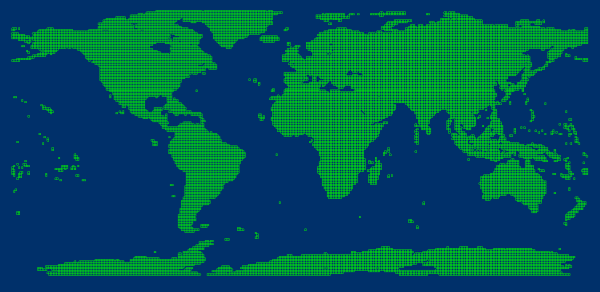
Figure: Global 30m Resolution DEM Data (Mosaic Dataset Footprint) Besides geographic range, footprints manage metadata including storage locations and pyramid resolution ranges. In practice, footprints may also manage other information like acquisition time and manufacturer through custom field creation and updates.
- Boundary: A region dataset containing polygons defining visible extent of mosaic dataset. Default boundary is built from footprints. Custom boundaries or specified geometries can rebuild boundary to display images within new extent.
- Clip: A region dataset containing polygons controlling visible extent of each image. Default clips are created from image footprints. Modify clip ranges through Mosaic Line Management.
- Footprint: The foundation for organizing image files in mosaic dataset. As a region dataset, each polygon represents geographic extent of single image. As shown below, footprints provide global view of image distribution and coverage.
- Add mosaic data to layer manager. A mosaic dataset contains four components: boundary line, label, footprint line and images. As shown below, the dataset contains 6 image datasets displayed on map with pink boundary frame, green footprint lines, and mosaicked images at bottom.

Figure: Mosaic Dataset Structure - Footprint Line: Reflects actual image boundaries in mosaic dataset's spatial reference.
- Boundary: Built from footprint lines. Adjust boundary range to dynamically change overall display. Existing vector boundaries or administrative divisions can replace original boundaries for customized display.
- Image: All managed images dynamically mosaicked for display.
- Label: File names of original images in mosaic dataset.
Related Topics