



Function Description
The Projection Settings dialog box is used to set the projected coordinate system information for the selected data source, dataset, or current map in the current workspace.
Feature Entry
- Start tab->Data Processing group->Projection Settings.
- In the workspace manager, from the dataset context menu->Properties->Coordinate System option, select Reset Coordinate System....
- In the map, from the context menu->Properties item, in the Layer Properties panel->Coordinate System option, click the Reset Coordinate System... button.
Steps
The system provides a large number of commonly used basic projection types both domestically and internationally, including user-definable options, for users to choose from. Users can select a projected coordinate system provided by the system or customize one in the Coordinate System Settings dialog box, and apply it to the currently selected data source, dataset, or current map.
- Click the Start tab->Data Processing group->Projection Settings button to open the Coordinate System Settings dialog box.
- After clicking the Projected Coordinate System node folder in the left directory tree, the predefined coordinate system information provided by the system will be listed in the file list on the right. Select the projected coordinate system you need to set. You can also enter all or part of the characters of the coordinate system file in the Search box in the toolbar window to quickly locate it.
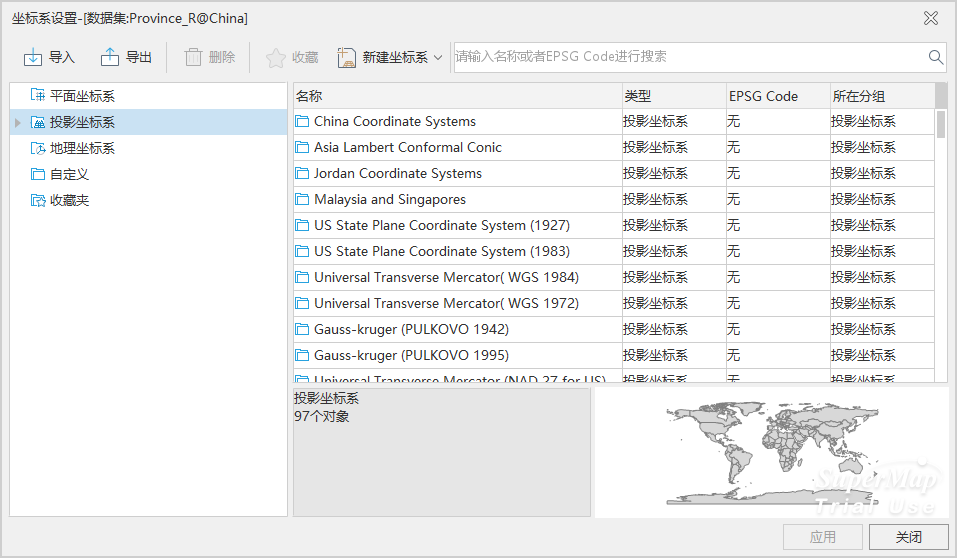
- If the predefined coordinate systems provided by the system do not meet your needs, you can also customize a projected coordinate system. Please refer to Create Projected Coordinate System.
- After selecting the relevant projected coordinate system file, click the Apply button to apply the selected projected coordinate system to the currently selected data source, dataset, or map.
 Note:
Note:SuperMap ImageX Pro version 11.3.0 added the IGAC Plano Cartesiano series of projected coordinate systems. If data or maps using this coordinate system are opened in a version lower than 11.3.0, the coordinate system cannot be correctly parsed and will be displayed as a planar coordinate system. Projection operations cannot be performed correctly, and the coordinate system information will be lost when saving maps or outputting map templates.
Related Topics
Create Geographic Coordinate System
Create Projected Coordinate System
Create Coordinate System by EPSG Encoding
Set Geographic Coordinate System