



Hidden Rows/Unhide Rows
Hidden Row
Function Description
Hidden Row is used to hide the selected rows.
Access Points
- In the Table window context menu, click the Hidden Row button.
Operation Instructions
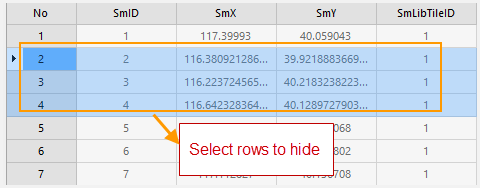
- In the opened attribute table, select one or more rows that need to be hidden. You can use the Shift or Ctrl key to select multiple records.
- Right-click, and then click the Hidden Row option in the context menu.
- The selected rows will be hidden in the table. Meanwhile, the row before the hidden rows will be fully selected, and a hidden row marker will be displayed below that row.
 Notes:
- The Hidden Row button is only available when there are selected rows in the current attribute table.
- The hide row operation does not delete the hidden attribute rows; it only makes some rows temporarily invisible. You can use the Unhide Rows button to display the hidden attribute rows.
- After closing and reopening the attribute table, the previous hide row or hide column operations will not be retained, and all row and column information in the attribute table will be displayed.
Unhide Rows
Function Description
Unhide rows is used to show the hidden rows. The Unhide Rows option is only available when there are selected rows in the current attribute table.
Access Points
- In the Table window context menu, click the Unhide Rows button.
Operation Instructions
- Right-click in the attribute table, select the Unhide Rows option, and then all hidden rows will be shown.
 Tips:
Tips:- If there are no selectable columns in the current attribute table, it means all attribute columns are hidden. After clicking the Unhide Rows button, all hidden rows will be shown.
- After the hidden rows corresponding to the hidden row marker are displayed, the marker disappears.
Related Topics