



Step Two Creating River Thematic Map
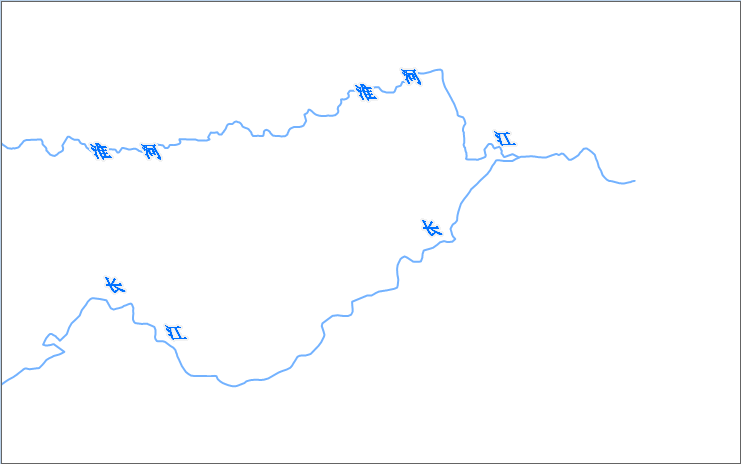
The purpose of this map is to highlight river annotations. Since the length of major rivers is often long, cyclic labeling is required.
Operation Steps
- In the Layer Manager, right-click the MainRiver_L dataset, and select Create Thematic Map ... from the context menu.
- In the pop-up Create Thematic Map dialog, select Single Symbol Label Thematic Map to generate a default style label thematic map.
- In the Thematic Map window's Properties tab, configure the following settings:
Parameter Value Label expression Name Offset unit 0.1mm Offset X -40 - In the Thematic Map window's Style tab, configure the following settings:
Use default values for other parameters.Parameter Value Font SimSun Font size 15 Tilt angle 40 Text color RGB(0,113,255) Font effect Italic, Outline, Fixed size - In the Thematic Map window's Advanced tab, configure the following settings:
Along-line character spacing represents the distance between characters in the label text, in multiples of character height. The value range is 1-8, indicating the distance is 1-8 times the character height. Here, set the along-line character spacing to 8, meaning the interval between texts is 8 times the character height. Along-line periodic spacing of 2500 means the distance from the start (end) of one label text to the start (end) of the next label text is 2500 map units. Use default values for other parameters. For detailed descriptions of the "Advanced" tab parameters in the Uniform Label Thematic Map, refer to Label Thematic Map "Advanced" Tab.Parameter Value Fixed text angle Checked Along-line display direction Top to bottom, Left to right Along-line character spacing 8 Along-line periodic spacing 2500 - Modify the display style of MainRiver_L. In the Layer Manager, select the MainRiver_L layer, right-click, and choose "Layer Style" from the context menu. In the "Line Symbol Selector" window, set the line type to default, line width to 0.1mm, and line color to RGB(115,178,255).
- For better map display effects, in the "Map Properties" interface under "Basic" parameters, check "Line Antialiasing" and "Text Antialiasing".
- After setup, save the map, with the map name as River Label Alongline.
The configured map effect is shown below:
Related Topics
Step Three Configuring Basemap and Map Surround Elements