



Step 3: Configure the Basemap and Map Surround Elements
After completing the creation of the label thematic map content, to enhance the map display aesthetics, it is necessary to add a basemap and perform map surround elements.
Operation Steps
- In the Layer Manager, select the Provinces_R layer.
- Click the "Map" tab's "Thematic Map" group's "New" button. In the pop-up window, click "unique value thematic map" and select the "Default" option. For the label expression, choose "ColorID". This will generate a default style unique value thematic map based on the ID value.
- In the Thematic Map window's Properties page, set the style for the sub-items of the unique value thematic map as follows:
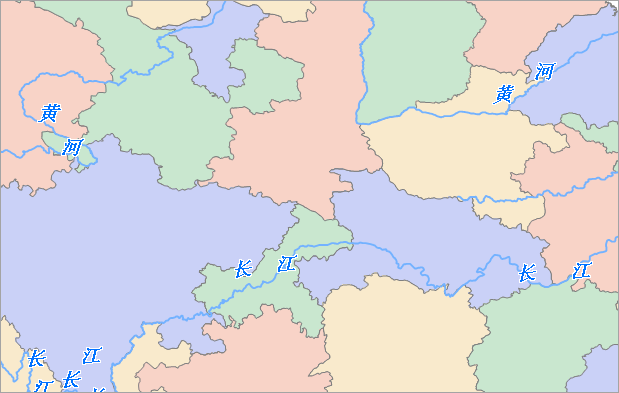
ID Value Style 1 Foreground color: RGB(202,209,247) 2 Foreground color: RGB(201,231,207) 3 Foreground color: RGB(248,211,199) 4 Foreground color: RGB(249,234,204) - After completion, remove Provinces_R from the Layer Manager.
- In the Layer Manager, double-click the Border_L layer to set its style. In the popped-up Layer Style dialog, select the "National Boundary" linear symbol in the root group.
- Adjust the layer properties. The Provinces_R unique value thematic map layer is at the bottommost layer. The Border_L layer is above the Provinces_R unique value thematic map layer. The MainRiver_L layer is above this layer, and the Mainriver_L label thematic map layer is at the topmost layer.
- To improve the map's display effects, in the "Map Properties" interface's "Basic" parameters, check the "Line Antialiasing" and "Text Antialiasing" options.
- After setting is complete, save the map with the map name "River Label Alongline".
The configured map effect is as shown below:
Related Topics
Step 2: Create a River Thematic Map