



Supports GML Data Import of S-131-compliant *. Data to File Database, Database-type Datasource (PostGIS or DMPlus), or EMS Datasource. Note The Datasource that imports S-131 data cannot be a read-only Datasource.
Operating instructions
- Open or create a new Datasource in Workspace to hold *.gml files
- Select Import Nautical Chart Data-> S-131.. in the opened readable Data sourceContext Menu.
- Select single or multiple S-131 *.gml files in the pop-up Import Nautical Chart Data dialog box.
- After Select File, the selected file is listed in the S-131 dialog box, and the following parameters are available for viewing and editing:
- Source Files: Displays the imported *. GML File Name.
- Source Data: Displays the imported Chart Data path.
- Feature Encoding File: Displays the Feature Encoding File corresponding to the imported Source Data. You can modify the encoding File Path by double-clicking the cell.
- Target Data source: Displays the name of the Target Datasource. Other Datasources in the Current Workspace can be selected from the drop-down list.
- After setting the above parameters, click the Import button to complete the import of S-131 Chart Data. The data is displayed as Raster Data under the corresponding Datasource in Workspace Manager.
View Port Infrastructure Data
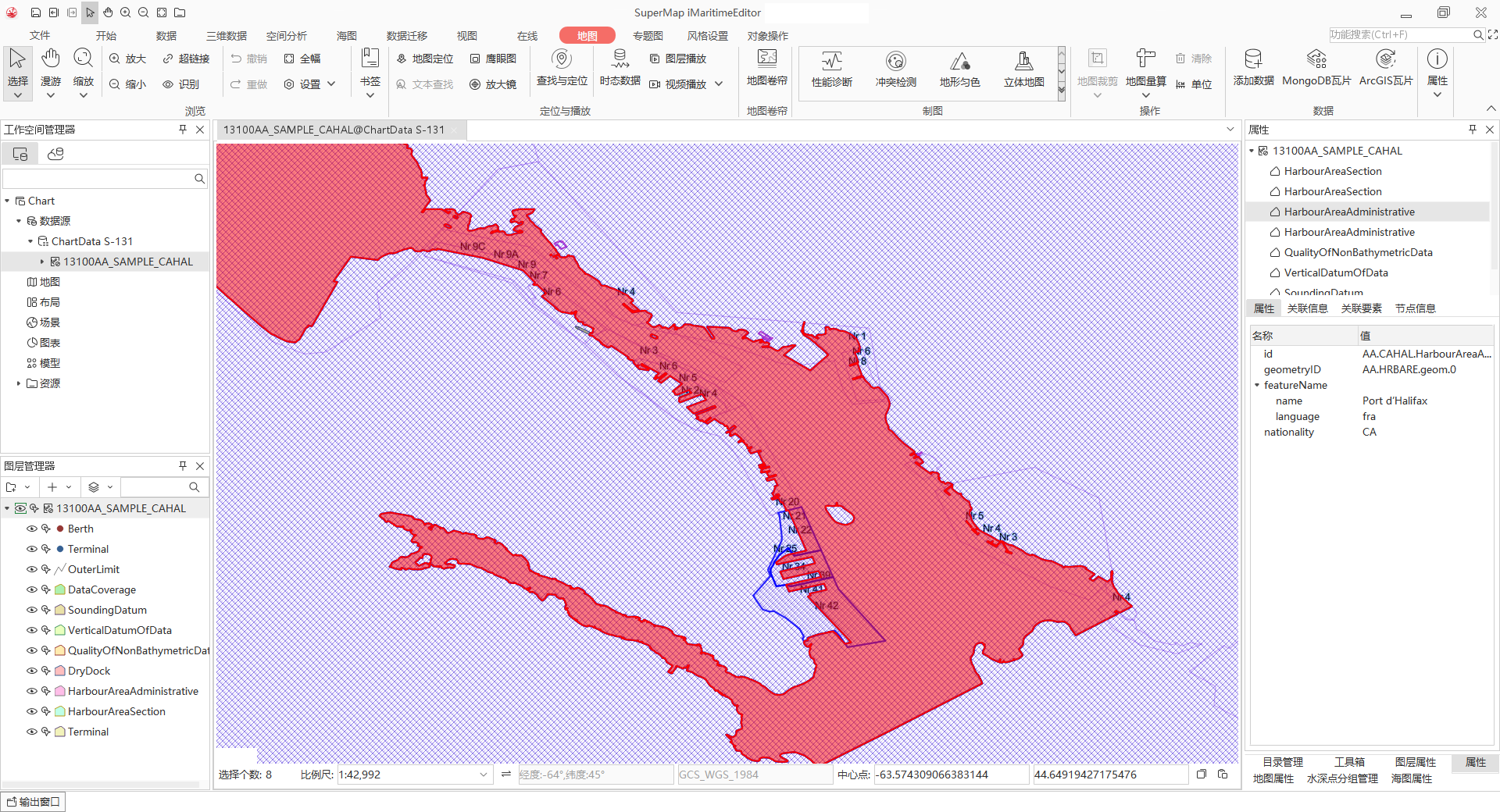
After the S-131 file is imported as a Chart Group, click or hold Shift to select the Chart Group to be browsed in batch, and select Add to New Map or Add to Current Map in the Context Menu. Enable quick access to port infrastructure data.
The Chart Group in the Add to Map window will remain displayed as a group in Layer Manager for easy layer management. As shown in the following figure, you can right-click the Select Elements object to query the attributes and view the detailed Attributes in the right panel. For details, please refer to: View Feature Object Properties .
Related topics