



SuperMap iMaritimeEditor supports viewing the feature directory information of Chart Data feature objects. Includes the attributes of the feature object, Related information, Connective tissue, Reference Object, and Nodes. The following data is supported:
- S-101 Electronic Chart
- S-127 Maritime Traffic Management
- S-131 Port infrastructure
Looking at the feature Object Properties is critical in practice. It is not only the basis for ensuring safety and accuracy in ship navigation, but also the Crucial Step to ensure the accuracy and symbolization of chart production process, such as:
- When assisting the ship to navigate, check the light intensity and flashing frequency of the lighthouse, which can help the ship to navigate safely at night or in low visibility conditions; When planning the route, the ship can avoid the dangerous area and ensure the safety of the navigation path by checking the Related information and Reference Object of the chart elements, such as the channel boundary, shoal and other potential dangerous objects.
- During chart production, in order to ensure the accuracy of data, cartographers can verify the correctness of data by checking the Object Properties of elements to ensure that the attribute values of each element (such as water depth, lighthouse light characteristics, channel boundary, etc.) are consistent with the actual situation, so as to generate accurate charts; In order to ensure Chart Symbology, cartographers can ensure that the elements are correctly symbolized and displayed in the chart by looking at the Object Properties of the elements, so that navigators can correctly interpret the chart information.
Operation steps
- Under the Map tab, click Select to enter the selection mode. Select Object in Chart Window. Use the Shift key or drag the box to select multiple objects at the same time.
- Click the right mouse button in the Chart Window and select the Properties option in the Context Menu.
- The Properties window that pops up displays the Details of the selected object, which you can view by toggling the Properties, Related information, Connective tissue, Reference Object, and Nodes options. The Related information, associated object, and Reference Object options are displayed only if the object has these properties.
- Attribute: defines which attributes can be bound to which element types, and the possible value range of the attribute. For example, the property Light Color may only be selected for Red, Green, or White.
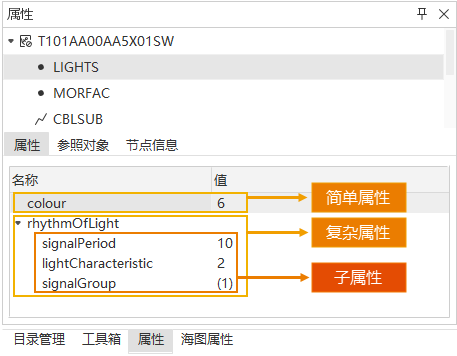
- Simple attribute: The attribute of the feature object cannot be subdivided and has no child attributes. The "colour" attribute in the following figure.
- Complex attributes: The attributes of a feature object include subattributes. The rhythmOfLight attribute in the following figure, which includes the signalPeriod, lightCharacteristic, and signalGroup subattributes. A child attribute of a complex attribute can also be a simple or complex attribute.
- Related information: defines the relationships between different feature types to help describe complex geographic entities and their interactions in Electronic Chart.
- In S-127, the elements can be linked to related navigation information, contact information, supervision management and reporting requirements in an orderly way, generally including the following InformationTypes:
-
General features: Nautical Information, Regulations, Restrictions, and Recommendations, used to provide notes, regulations, restrictions, or recommendations.
- Features
about the source: Organisation ContactArea, ContactDetails, used to provide the organisation's contact details and related information.
- Characteristics supervised or controlled
by an organization: Supervised Area, Authority, etc.
- Features
related to reports: Reportable Service Area, Ship Report, etc.
When an -
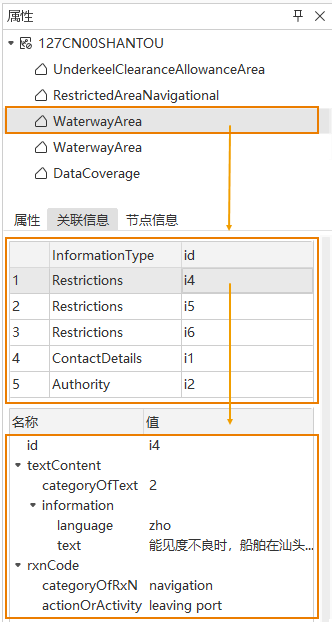
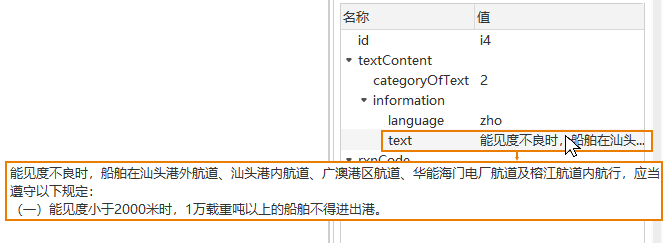
- element is queried, all the related information and InformationTypes of the queried element are displayed in the Related Information area of the Attribute panel on the right side of the interface. Select the information you want to view to view its detailed Attributes on the lower panel. For values that are not fully displayed (such as the long text in the following figure), you can place the mouse over the text to view the full text in the prompt box.
- In S-127, the elements can be linked to related navigation information, contact information, supervision management and reporting requirements in an orderly way, generally including the following InformationTypes:
- Connective tissue: Displays the element type of other elements associated with the object, and also displays the attributes of the connective tissue.
- Connective tissue helps to locate Map more accurately by describing the spatial relationship and composition relationship between different elements, especially in the case of complex geographic information and spatial relationship. This method is widely used in the Chart Data operating platform to ensure the accuracy and practicality of navigation and Map Information. For example:
- When determining the precise location of a lighthouse, the relevant navigation elements can be quickly found through its associated channel or navigation mark to ensure the accuracy of positioning.
- During submarine cable laying or drilling operations, by associating the surrounding seabed topography, obstacles and other elements, it can help to accurately locate the working area and avoid risks.
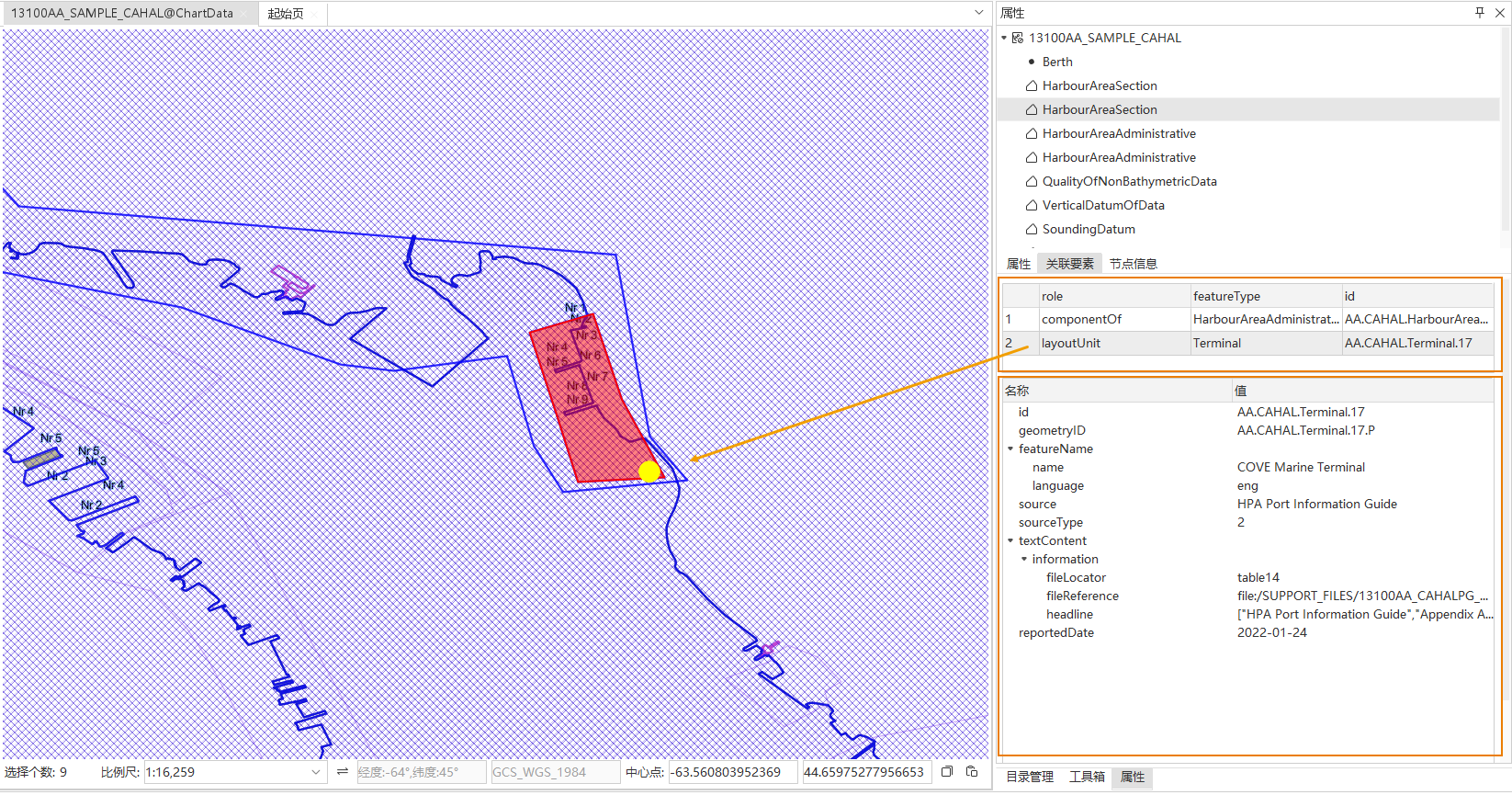
When querying an - element, the Connective Tissue area of the Properties panel on the right side of the interface displays all the connective tissues of the queried element. After clicking the feature, the Map will be automatically located and highlighted, and its Attributes will be displayed in the lower panel.
- Connective tissue helps to locate Map more accurately by describing the spatial relationship and composition relationship between different elements, especially in the case of complex geographic information and spatial relationship. This method is widely used in the Chart Data operating platform to ensure the accuracy and practicality of navigation and Map Information. For example:
- Reference Object: Boundary information of Select Objects, including Object ID, Boundary Direction, Boundary Type, Mask Type.
- The
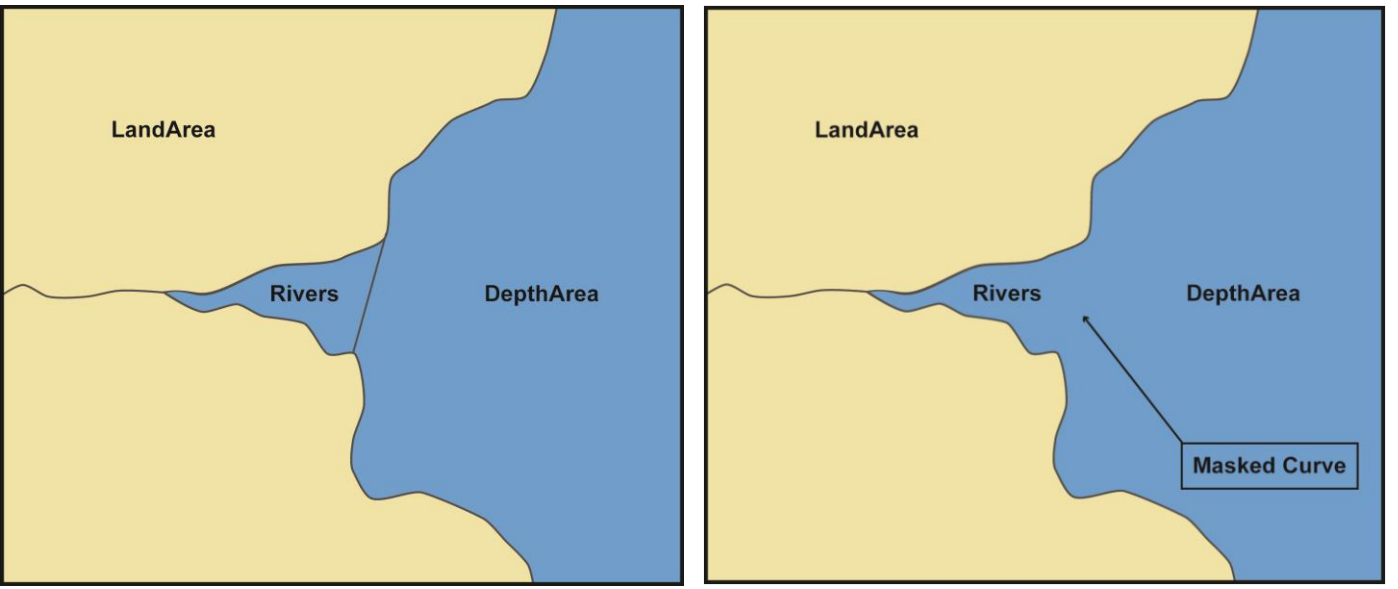
- Mask Type setting provides three types: Mask, Display, and Nothing to do with mask.
- Mask refers to hiding or suppressing the display of some geographical elements through a specific mechanism to avoid interference or display of unnecessary information on the map. As shown in the left figure below, the river is composed of multiple face objects. In the right figure, set the Mask Type at the adjacent object to mask, so that the line segment at the adjacent object can be hidden and displayed.
- Nodes Completely Within type, total number of subobjects, current subobjects, total number of nodes, node coordinate information, etc.
Related topics