



Instructions for use
Object Feature Display Control can help users to manage the visibility and selectivity of objects in the chart, so as to simplify Map Information and improve the efficiency of browsing and operation. For example, when the land is combined with the chart, the irrelevant land area objects can be hidden, so that clearer layer display can be realized; and by controlling the selection state of the objects, unnecessary objects can be avoided from being selected, so that the accuracy and efficiency of the operation can be improved.
- Displayable: controls the visibility of object elements in Map.
- Optional: control whether the target element can be selected for further operation.
Operation steps
- The Chart Group to be browsed is loaded into the Map.
- Select the Chart tab-> Nautical Chart Properties grouping-> click the Nautical Chart Properties button to pop up the Chart Properties Panel on the right.
- In the Filter Settings area, click the Element Settings button to open the Element Settings dialog.
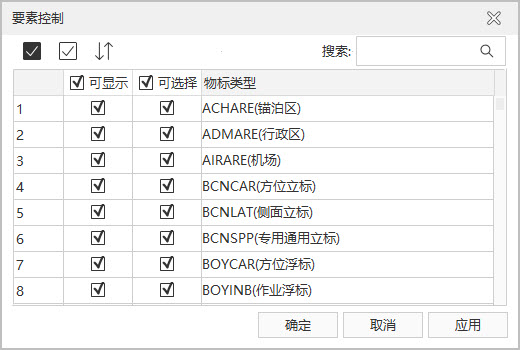
Element Settings dialog toolbar button:
-
All: Select all records in the list.
-
Invert Selection: Cancel the selected records and select the unselected records.
-
Reset: The recovery dialog is set to the initial state (does not affect the Search Results).
-
- Setting of
Object Type:
-
Displayable: controls the visibility of the object element in the current Map. The visibility of object elements can be customized according to requirements, and irrelevant objects can be hidden. By default, all object elements are visible.
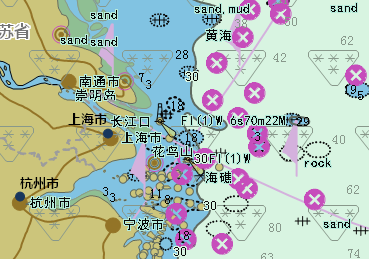
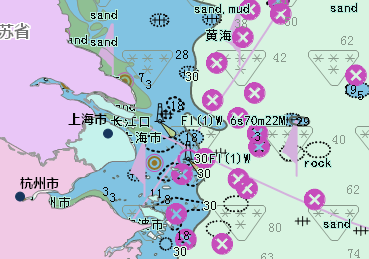
For example, when making Chart Data, the ocean and the adjacent land information are usually drawn together, but in actual use, they may need to be combined with the land map. At this time, the object describing the land can be hidden to achieve the desired Display Effects.
As shown in the figure, the land area object is not hidden in the left figure, so the land map is completely covered, and the user cannot view the relevant information; after the land area object is set to be invisible in the right figure, the chart and land map information can be displayed at the same time.
-
Optional: It is used to control whether the object element can be selected in the current Map, so as to perform further operation on the selected Object Type. By default, all object elements are selectable.
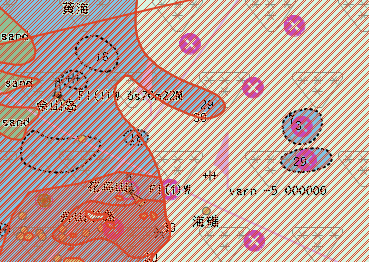
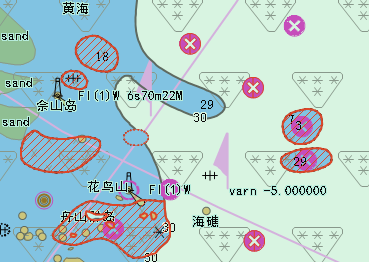
Because the object elements of the chart are superimposed on a chart, multiple elements may be selected at the same time when one or more objects are selected, which increases the complexity of the operation. Therefore, it is possible to cancel the "selectable" state of the object that does not need to be viewed, and it is convenient to accurately select and edit the Attributes of the target object.
As shown in the figure below, the left figure is the schematic diagram of selecting the obstacle object in the default state, and the right figure is the schematic diagram when only the obstacle is set as optional.
-
Object Type: display all object feature types contained in the current Map.
-
 Hint:
Hint: object is dependent on the displayable status and can only be set to selectable when the object is visible.
Related topics