



S-57 Electronic Chart data can be viewed by either Open Directly or Import.
Open directly
When a *.000 file conforming to the S-57 standard is opened directly, the file is in read-only mode and cannot be edited. There are two specific methods of operation:
- Method 1: Drag the *.000 file directly to the work interface, and set the Standard type of Parameter Settings to S-57 in the Open: Chart 000 file pop-up window. Note: The default parameter for Standard type is S-57. If the Standard type does not match the data file, the data will not open properly. The result of the setting is displayed before the File Name for easy checking.
- Method 2: Workspace Manager-> Datasource node Context Menu-> Open File Datasource, select *.000 file and open it. It is also necessary to perform Parameter Settings in the Open: Chart 000 file pop-up window.
Import Nautical Chart Data
Supports an S-57-compliant *.000 Import File to a File Database, Database-type Datasource (PostGIS or DMPlus), or EMS Datasource. Note: Datasource used for Import Nautical Chart Data cannot be a read-only Datasource.
The Import Nautical Chart Data can be used to edit, process, and produce Chart Data. The specific operation is as follows:
- Select Import Nautical Chart Data-> S-57 in the opened readable Data sourceContext Menu.
- In the Import Nautical Chart Data dialog that pops up, select one or more S-57 *.000 files.
- After Select File, the Import S-57 dialog displays the selected file as a list and provides the following parameters:
- Source File: Displays the name of the imported Chart Data and cannot be edited.
- Source Data: Displays the path of the imported Chart Data and cannot be edited.
- Target Datasource: Displays the name of the Target Datasource. Other Datasource in the Current Workspace can be selected from the drop-down list.
- Projection Transformation: Sets whether to convert Projection Type to Mercator projection.
- Chart Data is usually produced and distributed as WGS84 Geographic Coordinate System (epsg: 4326), so you need to consider the specific requirements of Projected Coordinate when importing.
- Mercator projection has the advantage of facilitating the safe navigation of ships, and is the most widely used Projection Type of navigation charts in the world. Because the Mercator projection has a special feature: all compass equiangular lines, or loxodromic lines , are straight lines under the Mercator projection, which is very suitable for navigation.
- Check the box to convert the Projection Type to Mercator projection. After projection, when browsing the chart in Map, the map unit is changed to meters, which is convenient for viewing the navigation distance and so on.
- Encode Type: Specifies whether to save Chart Data in a compressed manner to save disk space. The system defaults to unencoded, that is, compression is not used. Single-byte, double-byte, three-byte, and four-byte Encode Types are also available. For more details, please refer to Dataset Compression Encode Type .
- Editable: This check box is checked by default, indicating that data can be edited after Data Import. If it is not checked, it will be Non-editable Chart Group after import; if it needs to be changed subsequently , Non-editable Chart Group can also be converted into editable grouping .
- When importing multiple *.000 files, you can quickly select the files and set Target Datasource, Encode Type and Projection Type for multiple files through the Select All, Invert Select and Batch Set buttons on the upper toolbar of the pop-up box.
- After completing the above Parameter Settings, click the Import button to complete the import of S-57Chart Data. The data is displayed as a Chart Group under the corresponding Datasource in Workspace Manager.
View *.001 data
According to the international specification, the initial version of Chart Data has a file extension of *.000, and subsequent update files have extensions of *.001 through *.999 in order, with each update number incremented by 1.
- Requirements for viewing the update file:
- When viewing the *.001 to *.999 files, place the update file in the same directory as the corresponding *.000 file and keep the file names the same.
- Upon Import Nautical Chart Data, Application automatically recognizes and merges the update file into the *.000 file. Therefore, simply select the *.000 file when importing to see the *.001 to *.999 files that contain the updates.
- Application example:
- The user has a copy of Chart Data, and the contents of the folder are shown in the following figure, where CN300202.000 is the Chart Data to be imported, and includes update files 001 to 006. After
- performing the import operation, the program automatically merges the 6 data files into one complete data file.
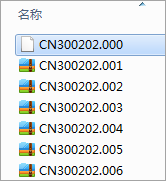 |
 Caution:
 If only 001, 002 and 003 files are included in the first import, and 004, 005 and 006 files are added subsequently, the program will automatically merge all six files into 000 file when importing again.
Related topics