



Select the target object
Instructions for use
Precise selection of the target object is the basis for viewing the target Object Properties, operations, and edits. However, when selecting on a map, it is common to select multiple object types at the same time. In order to select only a specific object or multiple objects of the same kind, you can perform secondary screening on the primary selection results by clicking or selecting in a rectangular box with the Select Object function to achieve precise selection.
Operation steps
- Switch the mouse to the selection state by clicking the right mouse button in the Map with the chart open, or by clicking the Select button in the Browse group of the Map tab.
- Click: Click Select Object. When an object is selected, the Select state selected in the previous step is cancelled; hold down the Shift key to select multiple objects at the same time.
- Select a box: Click and hold the left button, drag the mouse along the diagonal line, and a temporary rectangle whose size changes with Move Stop by Mouse will appear. Release the left button in the appropriate position to determine the rectangular area for selection, and the All Objects with the centroid in the rectangular area will be selected. You can press and hold the Shift key to continue the rectangle selection, adding the selected object to the original one.
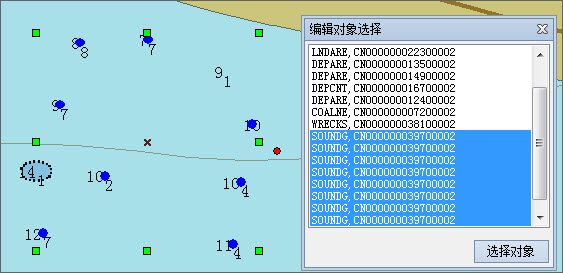
- Select Object: After primary selection, right-click in Map to filter in Select Objects (Top 20). The corresponding object placed by the mouse will be highlighted for easy judgment. When the number of selected objects is more than 20, click More.. and the Select Object pop-up dialog lists all selected Object Local Name and Object Abbreviation. You can select object objects in batch in the list. Similarly, the selected objects will be displayed in the Highlight in Map synchronously, as shown in the following figure:
Related topics
Viewing Feature Object Properties