



Search Feature
Instructions for use
The Search Feature function is used to quickly query the object in the chart according to specific conditions. The find function enables you to locate the target object more efficiently for subsequent operations and analysis, such as editing, updating, or other administrative tasks.
- The Search Feature supports three Query Modes:
- Object Long Name: Find an object based on the specified Object Long Name. Enter the Object Long Name in the text box, and the Search Result will display all the object objects that meet the criteria.
- Record ID: Search according to the unique Record ID (RCID) of the object in the chart. Enter the RCID in the text box to quickly locate a specific object.
- Object Type: select an Object Type and set the attribute condition to query the object meeting the condition. This method is suitable for filtering complex conditions, such as finding water depth points that match a specific depth.
- Application: Search Feature is an important tool to improve the efficiency of Chart Data Management. It is suitable for scenes that need to quickly locate specific objects. The find function allows you to perform precise queries on specific attributes of the object, such as finding a channel or lighthouse with certain attributes, to facilitate Data Maintenance, analysis, and application.
Operation steps
- Enter the Chart tab-> Location Search group-> click the Search Feature button in the S-57 or CJ-57 compliant Chart GroupAdd to Map window. The Search Feature dialog pops up. If there are multiple Chart Dataset Groups in the Map, you can select the group to be queried from the drop-down list on the right of Chart Layer.
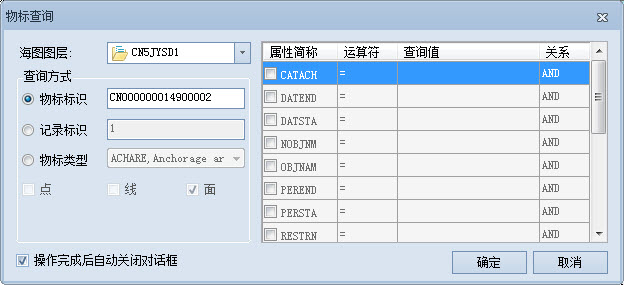
- Select Query Mode and take Object Type query as an example:
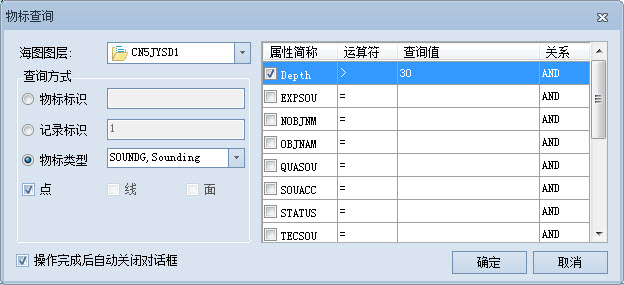
- Check Object Type and click the Drop-down Button on the right to select a type of object Dataset. If this type of object Dataset contains multiple vector types (point, line, and surface), check the vector type to be queried.
- In the lower query list, in the Property Abbreviation column, check the Property Field to be specified by the query rule as Query Conditions; in the Operator column, click the drop-down box to select the required operator; In the Query Value column, enter a specific value, for example, enter 10 if the value of Query Soundings is equal to 10; in the Relation column, set the relation between multiple Query Conditions, AND is satisfied at the same time, OR is satisfied by any one. Check the Property Field to be used as Query Conditions
- in the query list. Select an operator and enter a specific value in the Query Value column, such as 10 for a water depth point where the Query Soundings value equals 10. Set the relationship between multiple conditions in the Relationship column. AND indicates simultaneous satisfaction, and OR indicates any satisfaction.
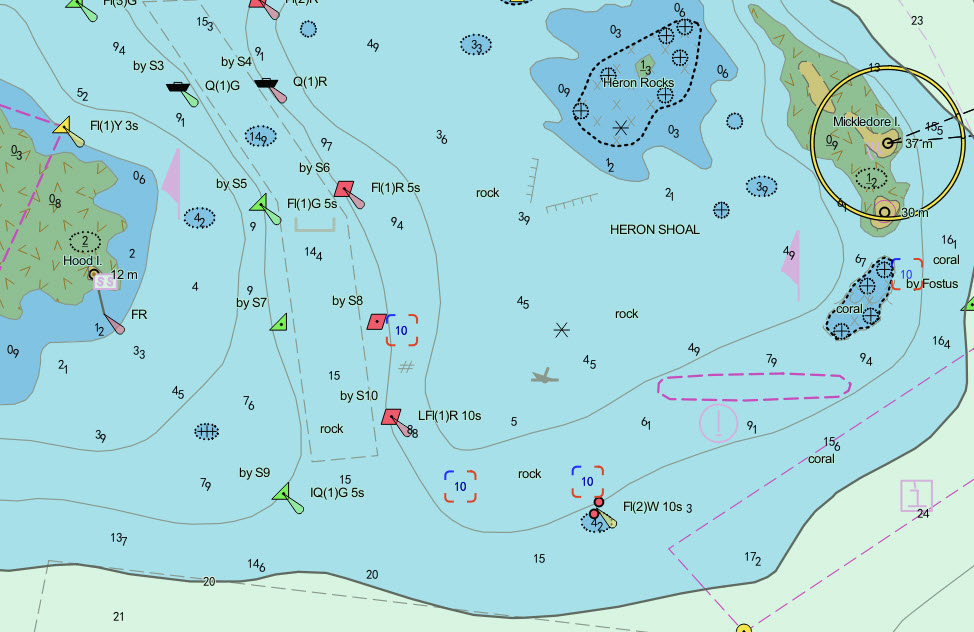
- Click OK and the Search Result will be displayed at the bottom of the Search Feature window. Include Object Long Name, Record ID, Object Abbreviation, and Object Local Name. The Map automatically locates and highlights the Search Result. When you click on an object in the Search Result list, the map is positioned accordingly. For example, the Search Result is as follows:
Related topics