



↵
Supports viewing S-101 data, with two methods: direct opening and importing.
Direct Opening
Directly opening a *.000 file that complies with the S-101 standard will be in read-only mode, and operations such as editing are not permitted. There are two specific operation methods:
- Directly drag and drop the *.000 file into the workspace. In the Open: [Chart 000 file] dialog, set Standard type to S-101 in Parameters. The setting result will be displayed before the file name for easy verification. The default parameter for Standard type is S-57, if the standard type is not set correctly, the data cannot be imported properly.
- Alternatively, use the Open File Datasource function to directly select and open the *.000 file. You also need to configure the Parameters in the Open: [Chart 000 file] dialog.
Import Nautical Chart Data
Import Nautical Chart Data enables operations such as editing, processing, and production of chart data. All imported S-101 data will be managed centrally under the S-101 group within the datasource.
Supports importing *.000 data that conforms to the S-101 data specification into file databases, database datasources (PostGIS or DMPlus), or EMS datasources. Note that the datasource for Import Nautical Chart Data cannot be a read-only datasource.
The specific operations are as follows:
- Open or create a datasource in the workspace to store the *.000 files.
- Select the datasource to import the nautical chart data into. In the context menu, choose Import Nautical Chart Data->S-101; or select the target datasource, go to the Start tab->Data Processing group->Data Import drop-down menu->Chart-> select S-101; or right-click the S-101 group node in the datasource, select Product Management to enter the product management panel, and then click the Import button in the panel.
- In the Import Nautical Chart Data dialog, select one or more S-101 *.000 files and click Open.
- The selected files will be displayed as a list in the Import S-101 dialog, with the following parameters provided:
- Source File: Displays the name of the chart data to be imported. This field is not editable.
- Source Data: Displays the path of the chart data to be imported. This field is not editable.
- Target Datasource: Displays the target datasource name. You can select other datasources in the current workspace from the drop-down list.
- Project: Sets whether to convert the projection type to Mercator projection.
Since chart data is typically produced and distributed in the WGS84 geographic coordinate system (EPSG: 4326), the specific requirements of the projected coordinate system need to be considered during import. The Mercator projection offers advantages for safe ship navigation and is the most widely used projection type for nautical charts worldwide. This is because the Mercator projection has a special characteristic: all compass rhumb lines, or loxodromes, are straight lines under this projection, making it very suitable for marine navigation.
Check the checkbox to convert the projection type to Mercator projection. After projection, when browsing charts in the map, the map unit becomes meters, which facilitates viewing navigation distances, etc.
- Encode Type: Specifies whether to use a compressed method to save chart data, which can save disk space. The system defaults to no encoding, meaning no compression is used. Single-byte, double-byte, triple-byte, and quadruple-byte encode types are also available. For more details, please refer to Dataset Compression Encode Type.
- Import Null Dataset: Check this checkbox to include empty datasets from the source data in the imported datasets.
- Feature catalogue: Used to specify the S-101 Feature Catalogue (FC). Five feature catalogues are available: S101_FC_1.1.0, S101_FC_1.1.1, S101_FC_1.2.3, S101_FC_1.5.0, and S101_FC_2.0.0. After selecting an FC version, the system will automatically match the corresponding PC (Portrayal Catalogue) version and display it on the map according to the Lua display rules of that version.
- When importing multiple *.000 files, you can use the Select All, Select Reverse, and Uniform Settings buttons on the dialog toolbar to quickly select files and set the target datasource, encode type, and projection type for multiple files.
- After setting the above parameters, click the Import button to complete the import of S-101 chart data. The data will be displayed as a chart group under the corresponding datasource in the workspace manager.
Browsing Chart Data
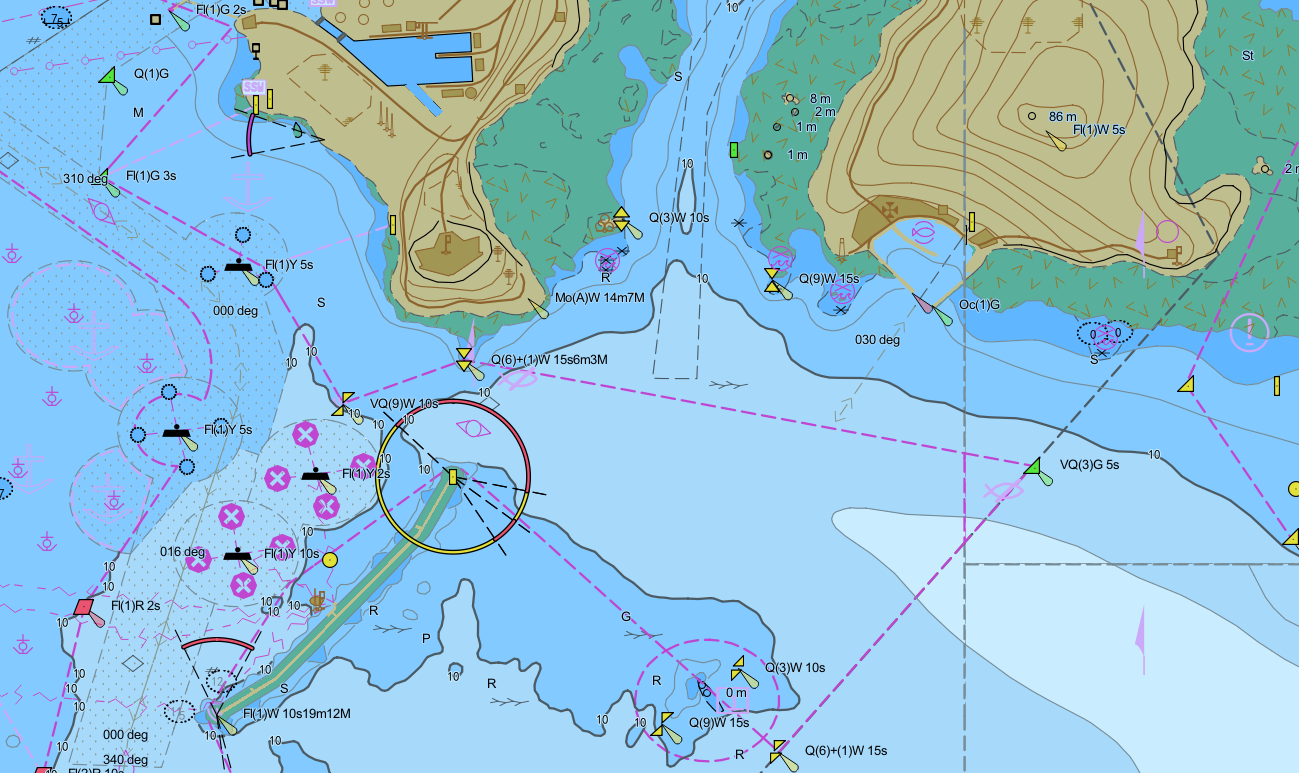
After importing S-101 files into the S-101 chart group, you can quickly browse the electronic chart data by double-clicking the S-101 group node in the datasource, or by selecting Add to New Map or Add to Current Map from the context menu.
Since nautical charts are designed based on different range scales and expressed information, for example, harbor charts for detailed navigation and Yangtze River charts for regional overviews, there are visible scales set for information content when browsing chart data to ensure effective display and applicability. More information about Visible Scale is as follows:
- Storage Location: The chart group (S-101, S-127, S-131) contains the DataCoverage dataset, where the maximumDisplayScale and minimumDisplayScale fields represent the maximum and minimum visible scales, respectively, used to control the visible range of data in that group. These fields are currently not editable.
- Layer Properties: After adding the chart group to the map, each group will be displayed as a layer. The Display Control section in the layer properties shows the Minimum Visible Scale and Maximum Visible Scale, whose default values come from the aforementioned DataCoverage dataset.
 Note:
Note:The chart group added to the map is not displayed on the map. This may be because the layer is not within the default visible scale range. You can try the following solutions:
- Right-click the chart layer in the layer manager, select Layer Properties, view the Visible Scale in the Layer Properties panel on the right, and then zoom the current map scale to fall within the visible scale range.
- Directly modify the Visible Scale in the Layer Properties panel and save the changed layer properties to the workspace. The scale settings will take effect the next time the map is opened. This operation does not affect the original fields of the DataCoverage dataset.
Viewing *.001 Data
According to IHO specifications, the initial version of chart data files has the extension *.000, and subsequent update files have extensions ranging from *.001 to *.999, with the update number incrementing by 1 for each version.
When viewing updated *.001 to *.999 files, you must place the update files and the corresponding *.000 file in the same directory and keep the same file name.
Using the Import Nautical Chart Data steps, the application will automatically recognize and merge the update files with the same name into the *.000 file. Therefore, when selecting files in the Import Nautical Chart Data dialog, still select the *.000 file to view the updated *.001 to *.999 files.
Related Topics
Viewing Feature Object Properties