



Instructions for use
S-58 Electronic Chart Verification Standard (ENC Validation Checks) is a standard formulated by the International Hydrographic Organization (Iho). It includes five parts: ENC data structure check, ENC product specification check, ECDIS related check, ENC object category use check and special object category attribute check. The compatibility of ENC data with S-57 standards and product specifications can be ensured through S-58 inspection, and the consistency in the process of data exchange can be guaranteed.
SuperMap validates Chart Data based on the S-58 standard, version 4.2, issued by IHO in 2011. When editing or generating new Chart Data, Check Data must be carried out to ensure compliance with international standards and avoid data errors affecting navigation safety. Before Check Data, you must create a chain node Topology, and you also need to Build Topological Relationships again after modifying the data. For details, please refer to Topology Construction and Inspection .
SuperMap provides S-58 Check Items in 9 categories, 300 +, and includes some additional required checks. Support the visual display of Check Result, which is convenient for quickly locating and repairing errors.
Operation steps
- Open the Editable Chart Group to Map, enter the Chart tab-> Data Check and Topology group-> Check Data drop-down-> click the Check Data button.
- Check the contents to be checked. All Check Items are checked by default.
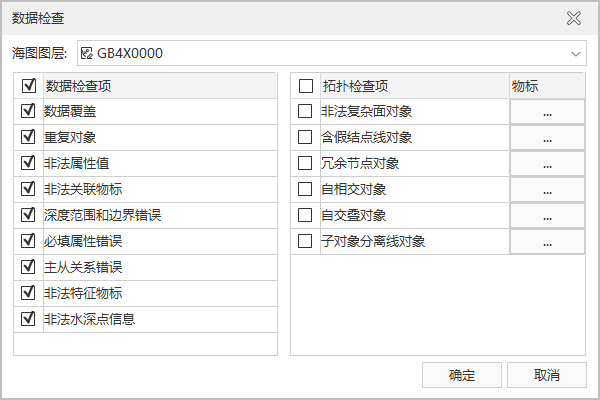
- Check Items:
- Data Coverage: Check the coverage consistency between the feature object and the meta object.
- Duplicate Objects: Detect whether there are Duplicate Objects (except water depth points) with the same attribute and Geometry in the same type of feature objects.
- Illegal attribute value: Verify the validity of the attribute value of the feature object.
- Illegal related objects: Check whether the set feature object contains at least two feature object objects.
- Depth range and boundary errors: Check if DEPCNT (VALDCO) is collinear with the DEPARE of the face class and there is no linear DEPARE, whether the attribute value is: maximum DRVAL2 & gt; VALDCO > Minimum DRVAL1, and minimum DRVAL2 = VALDCO = smallest DRVAL1.
- Required attribute error: Ensure that all required attributes are not empty.
- Master-slave relationship error: Verify the reference relationship between the master object and the slave object.
- Illegal feature object: Check whether the relationship between the feature object and the space Geometry is legal.
- Illegal sounding information: Check the validity of water depth point information.
- Topology Check:
- Illegal complex regional object: a planar feature object that detects whether there are multiple islands.
- Line object with fake nodes: Check whether the line object has fake nodes.
- Redundant node object: Detect redundant nodes.
- Self-intersecting objects: Check the self-intersection of line and surface feature objects.
- Self-overlapping objects: Verify that there is no overlapping between the objects of the same type of surface features.
- Sub-object separation line object: Ensure the continuity of the object node of the line feature.
- Check Items:
- If Topology Check is checked, click the ".." button on the right side of the check item, and check the object to be checked in the object selection dialog box.
- After selecting the check item, click OK to start the check. The Check Result will be displayed on the Check Data panel popped up on the right side of the screen, including Errors, Related objects, and S-58 Information.
- Errors: In the Errors group, you can Show All or select check items to filter and display the Errors list. The error list contains Error number, ID, Object Abbreviation, modify status record boxes. When Errors is selected, the corresponding object is highlighted in the Map and the Display Center. In the S-58 Information group on the lower side of the panel, the relevant number, information, etc., of the check error are displayed.
- Related objects: Each Error has one or more related objects. The related objects corresponding to the Error are listed here.
- Auto Remove redundant nodes: After selecting one or more records in the Errors list, click this function to automatically remove redundant nodes in the Topology error and automatically check the Modified check box in the Errors list.
 Caution:
 - You need to check Redundant node object in Topology Check when checking Data, so that it will be automatically modified according to Errors. After
- using this function, another Build Topological Relationship is required.
S-58 - information: displays information such as Error number, Error level, Errors, and check content of the selected error item according to the S58 data standard.
- Export the check result: Check DataErrors can be exported as *.xml files. Click the Export button on the toolbar to pop up the export the check result dialog box.
- Click the Check Items Drop-down Button
- in the dialog box, and select the results to be exported.
- At Save path, set the export *.xml file save path and save name.
- Select the Append export check box to append and export the Data checking information to the existing *.xml file.
- Import the check results: Check DataData Information Import File to the currently opened editable group. Click the Import button on the toolbar to pop up the Import the check results dialog box, select the Import files of the import files on the dialog box, and click the OK button to import the Errors of Check Data.
- Data shall be modified according to S-58 Prompt until correct to ensure data exchange in accordance with international standards.
Related topics
Topology Construction and Inspection