



Instructions for use
Master-Slave is used to express hierarchical association in chart objects. For example, a light buoy may be set as the master object, and the top buoy, the flash, and the foghorn may be its slave objects. Each Master-Slave must specify a Master Token object, but can contain one or more Slave Token objects, and at least one Slave Token is required.
The setting of Master-Slave enables the hierarchical relationship between objects to be clearly expressed. This relationship can improve the accuracy of Data Management and expression, and make the complex object relationship more intuitive. For example, by taking the navigation mark as the main object and associating its affiliated signs and lights as the subordinate objects, the hierarchical relationship between the navigation mark and its affiliated facilities can be clearly expressed, and the accuracy of Data Management and expression can be improved.
Operation steps
- In Chart Data editing mode, open the Editable Chart Group.
- Chart tab-> Relationship Management group-> Click the Master-Slave Relationship button, and the Master-Slave Relationship Management panel will pop up on the right side of the interface. The panel is divided into two parts, the upper part is the master object list, and the lower part is the slave object list.
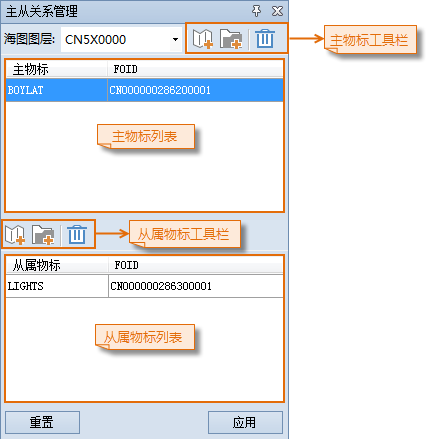
- Add main object:
- Add the selected objects from map: Select the object to be set as the main object in Map, and click the Add Main Object from Map button on the toolbar. In the popped-up Add the selected objects from map dialog box, only the objects that meet the S-57 standard and can be used as the main object are listed, and only one object can be selected at a time.
- Add from dataset: Click the Add Main Object from Dataset button on the toolbar, On the popup Add from dataset dialog, select objects from the feature object Dataset and add them to the Select Result list.
- Add slave object:
- Add the selected objects from map: Select the object to be set as the subordinate object in Map, and click the Add Subordinate Objects from Map button on the subordinate object toolbar. In the popup Add the selected objects from map dialog box, select a subordinate object conforming to the S-57 standard to add multiple subordinate objects to the master object.
- Add from dataset: On the popup Add from dataset dialog, click the Dataset Add Dependent Object button on the toolbar. Select the object to be added from the feature object Dataset and add it to the Select Result list.
- Confirm Master-Slave: Click the Apply button to complete the creation of master-slave relationship.
 Caution:
 creates the master-slave object cannot already exist, and the specified slave object cannot be a slave object of another master-slave object, otherwise the creation will fail.
Related topics
Build Master-slave Relationships in Batches