VII. Model base management model |
Models built in the business are often seen as business assets, and sometimes we need to share models, but we want to protect the business processes in them from being leaked. For this reason, processing automation provides a model management format, the model library Library in .gpaml format. The model library can provide comprehensive model management capabilities, facilitate model sharing, and support encryption protection of models.
The specific capabilities are as follows:
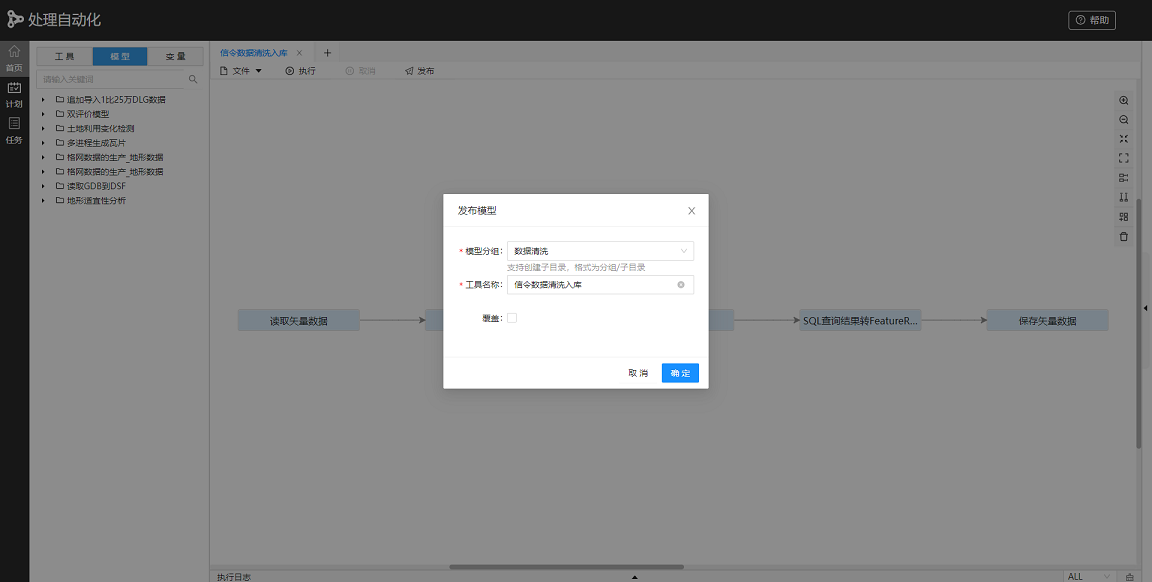
When publishing a model, you can select an existing group to publish the model to an existing group, or fill in a new group name to publish the model to a new group. Select Publish New Group to create a Model Repository with the corresponding name.
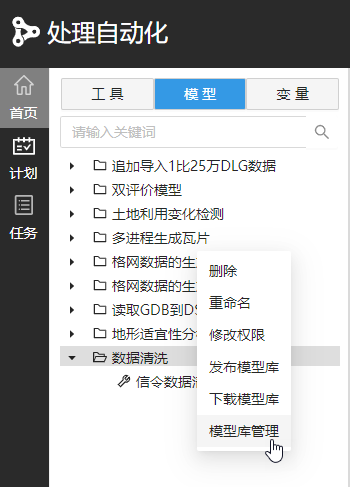
Find the model library that has been published successfully in the model list, and then select the "Model Library Management" option in the right-click menu of the model library to edit the description of the model library and set the password.
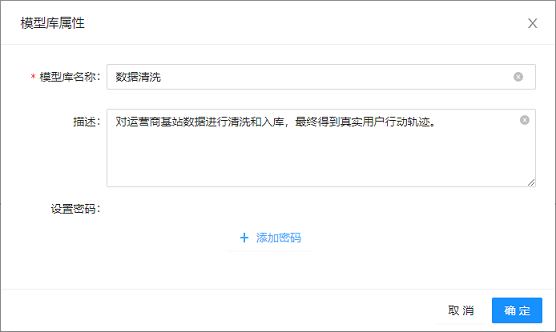
You can fill in the application background of the model in the model library in the description, so that others can fully understand the application scope of the model when sharing.
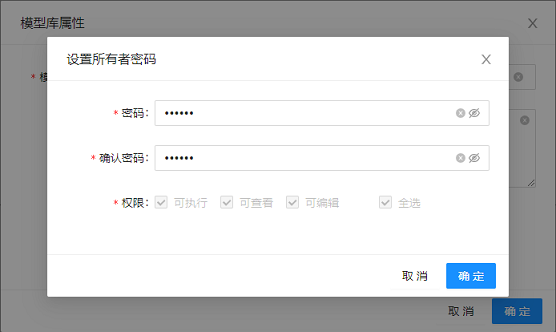
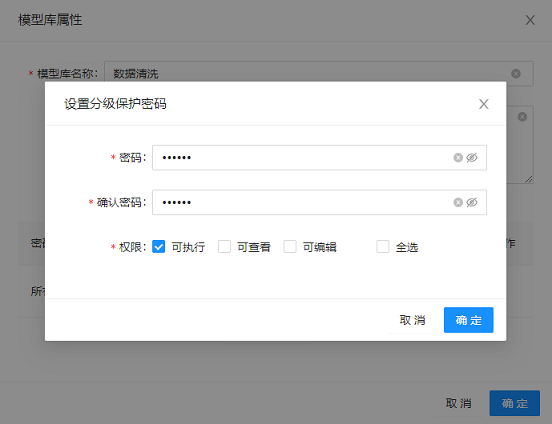
You can control the model operation permissions in the model library by adding authorization codes, including execute, view and modify. The three permissions are in a progressive relationship during setting. When the viewable permission is checked, the executable permission is checked by default; when the editable permission is checked, the viewable and executable permissions are checked by default. Each permission is described as follows:

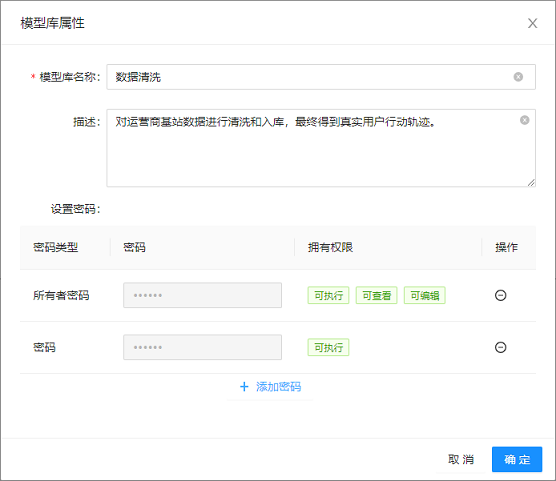
In addition to viewing and editing authorization codes through Model Library Management, select a model in the model library and right-click Authorization Management to view and edit all authorization codes and corresponding models and permissions in the model library.
Select "Download Model Library" in the right-click menu of the model list to save the published model library locally, and you can directly share the model library file with others.
You can add the Model Library to the list of models and use it in two ways:
Select Publish Model Library in the right-click menu of the model list to publish the existing local model library files to the model list for use.
Copy the existing model library file to the path of 【iServer product directory】\support\geoprocessing\models, and refresh the processing automation modeling page to add the model library to the model list.
If the Model Repository has been set up with an authorization code, you need to enter the authorization code to verify the permissions the first time you use it. After verified successfully, you can use the model directly by logging in with the same iServer account without repeatedly entering the authorization code.
When publishing a model library for which an authorization code has been set, you need to enter the authorization code for authorization verification. After verification, you can use the model. If there is no corresponding permission, you will be prompted.
For example, when publishing the "Data Cleaning" model library, if only the corresponding authorization code is entered and the model is selected, the following prompt will pop up through the right-click menu "Edit Model".
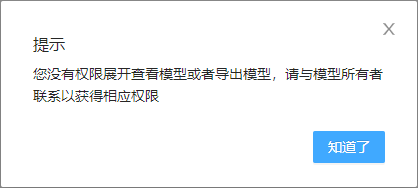
If the current permissions of the Model Repository do not meet your needs and you want to obtain a higher level of permissions, you can contact the owner of the model to obtain a new authorization code. Select the "Switch authorization code" option in the model library management window, and enter the authorization code in the pop-up window to switch the model library permission. Note that adding, editing, or deleting an authorization code is only supported if the owner's password has been verified.