

Gray Release
This article introduces the gray release technical capabilities, applicable scenarios, and how to perform gray release in iManager for SuperMap cloud-native GIS.
Gray release is a publishing method provided by GIS service mesh technology that enables a smooth transition between old and new versions. Administrators can collect user feedback, fix version bugs, control product quality, and improve user experience before the new version goes live, making the upgrade between old and new versions of GIS application systems smoother and more stable.
SuperMap iManager leverages gray release to partially update and deploy customized services or GIS microservices with bug fixes. It is suitable for scenarios where some users experience the new version while conservative users continue using the current stable version, ensuring a gradual full rollout after service stability is confirmed. Combined with the partial service upgrade capability (see the "Modify Image" feature in Basic Services Management), gray release can be performed on a single service to achieve rolling updates of microservices, effectively controlling and mitigating risks associated with large-scale service updates and improving the deployment process.

Using the ispeco-dashboard-api service as an example, here is a detailed guide on how to perform gray release in iManager:
-
Log in to SuperMap iManager, and click Site Management -> Create in the left navigation bar;
-
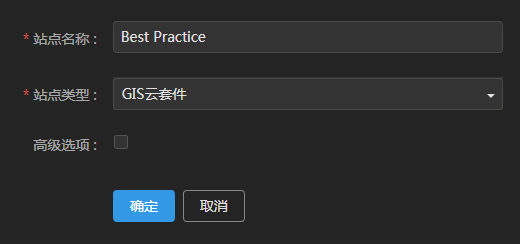
Enter the site name "Best Practice", select GIS Cloud Suite in Site Type, and click OK to create it;
-
Enter the GIS Cloud Suite page you created, and find the ispeco-dashboard-api service in the service list;
-
Click the Gray Release button in the Actions column on the right side of ispeco-dashboard-api;
-
Enter Version "v2", select Gray Release Strategy "Request Header Matching Strategy", enter Request Header "grayrelease", enter Match Value "version2", and click OK;

-
After configuring the gray release, the system will create a new service named ispeco-dashboard-api-v2. Find ispeco-dashboard-api-v2 in the service list, and click the Modify Image button on the right side of ispeco-dashboard-api-v2;
-
Change the image tag to "test" and click OK;
Tip:
You need to push the image used for gray release to the image repository. Enter your image repository address and name here. -
Open Postman (or similar software), and send a GET request to
http://192.168.17.145:30704/manager/web/api/service/nodesto retrieve service node information. For the request method description, see GIS Cloud Suite -> API -> service -> nodes -> GET. Enter the token in the request header. For the method to obtain a token, see GIS Cloud Suite -> API -> tokens; add a new request header "grayrelease" with the match value "version2". -
Send the request, and the response result is shown in the figure below:

In step (8), if the request header "grayrelease" and match value "version2" are not provided, the response result will be the value returned by the ispeco-dashboard-api service; if they are provided, the response result will be the value returned by the ispeco-dashboard-api-v2 service. For a description of the gray release feature, see Tutorial -> Site Management -> GIS Cloud Suite -> GIS Cloud Suite Management.