



Batch Generate Standard Sheets and Margin
Instructions for Use
supports batch generation of standard sheets and margins for data within a specified range. Currently, it only supports three large scales: 1:500, 1:1000, and 1:2000.
1:2000, 1:1000, and 1:500 topographic maps can be divided by longitude-latitude differences, or by rectangular division with dimensions of 50cm X 50cm and 40cm X 50cm.
Steps
Step 1: Select Basic Scale Type for Batch Generation
Open the map requiring bulk view frame generation. Click the Standard Map Frame button in the Drawing gallery under the Map tab to open the Standard Map Frame dialog as shown below:
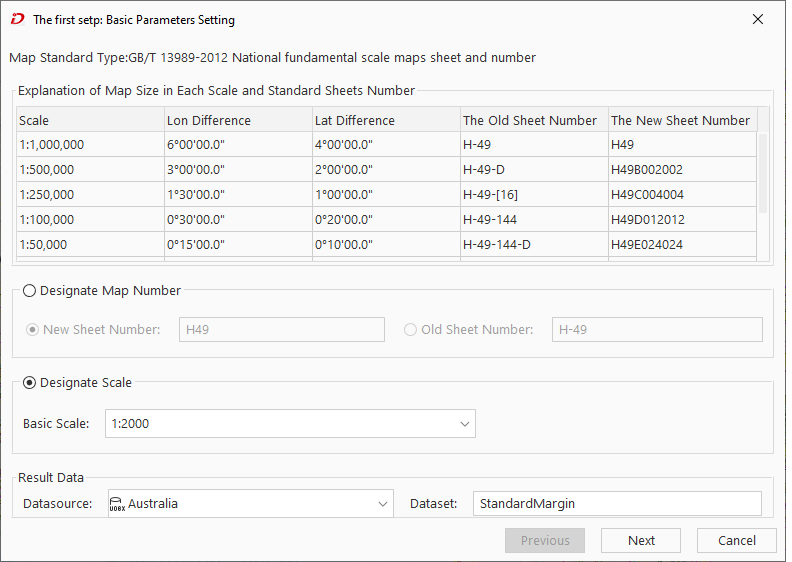 |
| Step 1: Basic Parameters Setting |
- Designate Scale: Generate map frames according to specified scale and map range. Click the dropdown button to select a base scale. The three supported bulk generation scales are 1:500, 1:1000, and 1:2000.
- Output Result: Set the dataset name and datasource for storing view frame results.
Step 2: Large-scale Parameter Settings
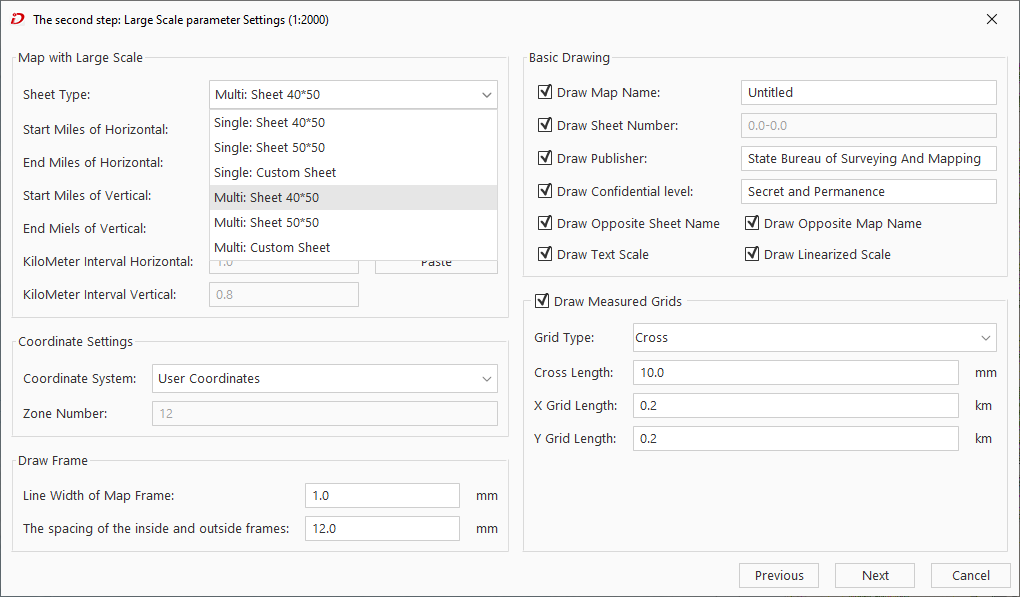 |
| Step 2: Large-scale Parameter Settings |
- After completing Step 1 parameters, click Next to configure Step 2 parameters. Parameter settings for 1:2000-1:500 scales are consistent with map frame settings as follows:
- Framing Type: SuperMap supports three bulk framing types:
- 40*50 Sheet Bulk: Generates sheets with 50cm length and 40cm width. Set horizontal/vertical starting kilometer values. Ending kilometers are auto-calculated based on sheet size.
- 50*50 Sheet Bulk: Generates 50cm square sheets. Set horizontal/vertical starting kilometers. Ending values auto-calculated.
- Arbitrary Rectangular Sheet: Customize sheet size by setting both start and end kilometer values.
- Framing Range: Defines map bounds for frame generation with five methods:
- Manually input horizontal/vertical start-end kilometer values:
- Horizontal Starting Kilometer: Sets horizontal starting kilometer for sheet.
- Horizontal Ending Kilometers: Displays/sets horizontal end kilometer (available only for arbitrary rectangular sheets).
- Vertical Starting Kilometers: Sets vertical starting kilometer.
- Vertical Ending Kilometers: Displays/sets vertical end kilometer (available only for arbitrary sheets).
- Whole Map: Click to use current map extent as generation range.
- Current Window: Click to use current window extent.
- Draw Bounds: Two modes:
- Select existing map objects
- Draw new rectangular bounds
- Copy and Paste: Copy current range settings and paste to other applicable fields.
- Manually input horizontal/vertical start-end kilometer values:
- Coordinate System: Set view frame coordinate system (User Coordinates or National Coordinates (WGS 1984)).
- Basic Drawing: Configure sheet metadata: name, ID, publisher, security level. For details see Standard Map Frame.
- Draw Kilometer Grid: Enable measurement grid parameters when checked. Refer to Standard Map Frame for details.
Step 3: Set Annotation Information
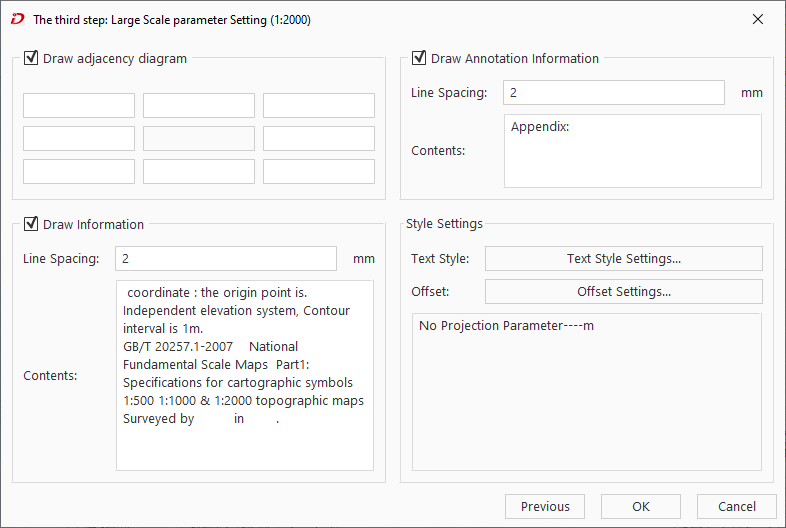 |
| Setting Annotation Information |
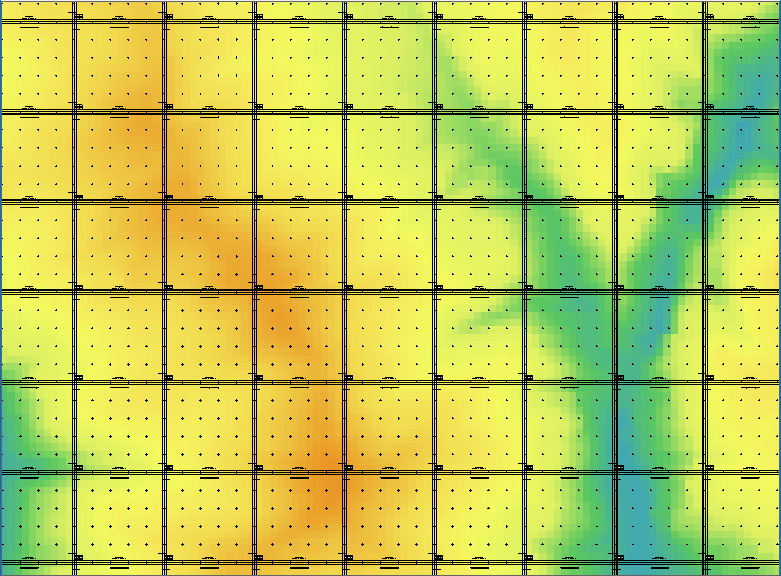 |
| 1:2000 Batch Generation Results |
- After Step 2 settings, click Next to configure annotations including neighbor tables, information blocks, annotation styles. Parameters mirror Standard Map Frame settings.
- After finalizing parameters, click Generate to create border data according to specified scale and bounds. Resulting CAD data auto-loads into current map: