



File Select
Instructions for use
Oblique Photography Model data is usually stored in Tile mode, that is, the model of a certain Spatial Range is divided into a block and stored in a folder. In order to easily view the model storage path of a block, the "File Select" function is provided to easily view the block (folder) where the selected model is located and the model File Name.
Operation steps
- Loading a Oblique Photography ModelConfig File in a 3D Scene;
- On the 3D Data tab, under the File Select button in the Oblique Photography group, the OSGB File Operation "dialog pops up on the right side of the desktop.
- Click any part of the Oblique Photography Model in the scene, the scene will highlight the block of the clicked model, and the OSGB File Operation "dialog box will display the Block Name and File Name of the clicked model, as shown in the following figure:
- Enable Select to Delete Selected Objects. Click "OK" to delete Select Objects in the source data; click "Reset" to reset the previous operations.
- Export Model: supports saving any one or more models in the selected Model Dataest as OSGB, KMZ, KML, S3M, OFF, STL, GLTF and DAE files. Click Export to pop up the Export Model "dialog box, as shown in the following figure. For specific Parameter Settings, please refer to Export Model .
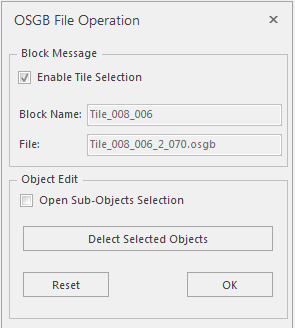 |
| Figure: OSGB File Operation "Dialog Box |
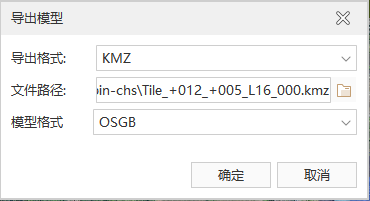 |
| Figure: Export Model "Dialog Box |
The block name represents the folder of the selected Oblique Photography Model, and the file name represents the full file name of the selected model.
 Precautions
Reset can only go back to the initial data opened in the scene this time. For example, after Delete Selected Objects, the tilt layer is removed, and then the reloaded tilt cannot be reset.