



Polygon Object Node Editing
Feature Description
When a 2D polygon, 3D polygon, or CAD layer in the scene is editable, you can select a polygon object in the layer for node editing.
Function Entry
- Scene Window -> Select Polygon Object
Operation Instructions
2D Polygon Object Node Editing
- Load a 2D polygon dataset or CAD dataset into the scene and set the layer to an editable state.
- Select the polygon object whose nodes need to be edited in the scene. Currently, only one polygon object’s nodes can be edited at a time. Editing operations include moving nodes, deleting nodes, and adding nodes.
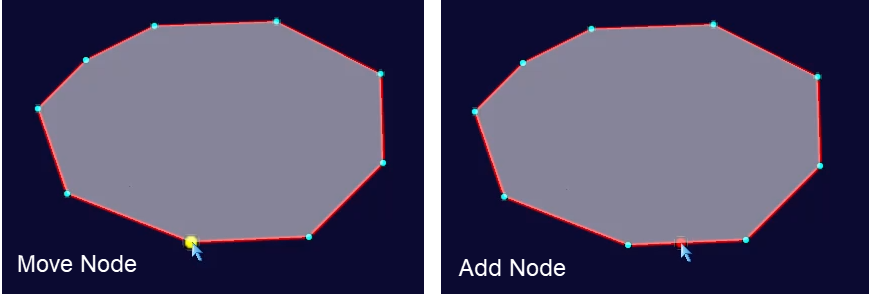
- Move Node: Place the mouse over a node on the polygon object. When the node turns yellow, it is selected. Press and hold the left mouse button on the selected node, then drag the mouse to move it. Release the left mouse button to complete the move. Move other nodes in the same way. The shape of the geometric object will change accordingly after moving nodes.
- Delete Node: Place the mouse over a node on the polygon object to select it. Press Shift+Delete to delete the selected node.
- Add Node: Click the left mouse button anywhere on the boundary line of the selected polygon object to add a new node at the clicked location.
3D Polygon Object Node Editing
- Load a 3D polygon dataset or CAD dataset into the scene and set the layer to an editable state.
- Select the polygon object whose nodes need to be edited in the scene. Currently, only one polygon object’s nodes can be edited at a time. 3D polygon objects include extent polygons (green wireframe) and elevation polygons (red wireframe). Editing operations include moving extent polygon nodes, moving elevation polygon nodes, deleting nodes, and adding nodes.
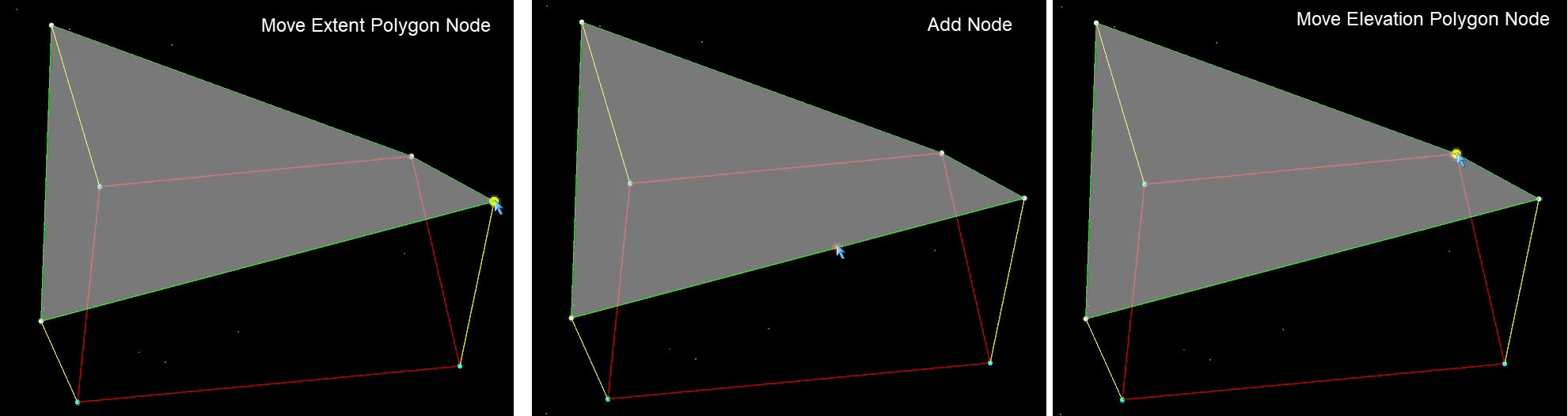
- Move Extent Polygon Node: Place the mouse over a node on the extent polygon of the 3D polygon object. When the node turns yellow, it is selected. Press and hold the left mouse button on the selected node, then drag the mouse to move it. Release the left mouse button to complete the move. The shape of the geometric object will change accordingly after moving the extent polygon node, and the range of the elevation polygon will also change.
- Move Elevation Polygon Node: Place the mouse over a node on the elevation polygon of the 3D polygon object. When the node turns yellow, it is selected. Press and hold the left mouse button on the selected node, then drag the mouse up or down to modify the elevation value of the node. Release the left mouse button to complete the move. The elevation value of the geometric object will change accordingly after moving the elevation polygon node.
- Delete Node: Place the mouse over a node on the polygon object to select it. Press Shift+Delete to delete the selected node.
- Add Node: Click the left mouse button anywhere on the boundary line of the selected polygon object to add a new node at the clicked location.
 Notes:
-
After selecting a polygon object node, press Shift+Delete to delete the node. Pressing Delete alone will delete the selected polygon object.
-
When the elevation polygon and extent polygon of a 3D polygon object coincide, press and hold the Shift key while moving the mouse to edit the elevation nodes of the polygon object.