



Feature Description
Terrain data is the foundation for our terrain analysis. For example, we can use terrain data to extract basic topographic factors such as slope and aspect, and perform more complex terrain analysis functions such as hydrology and visibility analysis. Only by constructing high-quality terrain data can we ensure the reliability of subsequent analysis results. Therefore, constructing terrain is of great significance.
The DEM construction function provided by the application helps users construct terrain based on set parameters and modify terrain elevation values according to the specified range.
Functional Entry
- Spatial Analysis tab -> Raster Analysis group -> DEM Construction -> DEM Construction.
- Toolbox -> Raster Analysis -> DEM Construction -> DEM Construction.
Parameter description
- Source Dataset: Select the vector data participating in DEM construction.
- Lake Data: Set the lake surface data for DEM lake digging. When using the lake digging function, the application replaces the raster values at corresponding positions in the DEM with the elevation values of the lake surface data field.
- Clip Data: Set the clip dataset. The application will generate DEM for pixels covered by this clip data area, and assign no-value to parts outside the area.
- Erase Data: Set the erase dataset. The application will assign no-value to pixels within the erase data covered area, and leave parts outside the area unprocessed. Note: The setting of the erase dataset is only valid when the interpolation type is TIN.
- Parameters
- Interpolation Type: Set the interpolation method used for generating DEM. The application provides three interpolation methods: TIN (TIN), Inverse Distance Weighted (IDW), and Kriging (Kriging). For introductions to these three methods, please refer to DEM Construction Overview.
- Duplicate Point Handling: Set the method for handling duplicate points. In some cases, there are duplicate points (nodes of line objects) in the source data used to construct DEM. The application provides two types of handling methods: the first is to use the elevation value of one point and remove other subsequent duplicate points; the other is to use the statistical value of all elevation values of duplicate points, such as average, maximum (minimum) value, mode, median, etc.
Average: Take the average of all duplicate points as the elevation value at that position.
Median: Take the median of all duplicate point elevation values as the elevation value at that position.
Majority: Take the most frequent elevation value among all duplicate point elevation values as the elevation value at that position.
Max: Take the maximum value among all duplicate point elevation values as the elevation value at that position.
Min: Take the minimum value among all duplicate point elevation values as the elevation value at that position.
- Resampling Distance: Set the tolerance size for resampling. Resampling distance refers to the perpendicular distance from one point on a line to the line connecting two adjacent nodes. The larger the distance, the more simplified the result data. For an introduction to line resampling, please refer to Line Object Resampling Description.
- Elevation Scaling Factor: Used to set the degree to which elevation is stretched. A larger value indicates greater stretching, making the terrain more exaggerated. A factor of 1 means no stretching. The unit is times, i.e., the multiple by which elevation is stretched relative to the original height.
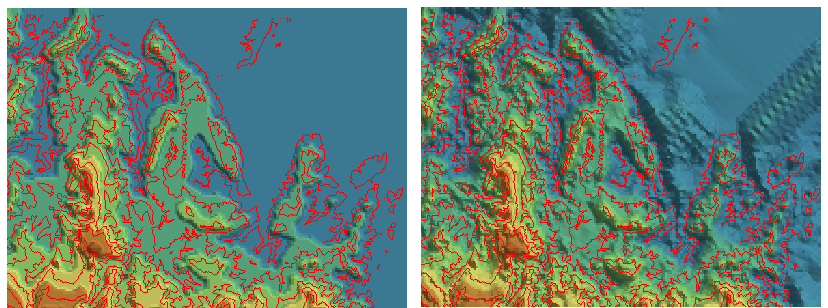
- Flat Area Process: Generally, flat areas identified by the program are peaks or valley bottoms, areas without adjacent contour lines for interpolation. When flat area processing is set, the program defaults to adding interpolation points in flat areas, so that elevation values can be interpolated in flat areas. Without flat area processing, the program defaults to not processing flat areas further. As shown in the figure below, red represents contour lines. Based on these contour lines, the DEM data obtained with flat area processing better conforms to the real terrain, while without flat area processing, the DEM data is relatively smoother and more regular.
- Result Data Settings
- Datasource: The datasource where the generated terrain data will be saved.
- Dataset: The name of the generated terrain data (raster dataset).
- Encode Type: Set the encode type of the generated terrain data. The application provides three encode types: Unencoded, SGL, and DCT. For detailed introductions to these encode types, please refer to Dataset Compression Encode Type.
- Pixel Format: Set the pixel format of the generated terrain data. The application provides several commonly used pixel formats, including 1-bit, 4-bit, single-byte, double-byte, three-byte, integer, long integer, single, and double. For introductions to each pixel format, please refer to Raster Dataset Pixel Format.
- Resolution: Set the resolution of the generated DEM data. The default resolution calculation formula is L/500, where L represents the boundary length, taking the maximum value between the width and height of the result dataset's area extent, 500 represents the default number of cells accommodated by boundary L, and the calculation result is the size of each cell. The unit of resolution is consistent with the coordinate system unit of the vector data participating in DEM generation.
Based on the resolution size input by the user, the application will automatically estimate the number of rows and columns of the generated DEM, as well as the DEM size (in MB).
- Other Settings: Primarily for setting the lake data for lake digging, as well as clip and erase range data, all of which are optional parameters.
 Notes:
- For large-scale point and line data, the "TIN" interpolation type can be used to create DEM, but it has high memory requirements for the computer. Before operation, ensure sufficient memory is available; otherwise, it may fail due to insufficient memory.
- Currently, the interpolation methods of Inverse Distance Weighted (IDW) and Kriging (Kriging) are not supported for constructing DEM with large-scale point and line data.
Related Topics