



Feature Description
When needing to use part of existing raster data as the study area while preserving the original spatial range, you can perform raster splitting.
The DEM Split function splits a raster dataset into two datasets. The split line can be a straight line, polyline, polygon, etc. Left side and right side refer to the directions relative to the node sequence of the split line. Whether cells intersected by the split line are assigned to the left or right side depends on their center points' position relative to the split line.
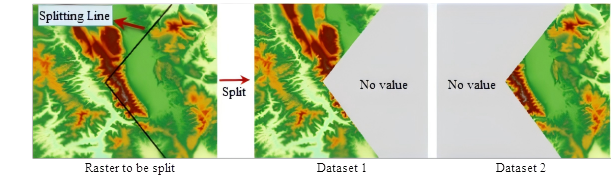 |
| Figure: Schematic diagram of "DEM Split" |
Steps
- In the Spatial Analysis Tab -> Raster Analysis group -> Surface Analysis -> DEM Split item, draw a split line on the map and right-click to open the "DEM Split" dialog.
- Set the data to be split. Select the source dataset and its corresponding datasource.
- Configure result data. Choose the target datasource for storing result datasets, and name them as Result Dataset 1 and Result Dataset 2.
- After completing the parameter settings, click "OK" to execute the DEM Split operation; click "Cancel" to exit.
 Notes:
DEM Split differs from raster map clipping. The two result datasets from DEM Split maintain the same spatial range as the original raster data, with no-data values assigned to non-selected areas. In contrast, raster map clipping produces a single dataset with reduced spatial range matching the clipped area.
Related Topics