Feature Description
Ungroup refers to grouping geometries in a source dataset based on attribute values of a specified field, and generating a new result dataset or independent data source for each group. This function efficiently splits a large dataset containing multiple categories into multiple independent datasets by business attributes, facilitating category-based management, distribution, or thematic applications.
Application Scenarios
-
Ungroup data by administrative division codes for regional statistics mapping.
-
Divide data by map sheet numbers to facilitate distribution by map range.
-
Ungroup point data of cultural and educational institutions nationwide by institution type, and store them by category to improve management efficiency.
Function Conditions
-
The split field does not support binary or byte types.
-
If there are too many unique values in the split field, a large number of result datasets may be generated; pay attention to storage capacity.
-
When outputting to multiple files, the export directory must exist and have write permissions.
Parameter Description
| Parameter Name | Parameter Interpretation | Parameter Type |
|---|---|---|
| Source Datasource | Specifies the data source containing the dataset to be split. | DatasetSource |
| Source Dataset | Specifies the dataset to be split. | DatasetVector |
| Ungroup Field | Specifies the field used for splitting. The system groups data based on the attribute values of this field. Binary and byte types are not supported. | String |
| Filter Expression | Enter an SQL Expression to split only data meeting the condition. If empty, all records are split according to the split field. For example, to split only data for Beijing, enter: Province = 'Beijing'. | String |
| Output Mode | Specifies the storage structure of the result data. Two options are provided:
|
ExportTypeEnum |
| Result Datasource | Available when the output mode is single file.
Specifies the target datasource for storing all split result datasets. |
Datasource |
| Output Format | Available when the output mode is multiple files.
Specifies the format of the result datasource. Default is UDBX, with UDB and FileGDB also available. |
EngineType |
| Export Directory | Available when the output mode is multiple files.
Specifies the folder path for storing result datasources. The system will create multiple data sources in this folder following the result naming rules. |
String |
| Result Name | Specifies the field(s) used for naming the split results.
|
String |
Output Result
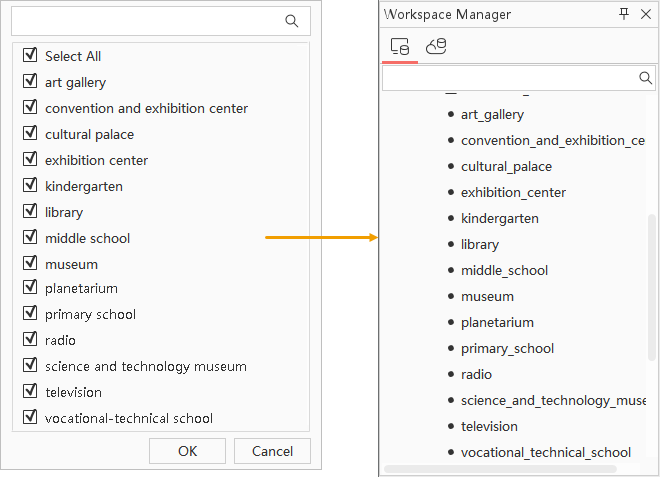
- Single file: All split result datasets are stored in the specified target datasource and can be viewed immediately in the workspace manager.
- Multiple files: Each split result is stored as an independent data source in the folder specified by the export directory (the output window provides a quick link to open the file location). To browse the result data, you can add these data sources to the workspace manager as needed.
Application Example
Case Description
When processing national cultural and educational institution data, the source data CultureService_P point dataset contains various types of institutions such as schools, libraries, and museums. All data is mixed in one dataset, which is not conducive to thematic mapping, statistics, or data distribution by category. Using the dataset split function, data can be quickly split into multiple independent datasets based on the Type field (institution type), achieving categorized storage and management.
Data Description
- Datasource: Sample data package SampleData\AnalyticalMap\HeatMap\heatMap.udbx data source.
- Dataset: CultureService_P point dataset, containing point information of national cultural and educational institutions.
- Key Fields:
- Name: Institution name (e.g., "Peking University", "National Library").
- Type: Institution type (e.g., "Middle School", "Library", "Museum"), which will be used as the split field.
Main Operation Steps
- In the workspace manager, open the heatMap.udbx data source.
- Click the Data tab -> Data Processing group's Gallery drop-down menu -> Vector group -> Ungroup button to open the Ungroup dialog.
- In the Source Dataset group, set the data to be split:
- Data source: Select the heatMap data source.
- Dataset: Select the CultureService_P dataset.
- Ungroup field: Select the Type field.
- In the result data group, configure output parameters:
- Output mode: Keep the default option, i.e., Single file.
- Datasource: Select the heatMap data source.
- Result name: Keep it empty, i.e., use the split field value directly as the result dataset name.
- Click Execute to complete the split.
Show Result
After the split, multiple datasets are automatically generated under the heatMap data source, with dataset names being the unique values of the Type field, such as "Middle School", "Museum", "Cultural Palace", etc.