



Step 1: Create A 3D Scene
SuperMap iDesktopX provides two view modes for scenes: spherical scene and plane scene.
- Spherical scene: Displays geographical data on a globe model that simulates Earth's three-dimensional space.
- Plane scene: Presents geographical data on an unfolded planar surface that simulates a flat Earth model.
Plane scenes are suitable for smaller scenarios such as residential complex panoramas, real estate presentations, or large-scale equipment displays like oilfield derricks.
New Global Scene
- Launch the application;
- Click the Start tab -> Browse group -> Scenes button; or select New Global Scene from the context menu of scene nodes in the Workspace Manager.
- The newly created scene will appear as shown:
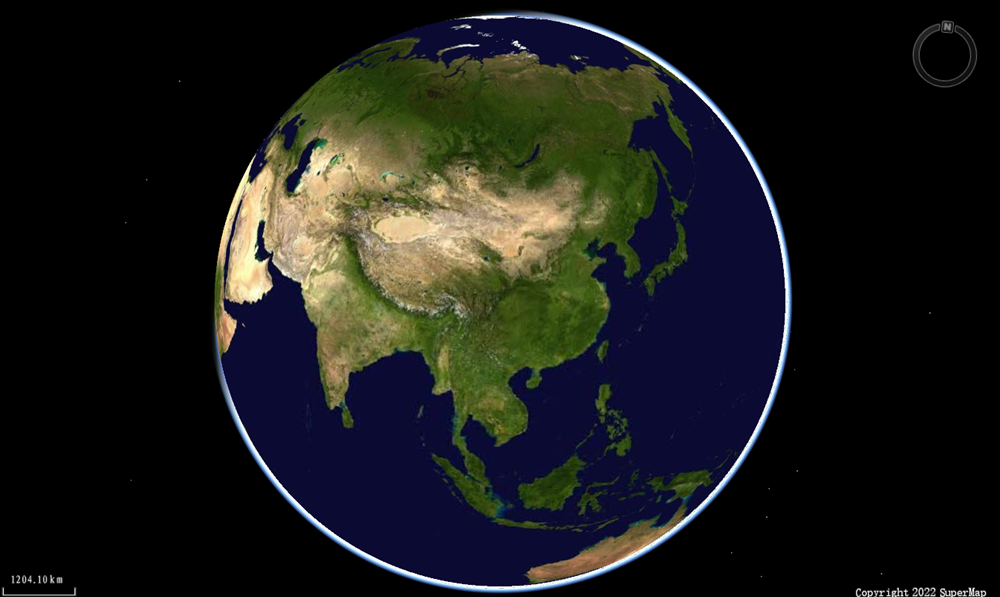
New Local Scene
- Launch the application;
- Click the Start tab -> Browse group -> Scenes drop-down button -> New Local Scene; or select New Local Scene from the context menu of scene nodes in the Workspace Manager.
- The newly created scene will appear as shown:
Related Topics