

Regional Aggregation Map
Instructions for use
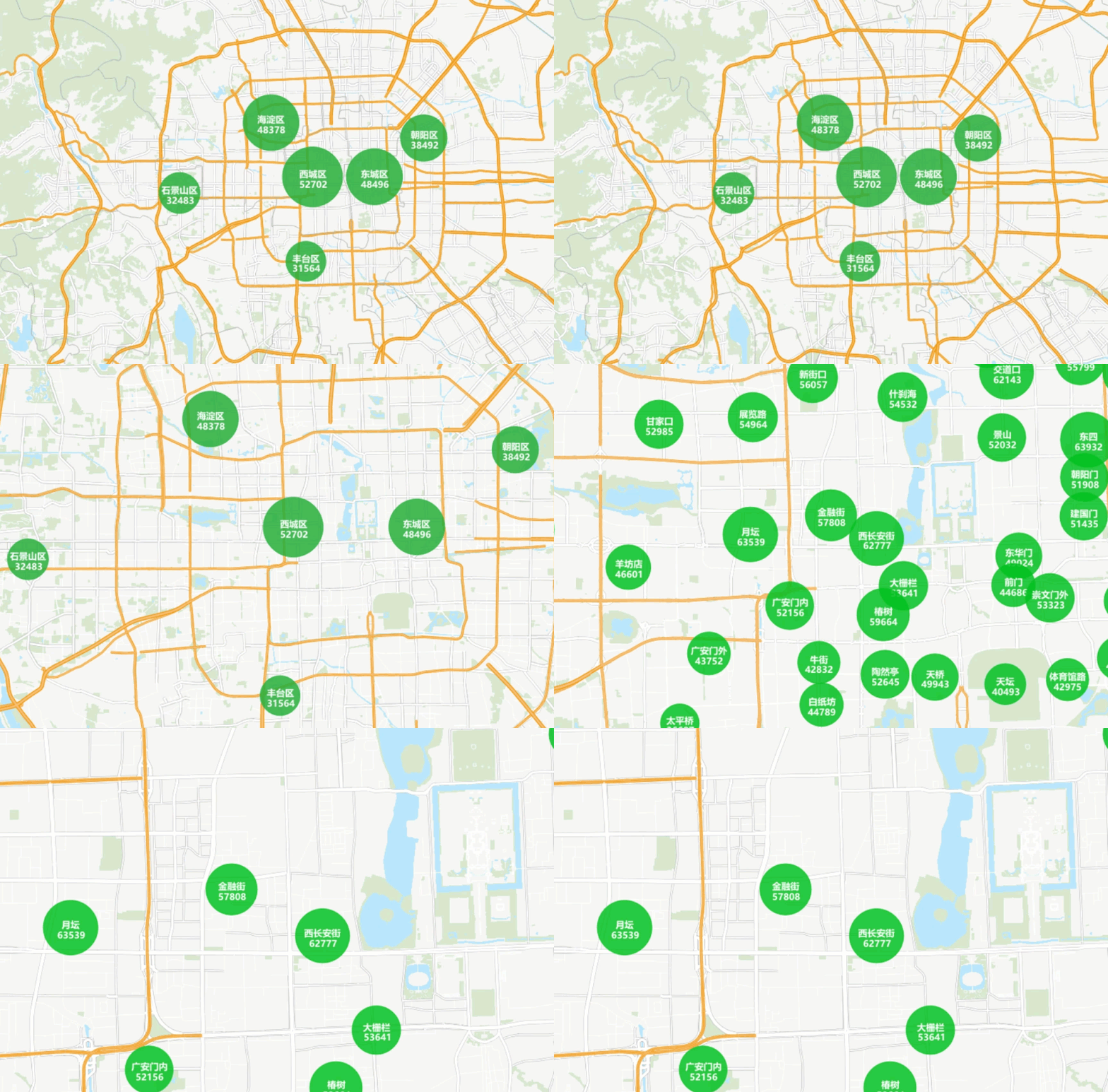
The Regional Aggregation Map is to aggregate the Point Datasets in the region according to the aggregate grouping Select Fields, and the aggregate size does not change as the region is browsed and zoomed.
The Regional Aggregation Map is suitable for expressing the distribution of housing prices and GDP in a region.
Function entrance
- Thematic Map tab-> Aggregate Map group-> Regional Aggregation Map.
- Layer Manager-> Layer Context Menu-> Create Thematic Map..-> Aggregate Graph-> Regional Aggregation Map.
Parameter Description
The Parameter Settings of the Regional Aggregation Map is in the Layer Properties panel, and the detailed description of the parameters is as follows:
- Refer to the Set Layer Common Properties for the settings of the Display Control group and the Change Dataset group.
- The Parameter Settings group is described as follows:
- Aggregation Group Field: used to set the field of aggregation area, such as town, province, city, etc.
- Aggregation Field: The field used to set aggregation. The Type must be numeric. You do not need to set the Aggregation Field when you only want to represent the aggregation of point objects. If you want to express the average house price in the area, select the house price field as the Aggregation Field, and select the average value in Aggregate; if you only want to express the number of houses in the area, you do not need to set the Aggregation Field, and the default is to calculate the number of points in the area.
- Aggregate: After setting the aggregation radius, you need to set the Calculator Method of the aggregation radius through Aggregate. Five Calculator Methods are provided here: average value, number, maximum value, minimum value, and sum.
- Show Lable: It is used to set whether to display the label of the aggregation graph. The parameters that can be set are as follows:
- Text Style: Set the style of the label. Font, font size, slant angle, Text Color, outline color, shadow color, and Font Effects can be set. Where Font Effects includes bold, strikethrough, right italic, underline, shadow, Background Transparency, outline, and outline pixel size.
- Label Expression: used to set the expression style of the aggregation label. The .. button on the right provides the SQL Expression dialog box. The expression dialog box is described as follows:
- Field List: displays two fields used to make a Regional Aggregation Map. Double-click a field row to add it to the expression input box.
- String: provides the function to perform Character: on the combined field. For details, refer to the String table on the Descriptions of functions that build SQL Query page.
- Aggregate: Provides a function to calculate the Aggregation Field. Refer to the Aggregate table on the Descriptions of functions that build SQL Query page for detailed instructions.
- Operator: Provide "| |" and "\ n" operators for connection and New Line Display, respectively.
- Expression dialog box: display the input expression. When you need to add characters other than fields, you can enter the expression manually. The string is enclosed in English single quotation marks.
- Preview: The preview area can display the effect of the input expression in real time.
- Display precision: it is used to set the display precision of the aggregation label. When Aggregation Field is selected and Aggregate is set, a decimal point appears in the label content, and the display precision setting label can be used to display the number of decimal points.
- Line Spacing: Lets you adjust the spacing between label lines. When you have multiple lines of text in a label, you can control the distance between lines of text by setting the line spacing.
- Marker Style: used to set the Marker Style of the aggregate symbol, but the Set Parameters are as follows:
- Point symbol: The Marker Symbol Selector lets you select the type of point symbol.
- Max, Min Symbol Size: Lets you set the maximum and minimum Display Effects for the aggregate symbol.
- Color Scheme: Used to set the color of the aggregation symbol, which can be selected through the Drop-down Button on the right side of the ribbon or through the custom button on the far right side of the Color Scheme.
- Min/Max Color Transparency: Used to set the color transparency of both segments of the ribbon.
The following is the effect of the Regional Aggregation Map of housing prices in a city. Please refer to the Regional Aggregation Map application examples for detailed mapping steps.