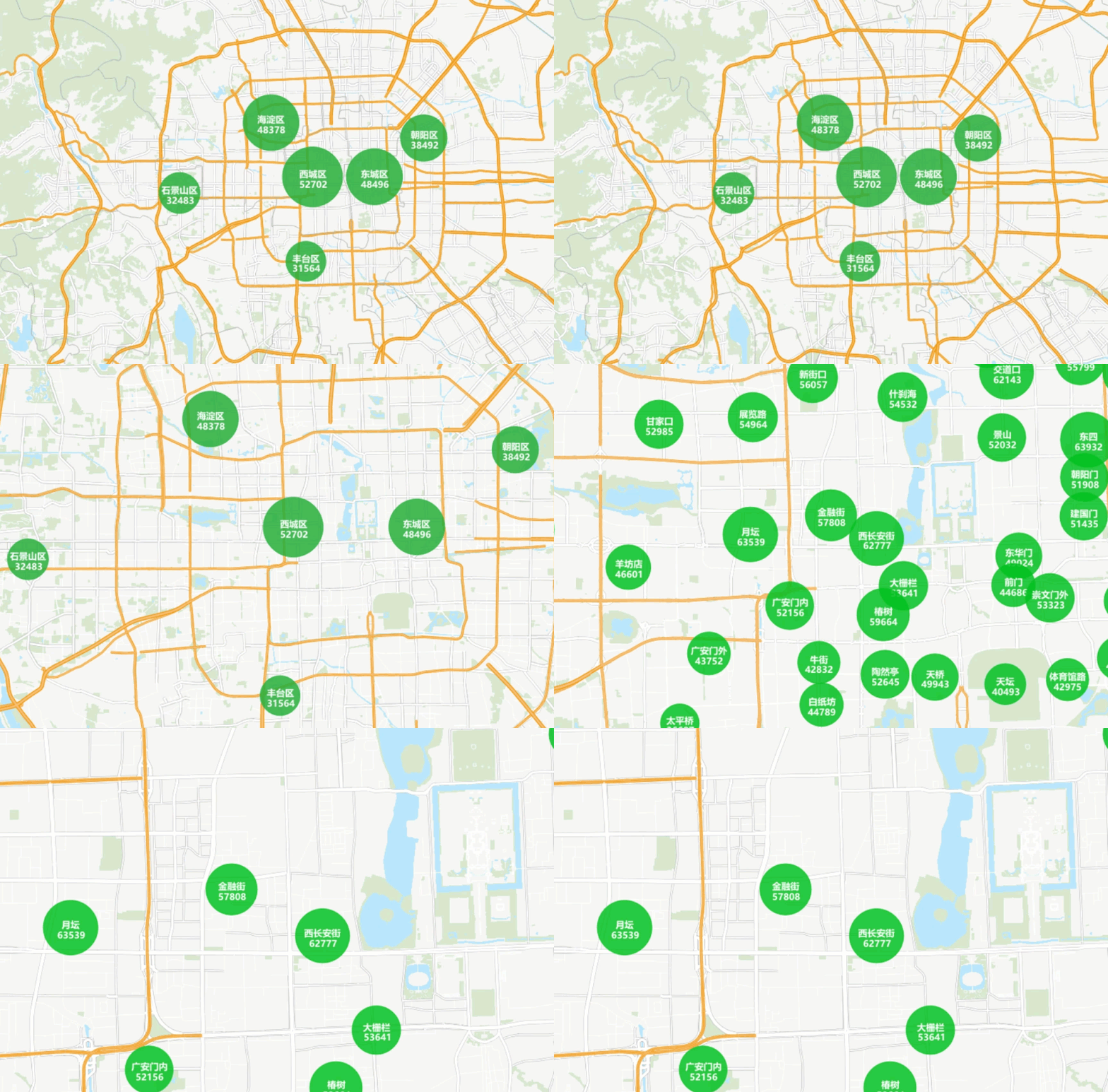


Regional Aggregation Map application examples
Case description
Taking the distribution of second-hand housing prices in Beijing as an example, through Regional Aggregation Map, the distribution of housing prices is displayed with aggregate Marker Size and labels in the map, providing consumers with intuitive housing price information.
Data description
- Second-hand housing data in Beijing, including the names of districts, counties, streets and districts, are used to make aggregation maps.
- The administrative division data of Beijing, including the information of each district and county, is used to make the base map.
- The traffic data of Chengdu is used to make the base map and show the traffic capacity.
- Chengdu Land Use data, including housing, rivers, parks, etc.
 Caution:
 - Sample Data contains the above Data Information, but you need to download a separate installation package. For details, see the Get the Sample Data package .
Main operation steps
- Open the SampleMap \ AnalyticalMap \ Regional Cluster \ Beijing. Smwu, and add the DatasetRoom _ P to the Beijing base map.
- Select a Room _ P layer in Layer Manager, and click Thematic Map Tab-> Aggregate Map Group-> Dynamic Aggregation Map button to draw an aggregate map according to the system default Set Parameters.
- In the Layer Properties panel that pops up, set the aggregate Group Field to the Room _ P. County.
- Aggregate Field Settings to price.
- Set Aggregate as the average value, and the program provides five Calculator Methods: average value, number, maximum value, minimum value, and sum.
- Set Text Style in Show Lable. You can set Font, Font Size, Tilt Angle, Text Color, Outline Color, Shadow Color and Font Effects according to your preference. Where Font Effects includes bold, strikethrough, right italic, underline, shadow, Background Transparency, outline, and outline pixel size. Here, only the Font is set as Microsoft YaHei, and the Font Effects is bold. The Font Size can be adjusted appropriately.
- Set Label expression, here set to "county | | '\ n' | | avg (price) | | '\ n' | | 'yuan/m2'".
- Set the display accuracy. The default setting here is 0.
- Set the line spacing of the label. The default setting here is 0mm.
- Set the style of the dot symbol. You can select the setting according to your preference in the Marker Symbol Selector. Here, the default symbol is reserved and no setting is made.
- Set the minimum and maximum Marker Size to 40/60.
- Set the Color Scheme to your liking and set the maximum and minimum color transparency. Here the maximum and minimum color transparencies are 5 and 20, respectively.
- Set the maximum Minimum Visible Scale of the aggregation layer. The label of the Regional Aggregation Map will not change with the change of the scale. Therefore, it is necessary to create the aggregation map layer of the symbol current scale under different scales. Here, the maximum Minimum Visible Scale of the aggregate map layer is set to 1:72224 and 1:288896, respectively.
- After repeating step 2, in the Layer Properties panel that pops up, set the aggregate Group Field to the Room _ P. Town.
- After repeating steps 4 through 6, set the Label expression to: "town | | '\ n' | | avg (price) | | '\ n' | | 'yuan/m2'".
- After repeating steps 8 through 11, set the aggregate map layer's maximum Minimum Visible Scale to 1:9028 and 1:72224.
Show Result