



The Percent Clip stretch method in mosaic dataset relies on image histogram information, while Minimum Maximum, Standard Deviation, and Gaussian methods depend on statistical data. If the image lacks corresponding information, the system will prompt to calculate histograms or statistical data. Only with accurate histograms and statistical data can proper image stretching be achieved. Image histograms and statistical information are stored in *.aux.xml files under the same directory as the image files, sharing identical filenames. Missing or incorrect no-value information in mosaic dataset may lead to abnormal stretch display effects.
This document illustrates the role of no-value settings in mosaic dataset through Calculate Statistics, Calculate Histogram, Build Overview, and Create Image Pyramid, providing corresponding solutions for abnormal display issues.
Proper Statistics Calculation
Minimum Maximum, Standard Deviation, and Gaussian displays require image statistical data. If unavailable, the system prompts for calculation. Missing or incorrect no-value information may lead to erroneous calculation results.
- Missing No-Value Information in Image Files
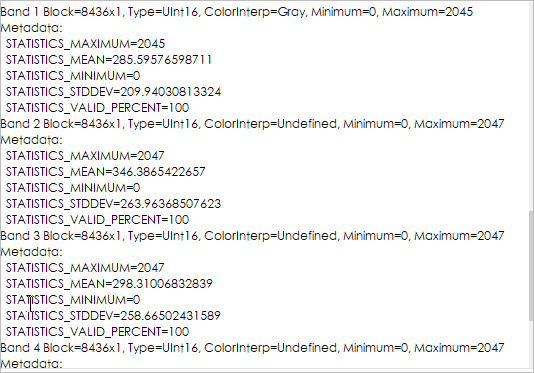
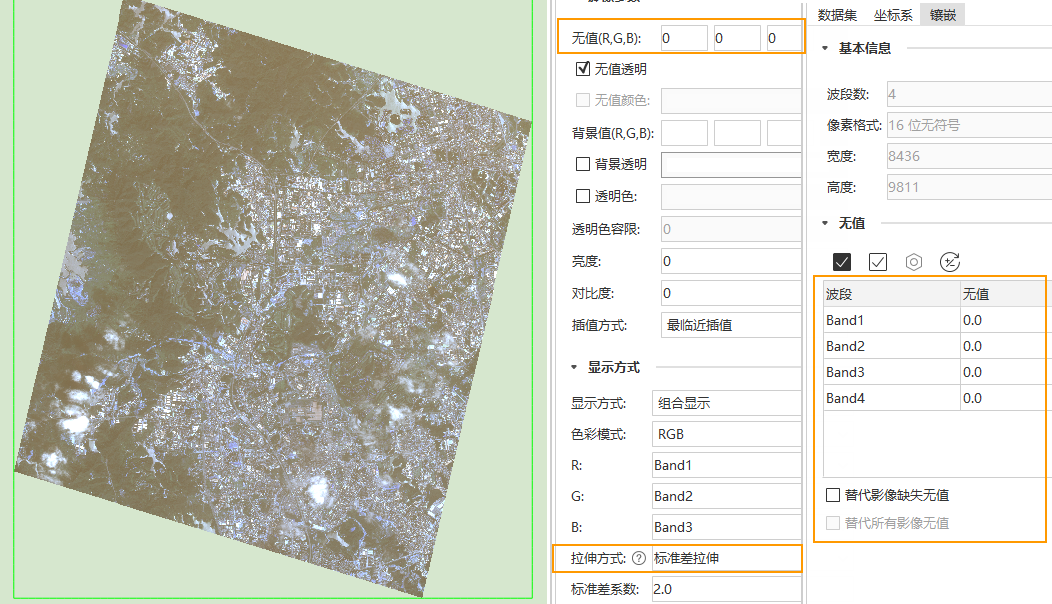
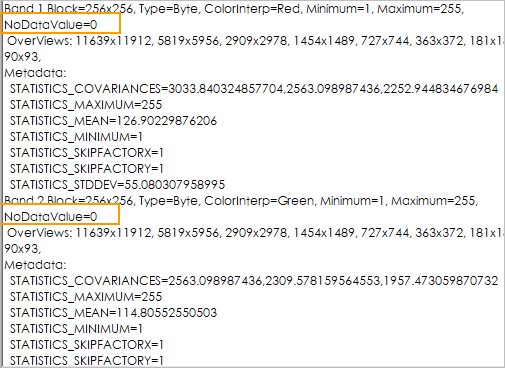
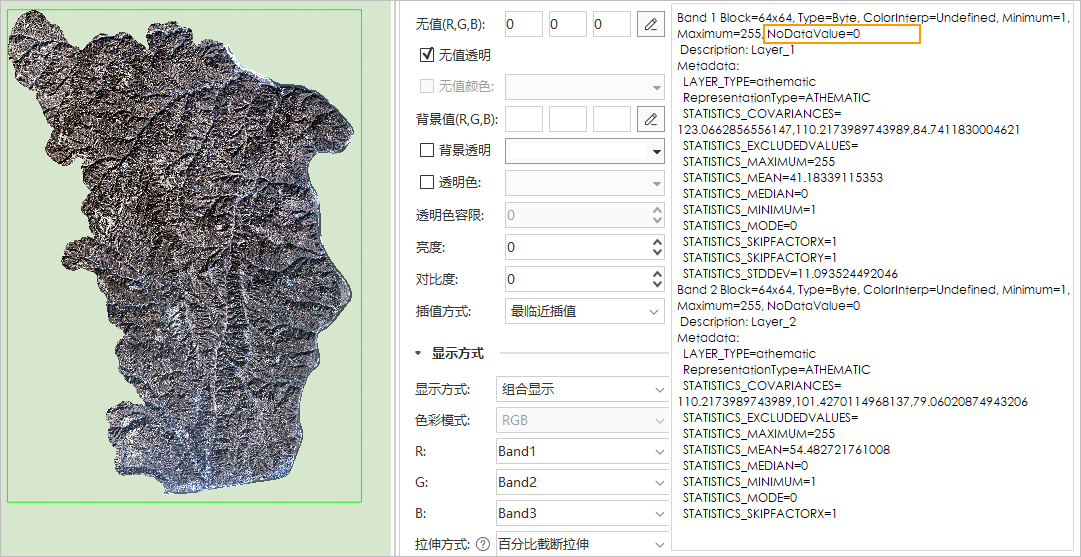
Example: A TIFF image without no-value metadata (Figure 1-1) contains no-value areas (black regions with 0 pixel values in all bands shown in Figure 1-2). When using Standard Deviation stretch without excluding no-value areas, the display (Figure 1-3) differs significantly from the correct result (Figure 1-4).
Cause: Mosaic dataset statistics calculation defaults to exclude image file no-values. When images lack no-value metadata (Figure 1-1), statistical data includes no-value areas, causing abnormal display in Figure 1-3.
Solution: Enable Replace Missing No-Value in mosaic dataset settings (Figure 1-4). This forces the system to use mosaic dataset no-values for calculation exclusion when source images lack metadata, ensuring proper statistics and display.
 |
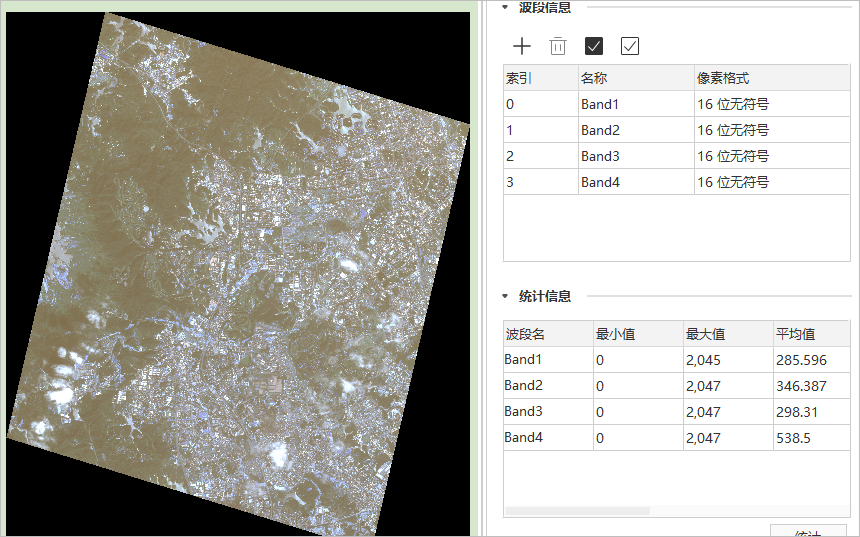 |
| Figure 1-1: View TIFF File Info Using GDAL Tools | Figure 1-2: No-Value Area with 0 Pixel Values |
 |
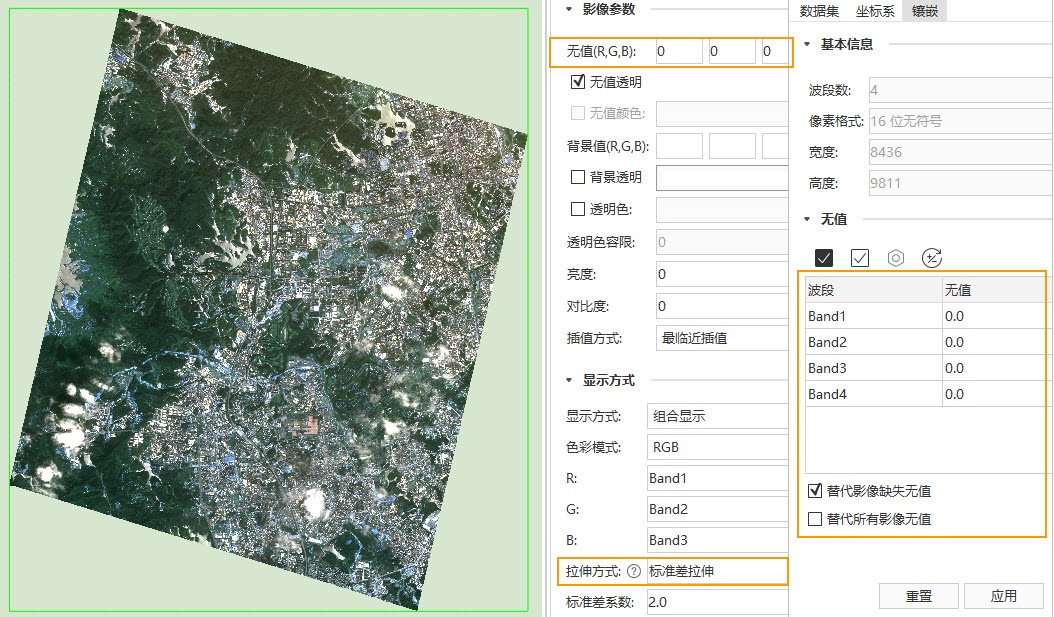 |
| Figure 1-3: Statistics Without No-Value Exclusion | Figure 1-4: Apply Mosaic Dataset No-Value Replacement |
Appendix: Sample image file with valid no-value information:
Troubleshooting steps:
- Close all maps containing this mosaic dataset and any open images.
- Configure mosaic dataset no-values (0 for all bands) and enable Replace Missing No-Value (Figure 1-4).
- Update statistics using Calculate Statistics GPA tool (Note: Feature under development).
- Rebuild existing pyramids.
- Reopen mosaic dataset for correct display.
- Incorrect No-Value Information in Image Files
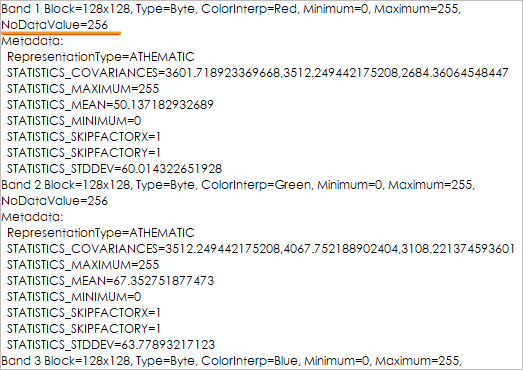
Example: A TIFF image with incorrect no-value metadata (256) while actual no-value areas have 0 pixel values (Figure 1-5). Using this metadata for statistics exclusion leads to abnormal display (Figure 1-6).
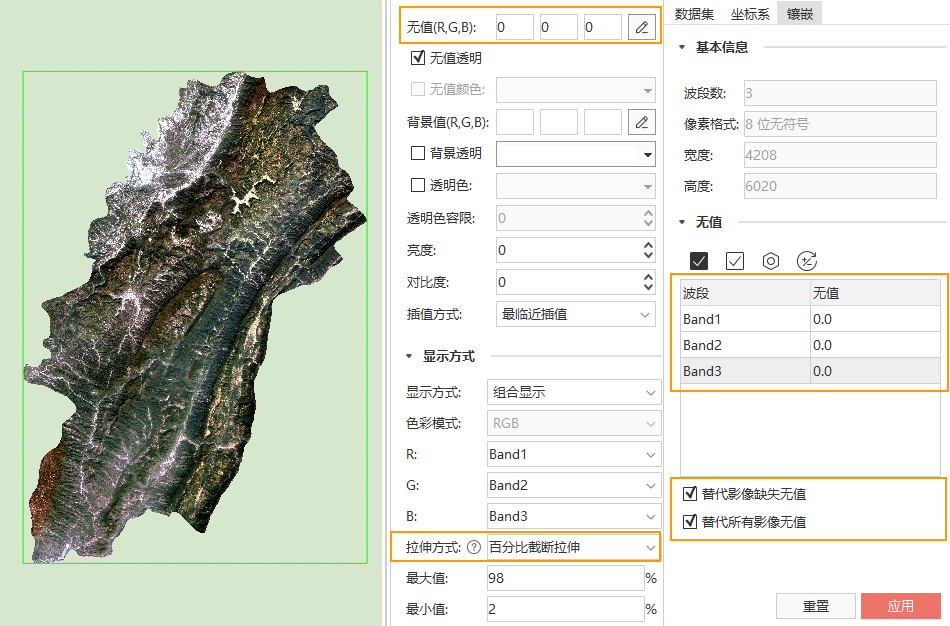
Solution: Enable both Replace Missing No-Value and Replace All Images with No-Value (Figure 1-7). This ignores source metadata and uses mosaic dataset no-values for proper statistics calculation.
 |
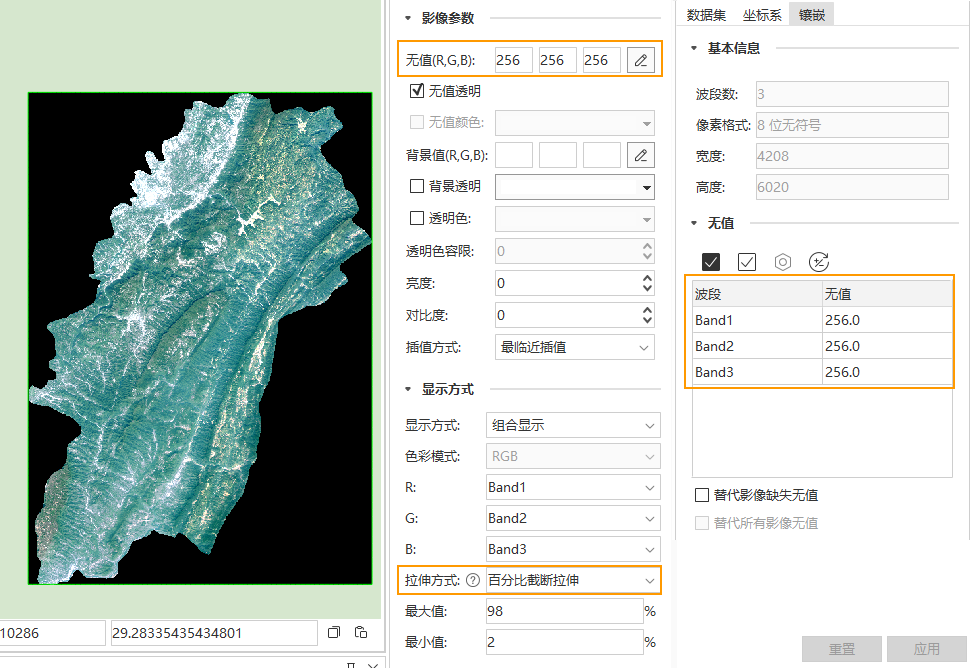 |
| Figure 1-5: Incorrect No-Value Metadata | Figure 1-6: Statistics with Wrong No-Value |
 |
|
| Figure 1-7: Enforce Mosaic Dataset No-Value Replacement | |
Troubleshooting steps:
- Close related maps and images.
- Set correct no-values (0) and enable both replacement options.
- Update histogram using GPA tool (Note: Feature under development).
- Rebuild pyramids.
- Adjust image layer's "No-Value (RGB)" to 0 for transparency.
- Alternatively, reopen dataset and adjust stretch method.
Accurate Histogram Calculation
Percentage-based stretching requires histogram data. Histogram calculation uses statistical min/max values. Correct statistics ensure accurate histograms.
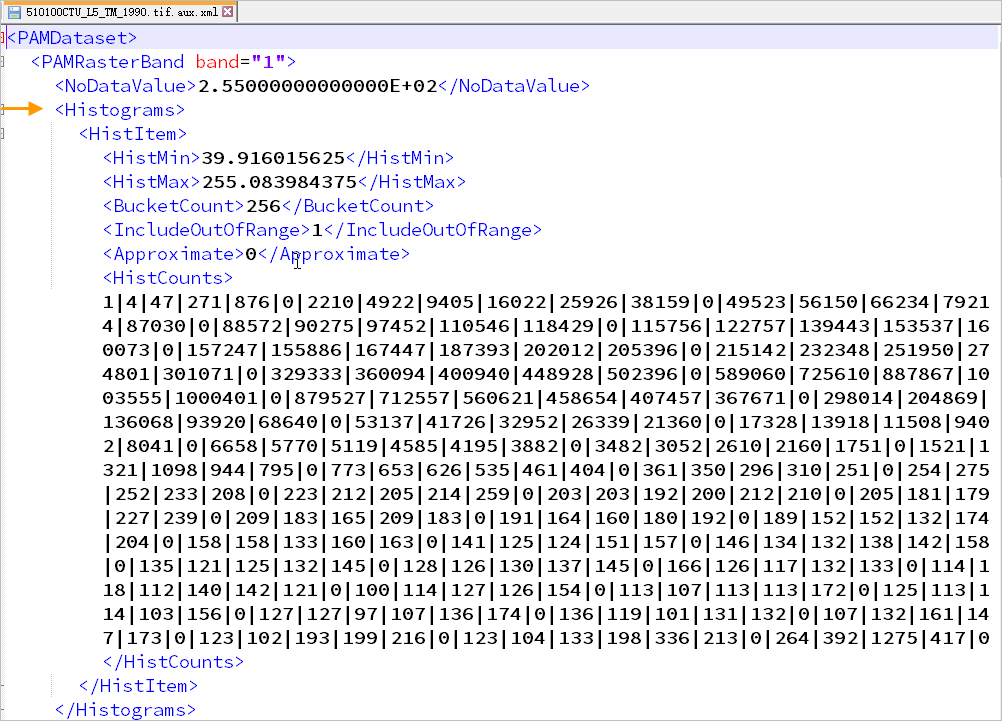
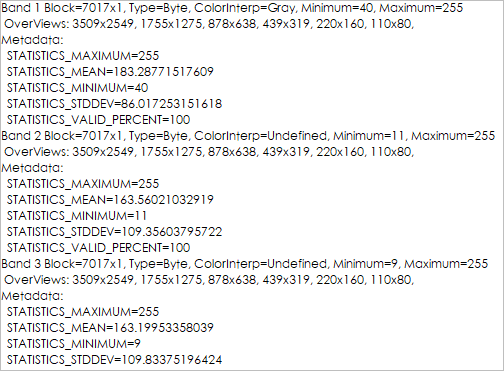
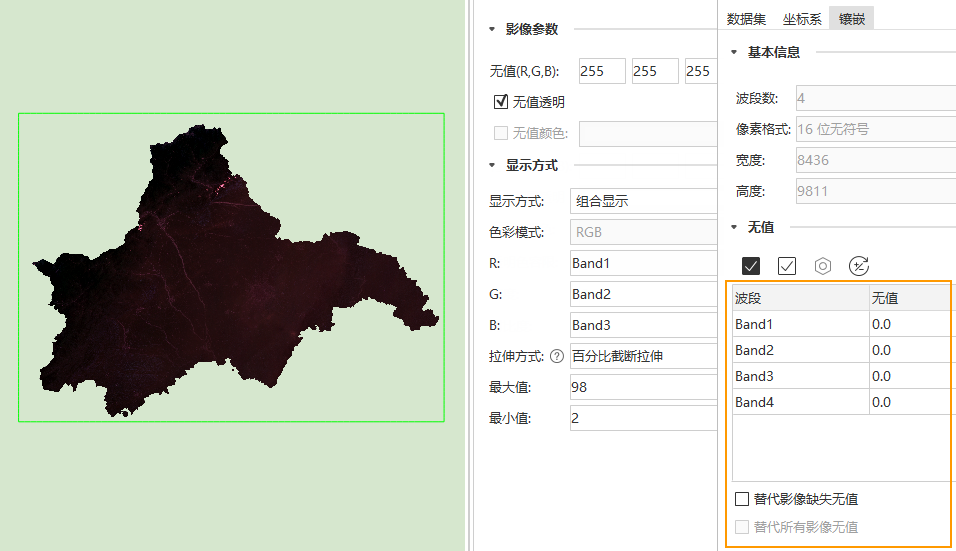
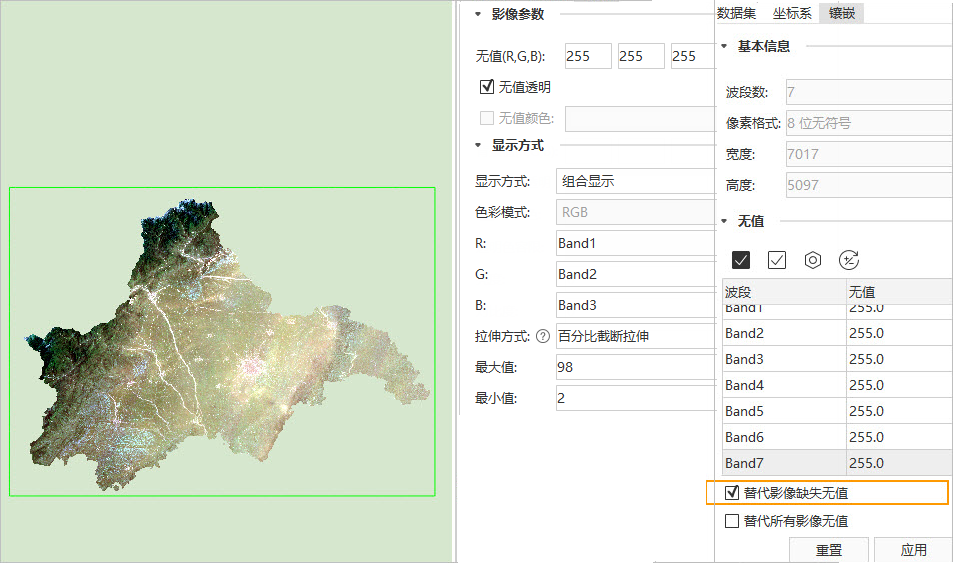
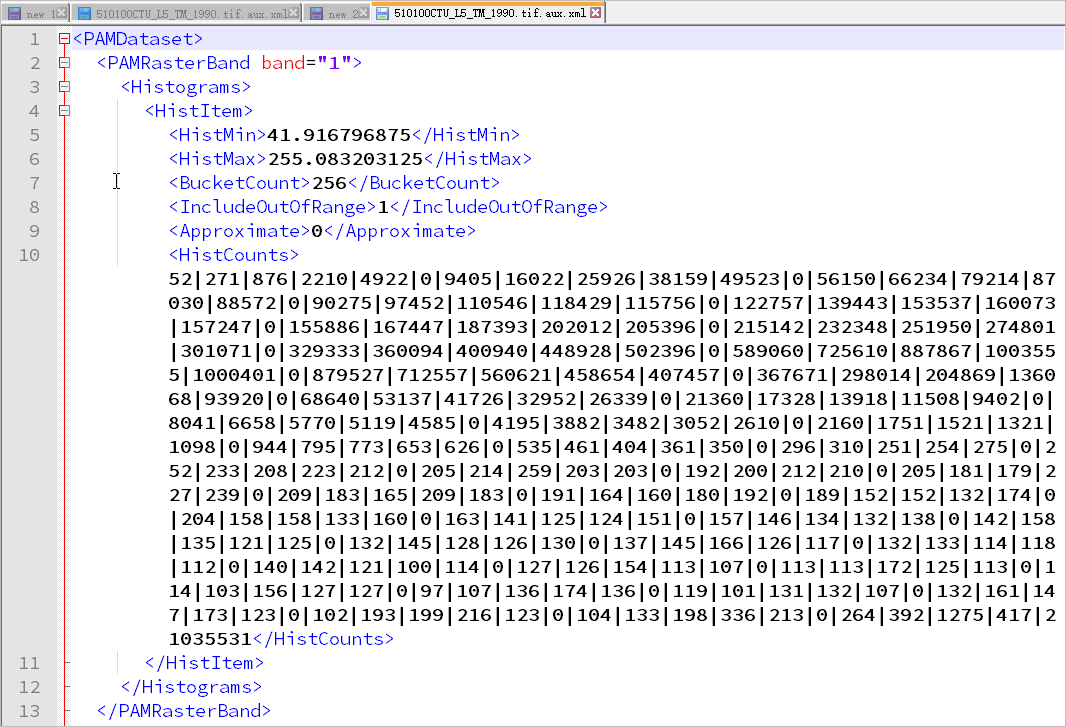
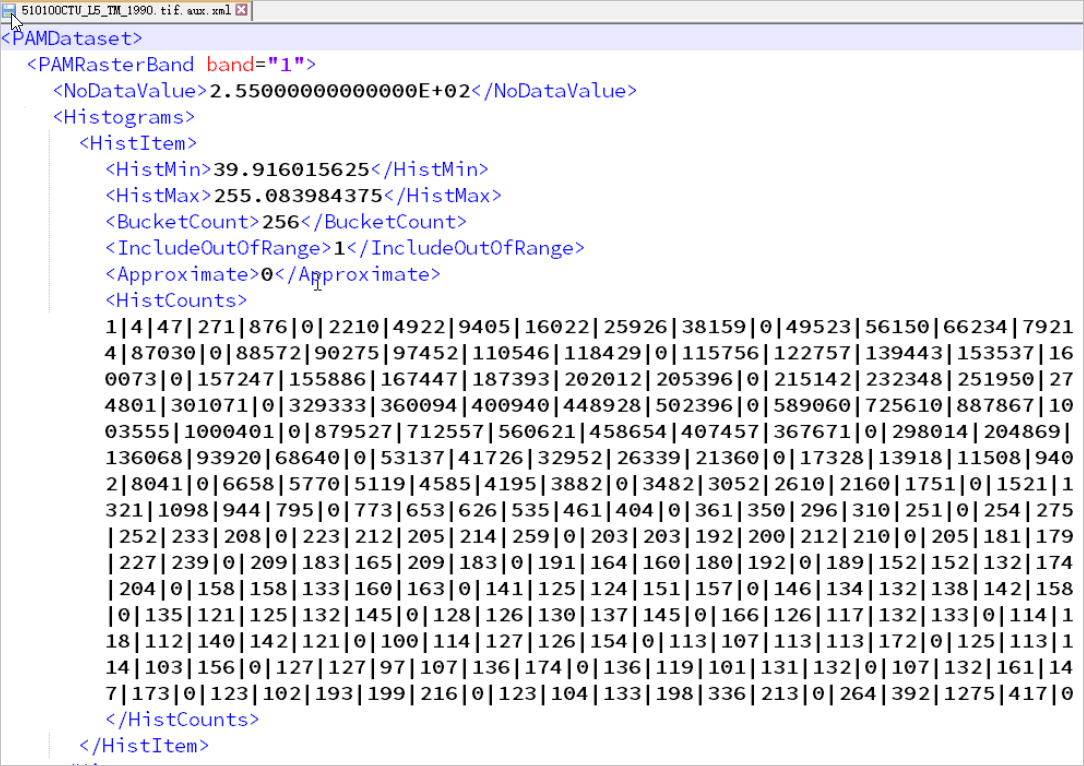
Example: A TIFF without no-value metadata (Figure 2-1) contains 255-value no-data areas (Figure 2-2). Unfiltered histogram causes abnormal display (Figure 2-3 vs 2-4).
Solution: Enable Replace Missing No-Value to exclude 255 values during histogram calculation.
 |
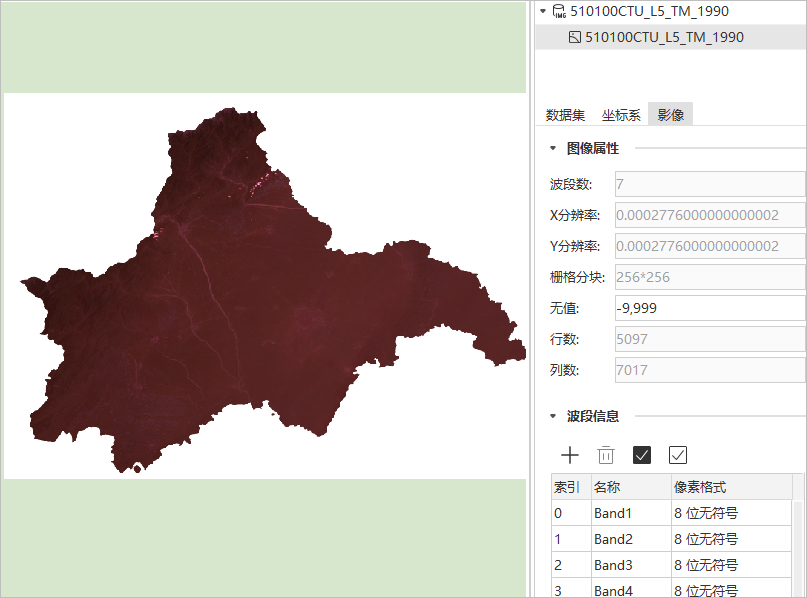 |
| Figure 2-1: TIFF File Information | Figure 2-2: 255-Value No-Data Areas |
 |
 |
 |
 |
| Figure 2-3: Unfiltered Histogram | Figure 2-4: No-Value Filtered Histogram |
Troubleshooting steps:
- Close related maps and images.
- Configure mosaic dataset no-values and enable replacement.
- Update statistics and rebuild pyramids.
- Reopen dataset for correct display.
Proper Overview Generation
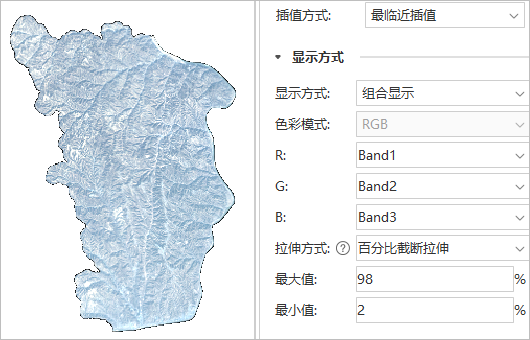
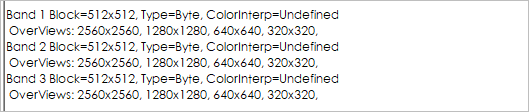
Example: A TIFF with correct no-value metadata displays properly (Figure 3-1). Without mosaic dataset no-value settings, overview images (.tif) lack no-value metadata (Figure 3-4), causing display issues (Figure 3-2).
Solution: Enable no-value settings to embed metadata in overview images (Figure 3-5).
 |
|
| Figure 3-1: Valid No-Value Areas | |
 |
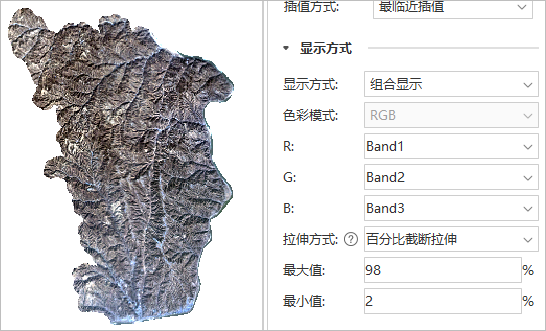 |
| Figure 3-2: Overview Without No-Value | Figure 3-3: Overview with No-Value |
 |
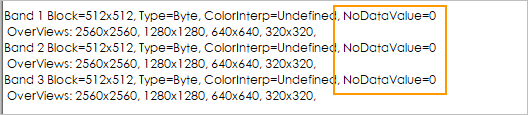 |
| Figure 3-4: Overview Missing No-Value Metadata | Figure 3-5: Overview with No-Value Metadata |
Recommended solution:
- Close related maps and images.
- Configure no-value settings and enable replacement.
- Rebuild overviews.
- Reopen dataset.
Alternative method:
- Close maps and configure no-value settings.
- Delete existing *.tif.aux.xml statistics files.
- Reopen dataset.
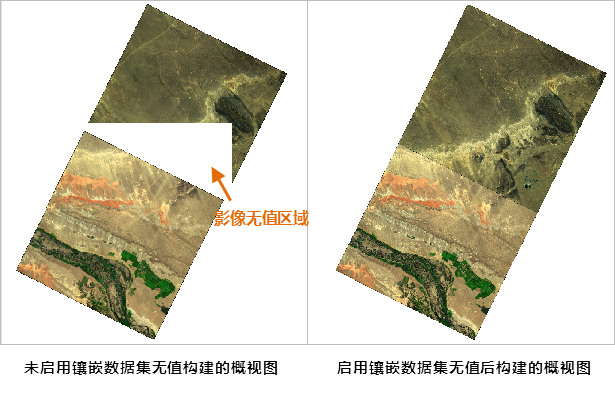
Note: Enabling no-value settings also removes overlapping no-value areas in overviews:
Proper Image Pyramid Creation
Image pyramids (.tif.ovr) inherit source file no-value issues. Mosaic dataset no-value settings require pyramid regeneration for correction.
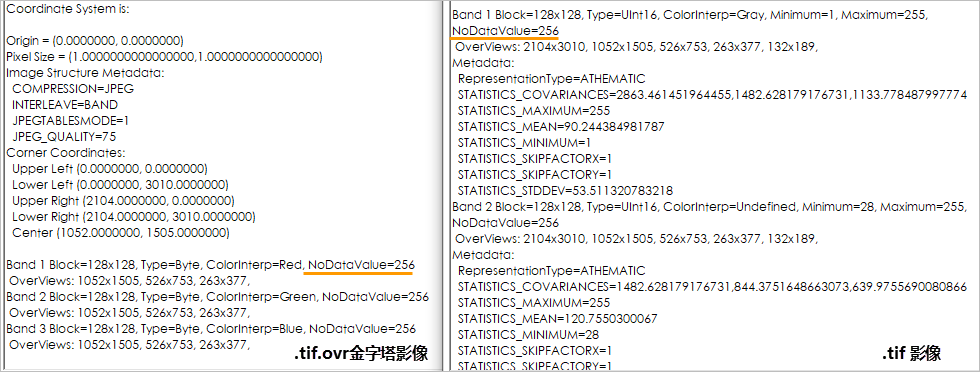 |
| Figure 4-1: Pyramid with Original No-Values |
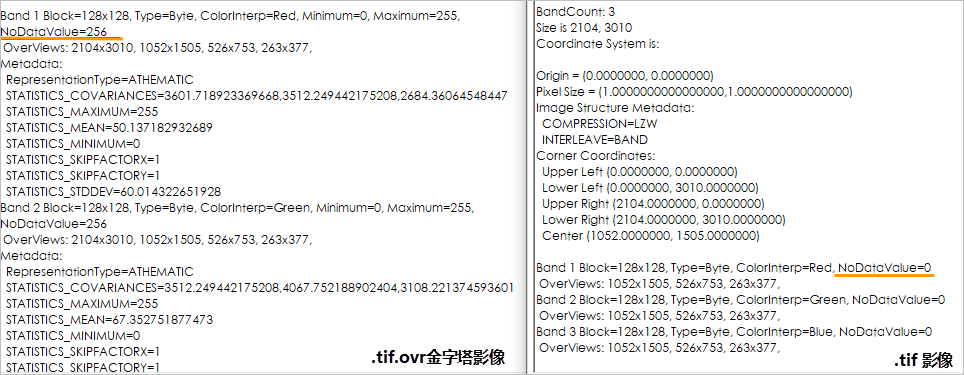 |
| Figure 4-2: Pyramid with Mosaic Dataset No-Values |
Troubleshooting steps:
- Close related maps and images.
- Configure no-value settings and enable replacement.
- Rebuild pyramids.
Summary
Mosaic dataset no-value settings resolve display abnormalities by ensuring proper statistics calculation, histogram generation, pyramid creation, overview building, and no-value area transparency. Complete processing may require combined operations on pyramids, statistics, and overviews.
Related Topics
View Mosaic Dataset Properties