



Question Catalog
1. How to view image file info
2. How to check raster values in NoData areas
3. NoData areas remain opaque after enabling mosaic dataset NoData
Solutions
1. How to view image file info?
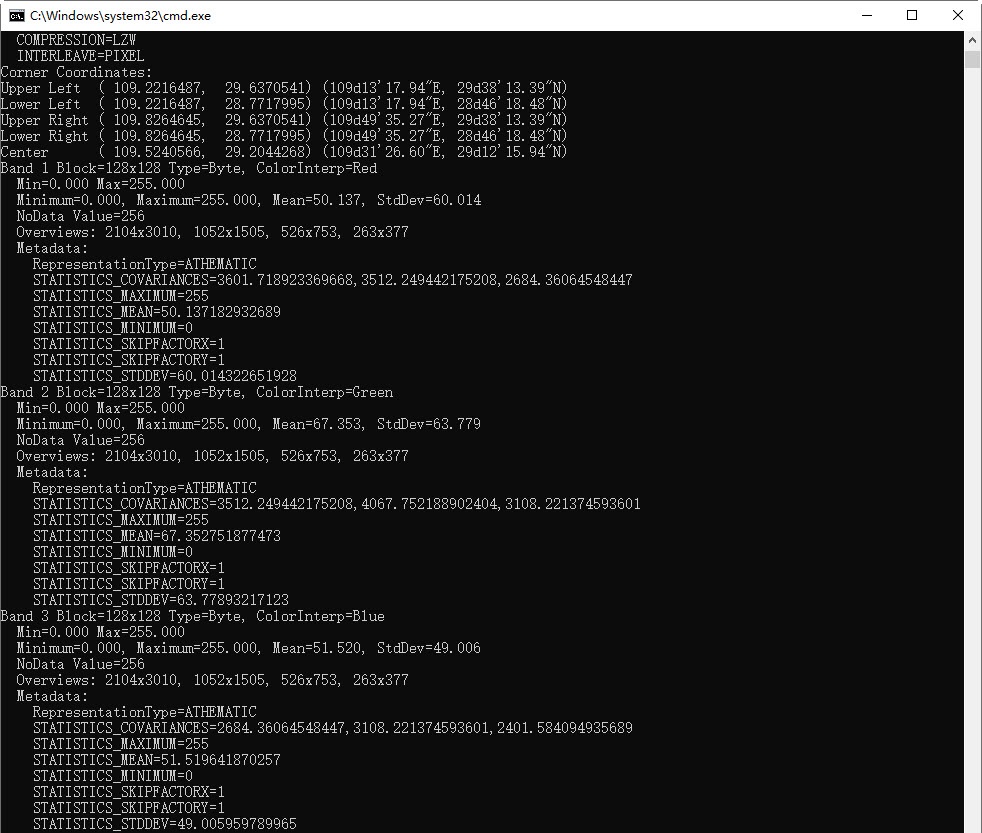
Answer: Use the gdalinfo.exe tool located at \support\MiniConda\conda_mini\Lib\site-packages\osgeo\ under the software installation directory. Detailed steps:
- Open a command prompt window
- Navigate to: Desktop installation directory\support\MiniConda\conda_mini\Lib\site-packages\osgeo\
- Execute command: gdalinfo.exe [full path to image file], e.g.: gdalinfo.exe E:\data\raster.tif
Sample result:
2. How to check raster values in NoData areas?
Answer: Use the Raster Query function under Spatial Analysis->Raster Analysis->Raster Query. Click Raster Query and hover over NoData areas to view band-specific raster values, as shown below.
3. NoData areas remain opaque after enabling mosaic dataset NoData.
Answer: For existing mosaic dataset maps, incorrect NoData information in source images may prevent automatic transparency. As shown below, erroneous NoData values in image files cause mosaic datasets to use improper default NoData values. Image layers in mosaic datasets default to using the dataset's NoData settings.
After modifying mosaic dataset NoData settings and enabling NoData replacement, existing maps won't automatically update. Manually adjust the "NoData (RGB)" values in image layers, or reopen the modified mosaic dataset to automatically remove NoData areas.
Answer: Closing mosaic dataset maps or images allows the program to rewrite statistical information and histograms into aux.xml files. Subsequent displays will use these updated aux.xml files.
After enabling mosaic dataset NoData and updating histograms/statistical data, the aux.xml files contain correct information. If maps with outdated information remain open when closing, they may overwrite the updated data with obsolete values.
Related Topics
View Mosaic Dataset Properties