Start the service management server
There are two ways to start the SuperMap iServer service manager:
- Enter the address in the following format in the address bar of the browser: http://<server>:<port>/iserver/admin-ui/home/, such as http://localhost:8090/iserver/admin-ui/home/;
- Click "Start"-"Programs"-"SuperMap"-"SuperMap iServer 2026"-"iServer service management".(This startup method is used for the SuperMap iServer product.)
Initialize the configuration
When starting the service for the first time, you will enter the initialization configuration wizard interface (or enter the address in the browser: http://<server>:<port>/iserver/ to enter the initialization configuration wizard interface). You need to create an administrator account, enter the username and password, and perform system environment and license information checks. After passing the checks, the initialization configuration is completed. In the future, every time the administrator logs into the SuperMap iServer service manager, they can enter the username and password created for the first time.
Sign in
SuperMap iServer supports setting the login verification code, which is off by default. Specific configuration method: iServer Config File Description .
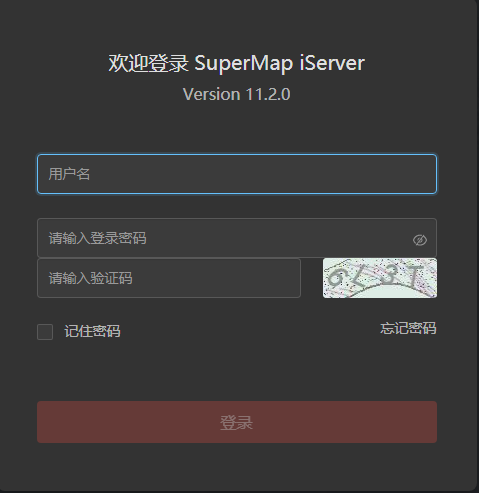
Administrator logs in to the service management server
After entering the SuperMap iServer login interface, the administrator enters the user name and password to log in to SuperMap iServer service management.
After logging in, you will see the following page:

The home page provides access to publish services. Users can publish a service or a group of services, manage and configure service instances, service interfaces, service components (collections), and service providers (collections), You can also manage workspace, configure cluster, quick help information, and more.
Normal user login to iServer
When accessing protected GIS services, ordinary users also need to log in to the iServer and enter the user name/password obtained from the administrator. Of course, you can also on the service list page (http://localhost:8090/iserver/services), click the login button in the upper right corner to log in iServer to view all services to which you have access.
Precautions
You may encounter situations where you cannot log in to the iServer properly:
- If the account is locked due to continuous input of the wrong password, please contact the system administrator to unlock it.
- If you forget your password , contact your system administrator to reset it
- If you have forgotten your administrator password, please refer to FAQ.