

URI
<uiConfig_uri>/pages/home[.<format>]
Supported Methods
Parent Resource
Introduction
The homepage configuration resource of iPortal. The homepage configuration includes the layout and properties of various UI components on the iPortal homepage.
Supported Methods:
- GET: Retrieve the current homepage configuration of iPortal.
- PUT: Customize the iPortal homepage.
- HEAD: Check whether the homeConfig resource exists, or whether the permission can access the homeConfig resource.
Supported output formats: JSON.
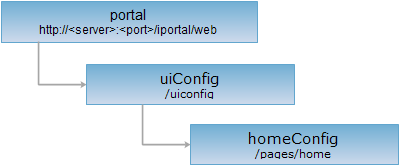
Resource hierarchy
HTTP Request Method
Perform an HTTP request on the following URI. The json output format is used as an example, where supermapiportal is the server name.
http://supermapiportal:8190/iportal/web/uiconfig/pages/home.json
GET Request
Retrieve the homepage configuration of iPortal, returning the collection of all UI components, their layouts, and properties on the iPortal homepage.
Response Structure
Perform a GET request on the homeConfig resource to retrieve the collection of all UI components, their layouts, and properties on the iPortal homepage. The returned resource representation structure is as follows:
| Field | Type | Description |
| widgetList | String[] | The collection of UI components on the iPortal homepage. |
Response Example
Perform a GET request on the homeConfig resource: http://localhost:8190/iportal/web/uiconfig/pages/home.json. The returned json representation is as follows:
{
"widgetList": [
{
"type": "row",
"grid": "auto",
"widgets": [
{
"type": "Banner",
"id": "Banner001",
"param": {
"imgUrl": "{webUiRoot}homePageImg/banner2.png",
"title": "SuperMap iPortal 10i",
"titleColor": "#FFFFFF",
"subTitle": "$t(subTitle)",
"subTitleColor": "#FFFFFF",
"button": "$t(buttonTitle)",
"buttonColor": "#FFFFFF",
"buttonHref": "{portalRoot}/web-ui/home/edit"
}
}
]
},
{
"type": "row",
"grid": "auto",
"widgets": [
{
"type": "ShortCutLinks",
"id": "ShortCutLinks001",
"param": {
"icon": "{webUiRoot}homePageImg/shortCut/map.png",
"title": "$t(shortCutLinks.map)",
"text": "$t(shortCutLinks.mapDescription)",
"href": "{portalRoot}/web-ui/resource-center/map"
}
},
{
"type": "ShortCutLinks",
"id": "ShortCutLinks002",
"param": {
"icon": "{webUiRoot}homePageImg/shortCut/service.png",
"title": "$t(shortCutLinks.service)",
"text": "$t(shortCutLinks.serviceDescription)",
"href": "{portalRoot}/web-ui/resource-center/service"
}
},
{
"type": "ShortCutLinks",
"id": "ShortCutLinks003",
"param": {
"icon": "{webUiRoot}homePageImg/shortCut/scene.png",
"title": "$t(shortCutLinks.scene)",
"text": "$t(shortCutLinks.sceneDescription)",
"href": "{portalRoot}/web-ui/resource-center/scene"
}
},
{
"type": "ShortCutLinks",
"id": "ShortCutLinks004",
"param": {
"icon": "{webUiRoot}homePageImg/shortCut/data.png",
"title": "$t(shortCutLinks.data)",
"text": "$t(shortCutLinks.dataDescription)",
"href": "{portalRoot}/web-ui/resource-center/data"
}
},
{
"type": "ShortCutLinks",
"id": "ShortCutLinks005",
"param": {
"icon": "{webUiRoot}homePageImg/shortCut/custom.png",
"title": "$t(shortCutLinks.customModule)",
"text": "$t(shortCutLinks.customModuleDescription)",
"href": "{portalRoot}/web-ui/resource-center/map"
}
}
]
},
{
"type": "row",
"grid": "auto",
"widgets": [
{
"type": "ResourceCard",
"id": "RresourceCard001",
"param": {
"title": "$t(hotResouces)",
"resourceType": "hot"
}
}
]
}
]
}
PUT Request
Customize the iPortal homepage.
Request Parameters
When sending a request, you need to pass the following parameters in the request body:
| Name | Type | Description |
| widgetList | String[] | The collection of user-customized UI components on the iPortal homepage. |
Response Structure
The returned resource representation structure is as follows:
| Field | Type | Description |
| succeed | boolean | Whether saving the customized iPortal homepage configuration is successful. |
| error | HttpError | Error information. If the save is successful, this field is not returned. |
Response Example
Customize the iPortal homepage. Perform a PUT request on the homeConfig resource: http://localhost:8190/iportal/web/uiconfig/pages/home.json. The request body is as follows:
{
"widgetList": [
{
"type": "row",
"grid": "auto",
"widgets": [
{
"type": "ShortCutLinks",
"id": "ShortCutLinks1565656815059",
"param": {
"icon": "{webUiRoot}homePageImg/shortCut/map.png",
"title": "Map",
"text": "Discover more interesting maps and quickly create beautiful maps.",
"href": "{portalRoot}/web-ui/resource-center/map"
}
},
{
"type": "ShortCutLinks",
"id": "ShortCutLinks1565659901115",
"param": {
"icon": "{webUiRoot}homePageImg/shortCut/map.png",
"title": "Map",
"text": "Discover more interesting maps and quickly create beautiful maps.",
"href": "{portalRoot}/web-ui/resource-center/map"
}
}
]
},
{
"type": "row",
"grid": "auto",
"widgets": [
{
"type": "ResourceCard",
"id": "ResourceCard1565659906706",
"param": {
"title": "Hot Resouces",
"resourceType": "hot"
}
}
]
},
{
"type": "row",
"grid": "auto",
"widgets": [
{
"type": "Banner",
"id": "Banner001",
"param": {
"imgUrl": "{webUiRoot}homePageImg/banner2.png",
"title": "SuperMap iPortal 10i",
"titleColor": "#FFFFFF",
"subTitle": "SuperMapCloud GIS Portal Server",
"subTitleColor": "#FFFFFF",
"button": "Quick Customize Homepage →",
"buttonColor": "#FFFFFF",
"buttonHref": "{portalRoot}/web-ui/home/edit"
}
}
]
},
{
"type": "row",
"grid": "auto",
"widgets": [
{
"type": "ShortCutLinks",
"id": "ShortCutLinks001",
"param": {
"icon": "{webUiRoot}homePageImg/shortCut/map.png",
"title": "Map",
"text": "Discover more interesting maps and quickly create beautiful maps.",
"href": "{portalRoot}/web-ui/resource-center/map"
}
},
{
"type": "ShortCutLinks",
"id": "ShortCutLinks002",
"param": {
"icon": "{webUiRoot}homePageImg/shortCut/service.png",
"title": "Service",
"text": "Aggregate multiple types of GIS services and quickly register GIS services.",
"href": "{portalRoot}/web-ui/resource-center/service"
}
},
{
"type": "ShortCutLinks",
"id": "ShortCutLinks003",
"param": {
"icon": "{webUiRoot}homePageImg/shortCut/scene.png",
"title": "scene",
"text": "Browse 3D scenes online and quickly create 3D scenes.",
"href": "{portalRoot}/web-ui/resource-center/scene"
}
},
{
"type": "ShortCutLinks",
"id": "ShortCutLinks004",
"param": {
"icon": "{webUiRoot}homePageImg/shortCut/data.png",
"title": "Data",
"text": "Discover more exciting data, upload and share your data.",
"href": "{portalRoot}/web-ui/resource-center/data"
}
},
{
"type": "ShortCutLinks",
"id": "ShortCutLinks005",
"param": {
"icon": "{webUiRoot}homePageImg/shortCut/custom.png",
"title": "Custom Module",
"text": "Add images and URLs to customize your quick links.",
"href": "{portalRoot}/web-ui/resource-center/map"
}
}
]
},
{
"type": "row",
"grid": "auto",
"widgets": [
{
"type": "ResourceCard",
"id": "RresourceCard001",
"param": {
"title": "Hot Resources",
"resourceType": "hot"
}
}
]
}
]
}
The returned json response is as follows:
{"succeed": true}
HEAD Request
Returns the same HTTP response headers as a GET request, but without a response entity. You can obtain the metadata information contained in the response message headers without transferring the entire response content. The metadata information includes media type, character encoding, compression encoding, entity content length, etc.
A HEAD request can be used to determine whether the homeConfig resource exists, or whether the client has permission to access the homeConfig resource. By performing a HEAD request on a URI with .<format> appended, you can also quickly determine whether the homeConfig resource supports the <format> representation.
See