

iPortal supports logging in with third-party accounts based on the OAuth2.0 protocol. Currently, iPortal can be directly configured to log in with QQ, Sina Weibo, and WeChat accounts, and also supports using other third-party accounts following the OAuth2.0 protocol through extension. Please refer to: Extension of Third-Party Login Methods Following the OAuth2 Protocol. After the third-party login is configured, you can log in to iPortal directly with third-party accounts such as QQ, Sina Weibo, and WeChat, and you can also bind third-party accounts with iPortal accounts for use.
Third-Party Login Configuration
Log in to iPortal as the administrator, and click "Management" > "Security" > "Login Configuration" > "Third-Party Login" in sequence to enter the "Third-Party Login Configuration" page, where you can add or manage third-party login configurations.
Configure QQ Account Login
- Step 1: Create an application. The administrator applies to become a developer on the QQ Connect official website (https://connect.qq.com). After completing the registration and passing the qualification review, select "Application Management" > "Website Application" > "Create Application" to create the application. For the detailed operation process, please refer to: Introduction to Website Access.
- Step 2: Complete the application information. Fill in the application name, domain name, callback address, and other information. Among them, the "Website Name" must be strictly consistent with the name registered for filing, and the "Callback Address" must be filled in the following format: http(s)://{IP}:{port}/{contextPath}/services/security/login/QQ/callback. The IP can be an IP address or a domain name. When a domain name is used, the default port number of the HTTP protocol is 80, and the default port number of the HTTPS protocol is 443. The specific example is as follows: https://iptl.supermap.io:443/iportal/services/security/login/QQ/callback. After filling in, submit and wait for review. After the review is passed, you can view the App ID and App Key corresponding to the application in Application Management.
- Step 3: Configure iPortal. Log in to iPortal as the administrator, and click the "Add Third-Party Login Configuration" button on the "Third-Party Login Configuration" page to open the Add Third-Party Login Configuration dialog box:
- Login method: Select "QQ Account Login"
- App ID (client identifier): Fill in the App ID of the application created on the QQ Connect platform.
- App Key: Fill in the App Key of the application created on the QQ Connect platform.
- Callback domain name: The callback domain name here is different from the callback address filled in Step 2. You only need to fill in the IP or domain name, for example: iptl.supermap.io.
Click the "OK" button to complete the configuration of the QQ account login method.
Configure Sina Weibo Account Login
- Step 1: Create an application. After the administrator registers and applies to become a developer on the Sina Weibo open platform (https://open.weibo.com), select "Micro Connection" > "Website Access" > "Access Now" to create the application. For the detailed operation process, please refer to: Introduction to Website Access. After the application is created, the Weibo open platform will issue the App Key and App Secret corresponding to the application.
- Step 2: Complete the application information. Fill in the basic information, advanced information, and test information of the application. Among them, in the "OAuth 2.0 Authorization Settings" item of the advanced information, the authorization callback page must be filled in the following format: http(s)://{IP}:{port}/{contextPath}/services/security/login/WEIBO/callback. The IP can be an IP address or a domain name. When a domain name is used, the default port number of the HTTP protocol is 80, and the default port number of the HTTPS protocol is 443. The specific example is as follows: https://iptl.supermap.io:443/iportal/services/security/login/WEIBO/callback. The cancel authorization callback page refers to the callback address after a Weibo user cancels the authorization of their own account to iPortal. If it is not needed, it can be left unset.
- Step 3: Configure iPortal. Log in to iPortal as the administrator, and click the "Add Third-Party Login Configuration" button on the "Third-Party Login Configuration" page to open the Add Third-Party Login Configuration dialog box:
- Login method: Select "Weibo Account Login"
- App Key (client identifier): Fill in the App Key of the application created on the Weibo open platform.
- App Secret: Fill in the App Secret of the application created on the Weibo open platform.
- Callback domain name: The callback domain name here is different from the callback domain name filled in Step 2. You only need to fill in the IP or domain name, for example: iptl.supermap.io.
Click the "OK" button to complete the configuration of the Sina Weibo account login method.
Before the created application passes the review of the Weibo open platform, you can only log in with the Sina Weibo test accounts specified in the application test information. After submitting for review and passing, you can log in with all Sina Weibo accounts.
Configure WeChat Account Login
- Step 1: Create an application. The administrator applies to become a developer on the WeChat open platform (https://open.weixin.qq.com). After completing the registration and passing the qualification review, select "Management Center" > "Website Application" > "Create Website Application" to create the application. For the detailed operation process, please refer to: Introduction to Website Access.
- Step 2: Complete the application information. Fill in the application name, domain name, callback address, and other information. Among them, the "Website Name" must be strictly consistent with the name registered for filing, and the "Callback Address" must be filled in the following format: http(s)://{IP}:{port}/{contextPath}/services/security/login/WX/callback. The IP can be an IP address or a domain name. When a domain name is used, the default port number of the HTTP protocol is 80, and the default port number of the HTTPS protocol is 443. The specific example is as follows: https://iptl.supermap.io:443/iportal/services/security/login/WX/callback. After filling in, submit and wait for review. After the review is passed, you can view the App ID and App Secret corresponding to the application in Application Management.
- Step 3: Configure iPortal. Log in to iPortal as the administrator, and click the "Add Third-Party Login Configuration" button on the "Third-Party Login Configuration" page to open the Add Third-Party Login Configuration dialog box:
- Login method: Select "WeChat Account Login"
- App ID (unique application identifier): Fill in the App ID of the application created on the WeChat open platform.
- App Secret (application key): Fill in the App Secret of the application created on the WeChat open platform.
- Callback domain name: The callback domain name here is different from the callback address filled in Step 2. You only need to fill in the IP or domain name, for example: iptl.supermap.io.
Click the "OK" button to complete the configuration of the WeChat account login method.
Manage Third-Party Account Login Configurations
The administrator can view all the successfully configured third-party account login methods on the "Third-Party Login Configuration" page, and can delete, edit, and enable / disable the login methods.
Log In with a Third-Party Account
After the third-party login methods are configured, the QQ / Weibo / WeChat login buttons will appear on the iPortal login page, and you can use these third-party login methods to log in to iPortal.
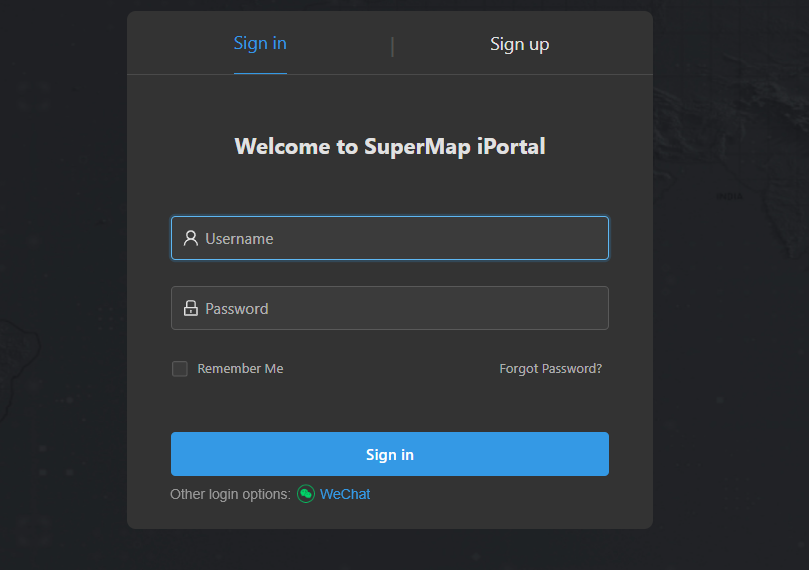
Taking logging in with a QQ account as an example, click the "QQ Login" button on the login page, and the QQ authentication and authorization page will pop up. After entering the QQ account and password or scanning the QR code for successful authentication, if you are using the QQ account to log in to iPortal for the first time, the following dialog box will pop up:
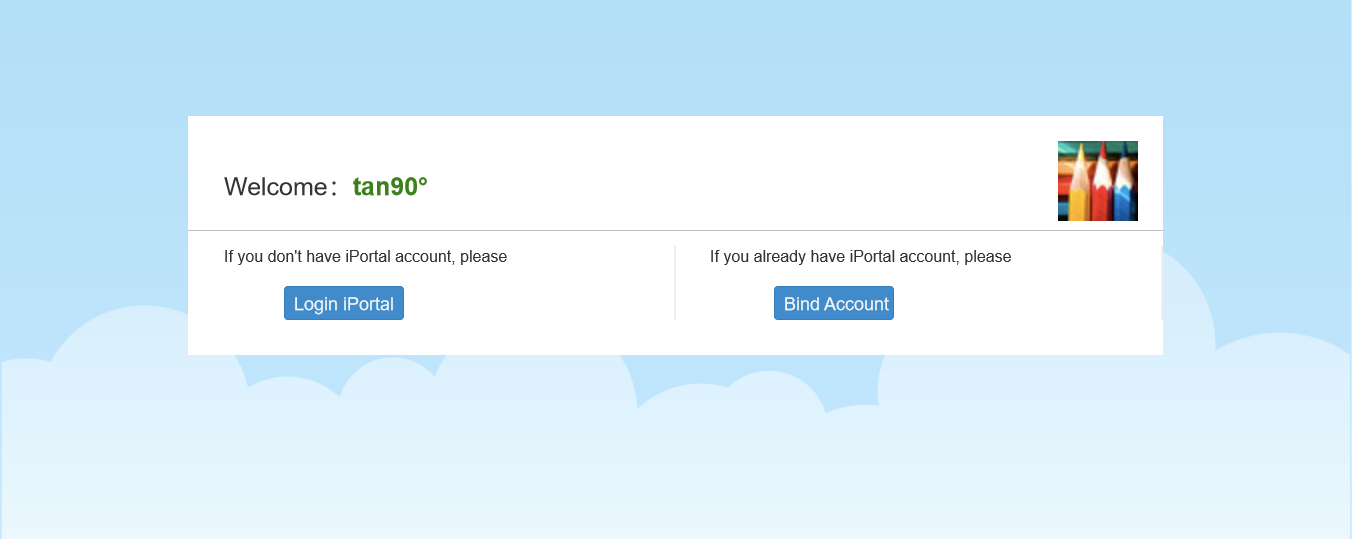
If you already have an iPortal account, please click the "Bind iPortal Account" button to bind the QQ account with the iPortal account. Next time, you can log in to iPortal with either the iPortal account or the QQ account. When you log in to iPortal with the QQ account, you have the same roles and permissions as the iPortal account bound to the QQ account.
If you do not have an iPortal account yet, or you have an iPortal account but do not want to bind it with the QQ account, please click the "Log In to iPortal Now" button to log in to iPortal with the QQ account. At this time, the user name is a random string, which can be viewed on the User Management page. Note that if you do not bind an existing iPortal account when logging in for the first time, you can only use the QQ account to log in to iPortal in the future.