GIS Cloud Suite
Register HDFS Directory
GIS Cloud Suite supports to register internal and external HDFS Directory. The internal one is the built-in HDFS Directory in GIS Cloud Suite. The external one is the HDFS Directory build by users, it is required to configure and register in GIS Cloud Suite. Please follow the steps below to register HDFS Directory.
Register Built-in HDFS Directory
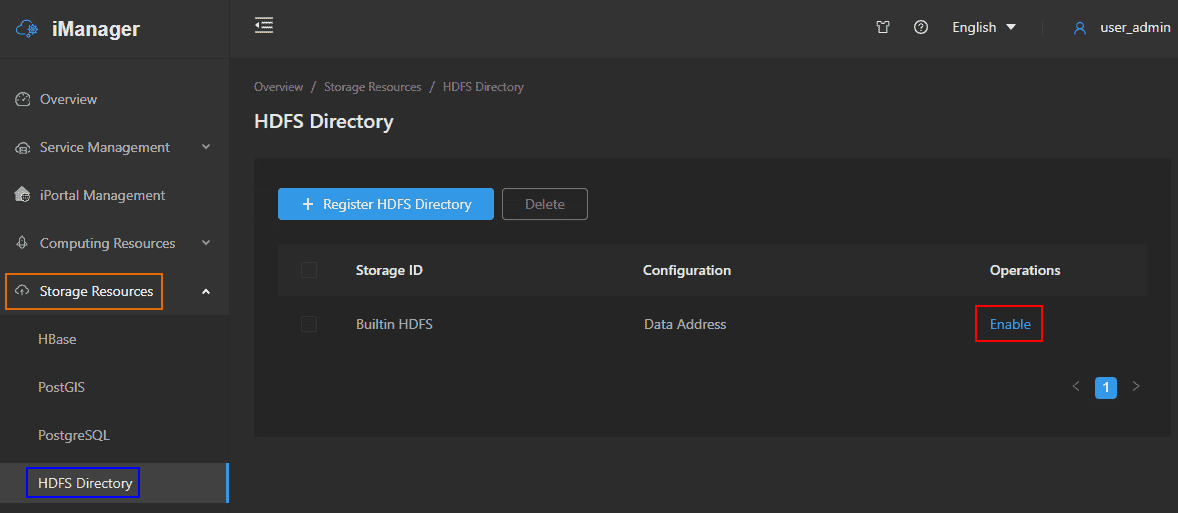
- Clicks on Storage Resources > HDFS Directory on the left navigation bar.
-
Clicks Enable on the HDFS Directory page.
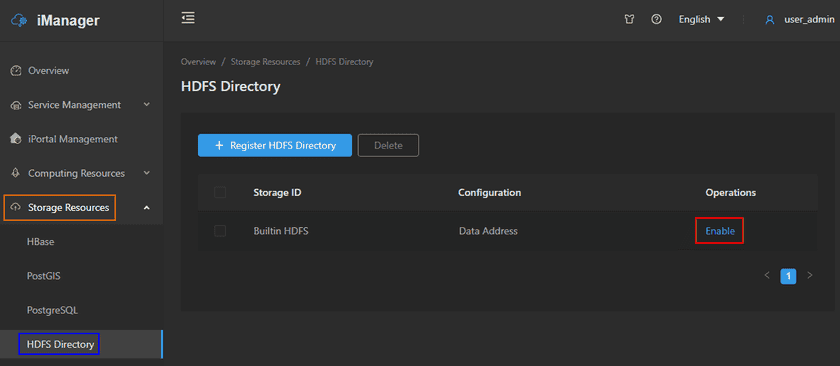
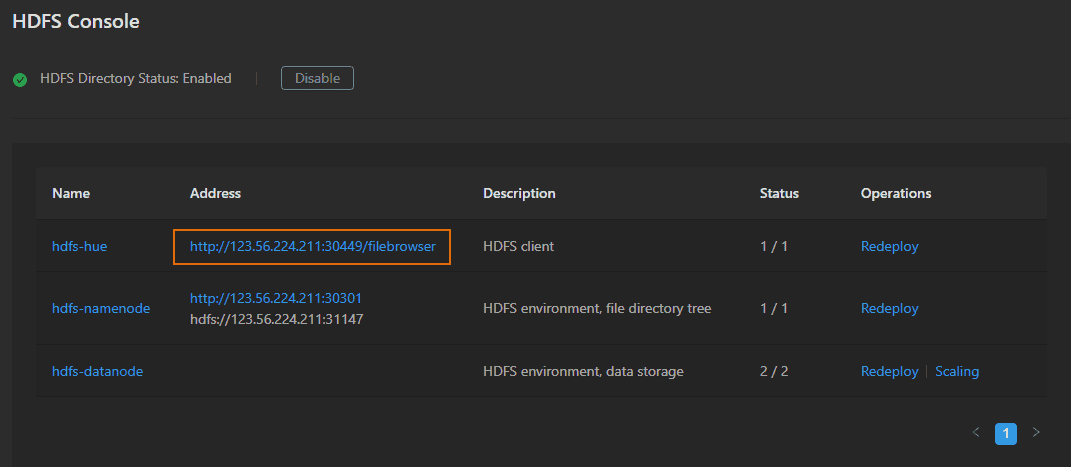
- After the HDFS Directory environment get started up, clicks on Console to enter the HDFS Directory Console.
-
Clicks the address of hdfs-hue.
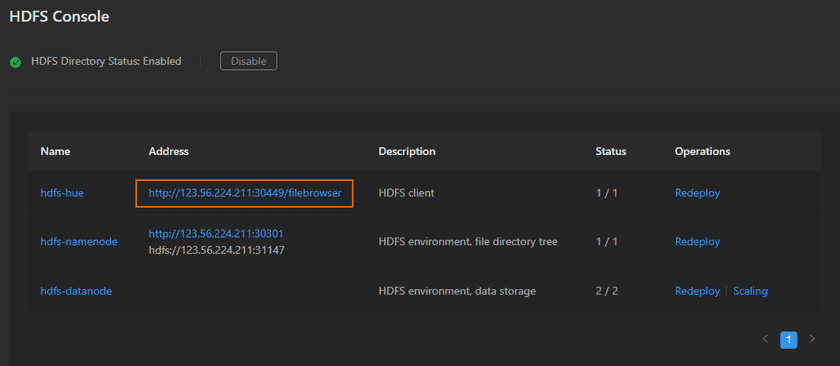
- Fills in the username and password to create an account.
- Clicks on File Browser to enter your folder.
-
Use Upload button to upload data.
Notes:
HDFS Directory is different to others storage resource, it does not support to register first, then upload data through Data Catalog Service. The HDFS Directory needs to upload data through the Hue, then register to Data Catalog Service.
-
Back to the HDFS Directory register page, click on Register HDFS Directory. Refer to the introductions in Register External HDFS Directory to fill out the information except HDFS directory option.
- HDFS directory: Fill in the path of hdfs-namenode and the path of account. For example, the path of hdfs-namenode is ‘hdfs://39.106.103.12:30691’ in the screenshot above. The path of the account is
/user/username,/user/is the fixed default path,usernameis the username you created in step 5. The HDFS directory should be ‘hdfs://39.106.103.12:30691/user/username’.
- HDFS directory: Fill in the path of hdfs-namenode and the path of account. For example, the path of hdfs-namenode is ‘hdfs://39.106.103.12:30691’ in the screenshot above. The path of the account is
Register External HDFS Directory
- Clicks on Storage Resources > HDFS Directory on the left navigation bar.
- Clicks on Register HDFS Directory.
-
Fills out the following information to register the HDFS Directory.
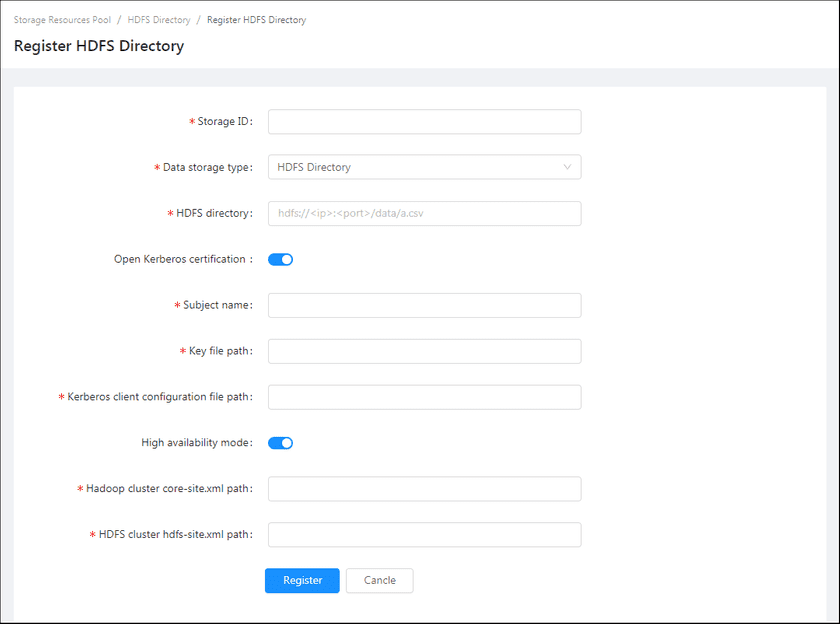
- Storage ID(Required): The name of the Storage resource, the name is customizable.
- Data storage type(Required): HDFS Directory.
-
HDFS directory:
- If the object to register is a csv file, you could fill in the path of HDFS plus csv name, such as
hdfs://{ip}:9000/data/newyork_taxi_2013-01_14k.csv. -
If the object to register is the directory with csv files, the csv folder has many CSV files:
- If all the csv files have a same format, such as fields and attributes. Fill in the path of the parent directory of csvfolder. For example,
hdfs://{ip}:9000/data,datais the parent directory of csvfolder. - If the format of csv files are different. Fill in the directory of csv files, such as
hdfs://{ip}:9000/data/csvfolder.
- If all the csv files have a same format, such as fields and attributes. Fill in the path of the parent directory of csvfolder. For example,
- If the object to register is the directory with index files. Fill in the directory of index files, such as
hdfs://{ip}:9000/data/indexfolder,indexfolderhas index files inside. - If the registered HDFS cluster is high availability mode. Fill in the address of high availability HDFS, such as
hdfs://{HA address}/data.
- If the object to register is a csv file, you could fill in the path of HDFS plus csv name, such as
-
Open Kerberos certification: (If you open Kerberos certification, please fiil out the following information)
- Subject name: The format is username@domain, such as iserver@SUPERMAP.COM. The username must be a system user in HDFS master node. The domain is set by Kerberos service, and must be the same as domain of HDFS cluster.
- Key file path: The path of the key files in GIS Cloud Suite host machine. The key files were generated when building the cluster. You need to copy the key files to GIS Cloud Suite host machine.
- Kerberos client configuration file path: The path of the Kerberos client configuration files in GIS Cloud Suite host machine.
-
High availability mode(If you open HA mode, please fill out the following information):
- Hadoop cluster cor-site.xml path: The path of the Hadoop cluster core-site.xml file in GIS Cloud Suite host machine.
- HDFS cluster hdfs-site.xml path: The path of the HDFS cluster hdfs-site.xml file in GIS Cloud Suite host machine.
-
Clicks on Register, the new added HDFS would be displayed in the list.
Notes:
More details of HDFS Directory please see SuperMap iServer Documentation.
