GIS Cloud Suite
Register PostgreSQL
GIS Cloud Suite supports to register internal and external PostgreSQL. The internal one is the built-in PostgreSQL in GIS Cloud Suite. The external one is the PostgreSQL build by users, it is required to configure and register in GIS Cloud Suite. Please follow the steps below to register PostgreSQL.
Register Built-in PostgreSQL
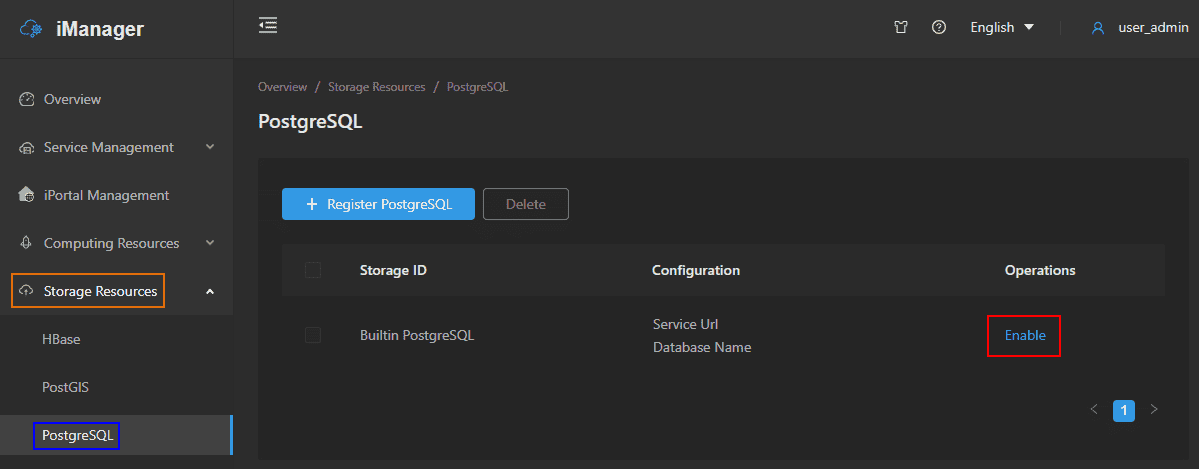
- Clicks on Storage Resources > PostgreSQL on the left navigation bar.
-
Clicks Enable on the PostgreSQL page.

- After the PostgreSQL environment get started up, the system would register built-in PostgreSQL to Data Catalog Service automatically.
Register External PostgreSQL
- Clicks on Storage Resources > PostgreSQL on the left navigation bar.
- Clicks on Register PostgreSQL.
-
Fills out the following information to register the PostgreSQL.
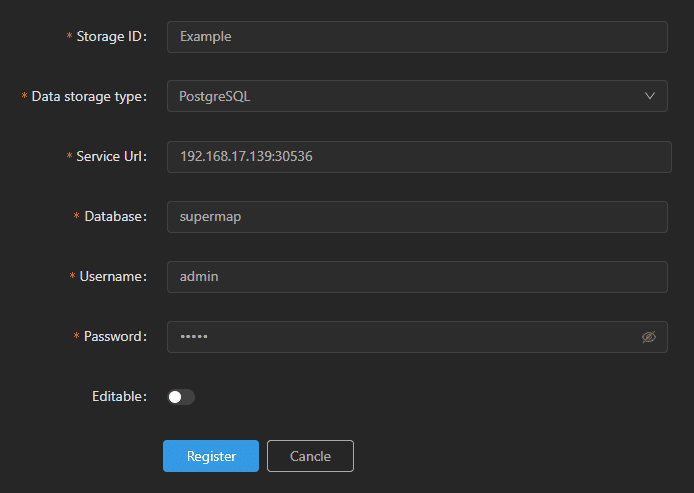
- Storage ID(Required): The name of the PostgreSQL environment, the name is customizable.
- Data storage type(Required): PostgreSQL.
- Service URL(Required): The URL of the database.
- Database(Required): The name of database.
- Username(Required): The username of the database account.
- Password(Reuqired): The password of the database account.
- Editable: The default is uneditable. If change the status to editable, the database could be the storage node in Data Catalog Service to upload the relational data.
-
Clicks on Register, the new added PostgreSQL would be displayed in the list.
Notes:
You can use the PostgreSQL created by SuperMap iManager, or build the PostgreSQL environment by yourself. More introductions of PostgreSQL please refer to SuperMap iServer Documentation.