Function Description
The HTML Pop-up function is an interactive tool for map viewers, used to dynamically display map details in the form of a pop-up window.
The pop-up window provides two core content display modes:
-
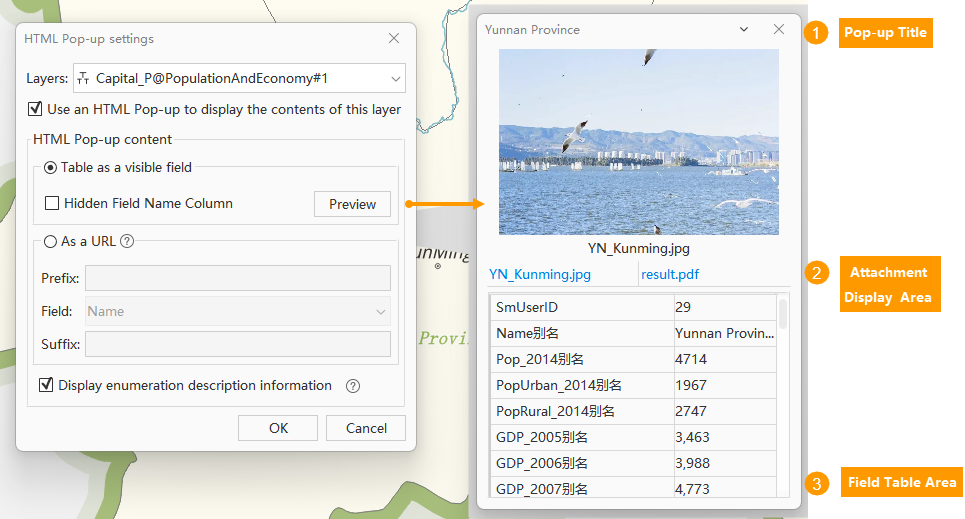
As an Attribute Table: The pop-up displays the object's attributes in a clear, structured table format and can integrate previews of related images, documents, and other attachments.
-
As a Web Browser: The pop-up acts as an embedded browser window to directly show an external online resource (such as an encyclopedia page or reporting system) associated with the object's properties.
Compared to the traditional "Recognize" function, this feature has significant enhancements in terms of informationOrganization andContent Breadth. It is not limited to viewing basic attributes but also enables an integrated information aggregation display combining "graphics, text, and web content."
Application Scenarios
-
Integrated Office and Field Verification: Office staff can directly click on field-collected points on the map, and the pop-up will display attachments such as on-site photos and record forms for that point. This achieves integrated verification of graphics, attributes, and attachments, improving data validation efficiency.
-
Associating Multi-Source Knowledge Bases: Through configuration, the map can be dynamically linked to external knowledge systems. For example, clicking on a mineral map polygon can make the pop-up directly show professional web pages about that mineral's industrial uses and price trends; clicking on a water conservancy facility can link to its real-time monitoring data platform, providing immediate information support for decision-making.
Function Implementation Workflow
- HTML Pop-up Settings (Configuration): This is the foundation for the function to take effect. Pre-define the pop-up display content for specific layers.
-
HTML Pop-up Viewing (Interaction): On the map, clicking on an object triggers and allows browsing of the configured pop-up content.
Supported starting from SuperMap iDesktopX 2026 version.
Next, detailed explanations will be provided for the two core stages:HTML Pop-up Settings and HTML Pop-up Viewing.
HTML Pop-up Settings
Function Entry
- Map Tab -> Selection Function Group -> Click the HTML Pop-up Drop-down Button -> Select HTML Pop-up Settings.
Operation Instructions
-
Open the Settings Panel: Open the "HTML Pop-up Settings" dialog via the entry described above.
-
Layer: Defaults to the currently active layer; can be switched via the drop-down list.
-
Enable the Function: Check the Use an HTML Pop-up to display the contents of this layer checkbox, which is the master switch for the layer's pop-up function.
-
Configure Display Content: Provides the following two mutually exclusive content configuration methods; select one to set up.
-
Table as a Visible Field: The pop-up displays the object's attributes in a table format. Currently, it defaults to displaying all fields in the dataset; setting display for specific fields is not yet supported.
-
Hide Field: When checked, the table only displays a list of attribute values without the field name header row, resulting in a cleaner layout.
-
Preview: Clicking this generates a temporary pop-up based on the current configuration and data from the layer'sFirst Object for real-time preview and debugging.
-
-
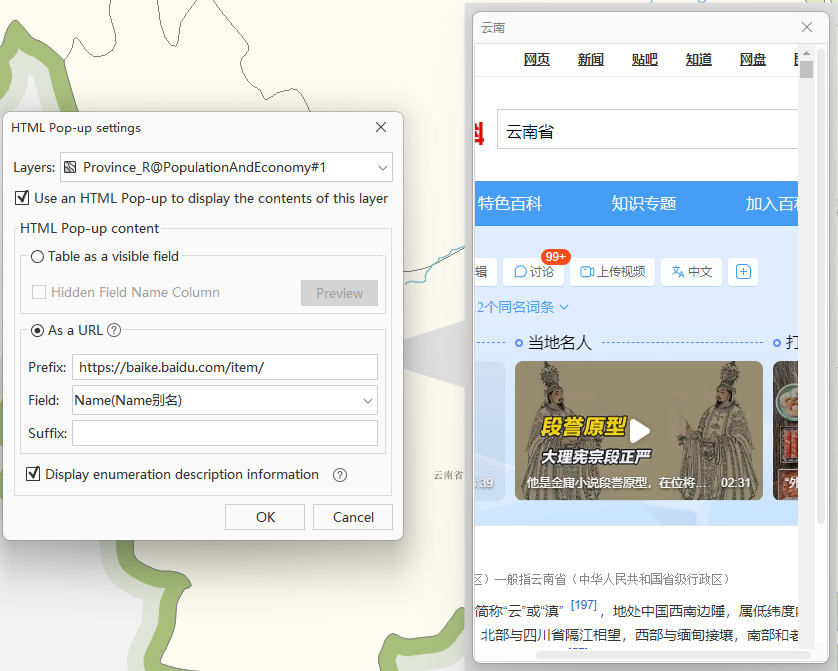
As a URL: The pop-up acts as an embedded browser, loading and displaying an external webpage dynamically assembled based on object properties. The complete URL is dynamically constructed using a formula of Prefix + Field Value + Suffix.
-
Prefix: Enter the fixed beginning part of the URL.
-
Field: Select a field (supporting text, integer types) from the drop-down list. The value of this field will be inserted as a variable.
-
Suffix: Enter the fixed ending part of the URL (optional).
-
-
Display Enumeration Description Information:If enumeration is set for a value field, the corresponding enumeration description information will be displayed in the HTML Pop-up window.
-
-
Save: Click Confirm to save the configuration after verification.
HTML Pop-up Viewing
Function Entry
- Map Tab -> Selection Function Group -> Click the HTML Pop-up Button .
Operation Instructions
-
Activate the Tool: Click the HTML Pop-up button. The mouse cursor changes from an arrow to a hand shape, indicating the function is activated.
-
Click to View Objects: On the map, move the cursor over a layer object with a configured pop-up and click.
-
View the Information Pop-up: An information window generated according to the configuration pops up immediately at the object's location.The content depends on the configuration mode:
-
If configured as Table as a Visible Field : The pop-up displays an attribute table and attachments.
-
When the pop-up is configured as a table of visible fields, click the drop-down button in the upper right corner of the pop-up to set Display System Fields. When checked, system fields are displayed in the list; when unchecked, only non-system fields are displayed.
-
-
If configured as As a URL: The pop-up displays an embedded web browser window, loading the dynamically generated online page.
-
-
Multi-Window Management and Interaction:
-
Multiple Tabs: You can continuously click on different features. Pop-ups will appear as tabs side by side. Click on a tab to switch between different objects.
-
Window Control: Drag the title bar to move the pop-up, and drag the edges to resize it.
-
Content Interaction: In table mode, you can click on an attachment name to open it with a local application. In URL mode, you can interact with the webpage (scrolling, clicking links) like in a regular browser.
-
-
Close the Pop-up: Click the
×button in the upper right corner of the pop-up to close the current information page.
Table as a Visible Field Setup and Viewing
- Pop-up Title: By default, uses the display field set in the layer properties, which can be configured in the "Display Control" option of the layer properties panel.
- Attachment Display Area: When using the "Table as a Visible Field" option, object attachments will be automatically displayed as part of the pop-up. Images can be previewed directly in the pop-up; for other attachment types, you can click the attachment name to open it with a local application.
- Field Table Area: By default, displays all fields of the current layer.
As a URL Setup and Viewing
The "As a URL" mode is configured for the "Province" layer.
- The prefix is set to https://baike.baidu.com/item/, which is a link to Baidu Encyclopedia;
- The field selected is "Name" for the province name;
- The suffix is left empty.
- When clicking on an object with "Name" as "Yunnan" on the map, the pop-up will act as a browser, directly loading and displaying the encyclopedia page at
https://baike.baidu.com/item/云南.