



The Select function in the Map provides multiple selection methods, including point selection, circle selection, polygon selection, and line selection.
When selecting objects in the Map, ensure that the layer of the objects is selectable; otherwise, the objects cannot be selected.
Access Points:
- Map tab -> Select -> Select dropdown option.
- Features tab -> Select -> Select dropdown option.
Ctrl+A Select All
When the layer is selectable and the mouse focus is on the map, press the Ctrl+A key on the keyboard to select all objects in the map.
Point Selection Tolerance
Point Selection Tolerance is mainly used to control the accuracy of selecting objects. When selecting objects, by setting a tolerance value, if the distance between the cursor and the Map is less than the set selection tolerance (in pixels), the object is selected. Users can directly enter the tolerance value in the text box.
Select
Select supports two methods: point selection and rectangular box selection. Selecting the Select item in the Select dropdown option changes the current Map's operation status to point selection state, and the mouse cursor in the current Map changes to  .
.
- Point Selection: You can click on the object to select it using the mouse. When selecting another object, the selection state of previously selected objects is cancelled; after selecting one object, hold the Shift key and select other objects to select multiple objects simultaneously.
- When there are multiple selectable objects within the point selection tolerance range, a drop-down button for selection switching appears after the mouse. Click the dropdown arrow to view all selectable objects within the current point selection range.
- When the mouse hovers over an object in the list, that object is highlighted on the map; when clicking on an object in the list, that object is selected on the map.
- Clicking the selection switch button will cycle through selecting objects in the list options.
- Box Selection: You can click and hold the left mouse button, drag diagonally to create a temporary rectangle. Release the left mouse button at an appropriate position to define the selection area, and all objects whose centroids are within the rectangle are selected. Users can hold the Shift key to continue box selection, adding more objects to the selection on the original basis.
Circle Select
The Circle Select method refers to selecting objects within a temporary circular area. In the dropdown option, select the Circle Select item. The current Map's operation status changes to circle selection state, and the mouse cursor changes to  .
.
- You can hold the Shift key to continue circle selection, adding more objects to the selection on the original basis.
- Click the left mouse button at a position on the Map, which becomes the center of the temporary circular area. Drag the mouse, and during dragging, you will see a temporary circle with a changing radius. Click the left mouse button again at an appropriate position to determine the radius and thus the circular selection area, and all objects whose centroids are within the circular area are selected.
Polygon Select
The Polygon Select method refers to selecting objects within a temporary polygon area. In the dropdown menu, select the Polygon Select item. The current Map's operation status changes to polygon selection state, and the mouse cursor changes to  .
.
- Continuously click the left mouse button on the Map to draw a temporary polygon. When finished drawing the temporary polygon area, click the right mouse button to end the drawing, and all objects whose centroids are within the polygon area are selected.
- Users can hold the Shift key to continue polygon selection, adding more objects to the selection on the original basis.
Line Select
The Line Select method refers to selecting objects that intersect with a temporary polyline. In the dropdown menu, select the Line Select item. The current Map's operation status changes to line selection state, and the mouse cursor changes to  .
.
- Continuously click the left mouse button on the Map to draw a temporary polyline. Click the right mouse button to complete the polyline drawing, and all objects that intersect with the polyline are selected.
- You can hold the Shift key to continue line selection, adding more objects to the selection on the original basis.
The above selection methods can be mixed. As long as you hold the Shift key when selecting objects, you can add more objects to the selection on the original basis. supports cross-layer selection, so objects in all selectable layers in the Map that meet the selection criteria will be selected, and the selected objects will be displayed in a special state (selection state).
Selection Modes
The forward/reverse selection modes provide three types: centroid within, intersect, and completely within. The selection mode is a global variable; once set, it will be recorded on the computer.
- Centroid Within: When the centroid of an object is contained within the temporary rectangle, the object is selected.
- Intersect: When there is an intersection between the temporary rectangle and the object, the object is selected.
- Completely Within: When the temporary rectangle is completely within, the contained object is selected.
Taking the method of drawing a temporary rectangle to select objects as an example, the explanations of the three selection modes are shown in the figure below. The dashed rectangle in the figure represents the temporary rectangle for selecting objects, and the polygon represents the geometry on the map.
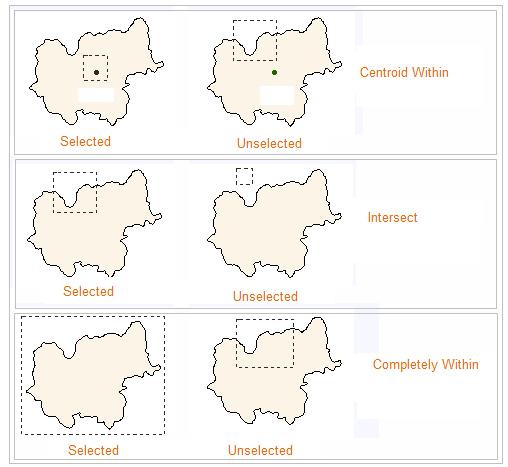 |
| Figure: Illustration of Selection Modes |
Multiple Selection Interaction
When selecting multiple overlapping objects in the Map, through the right-click Select Objects (Top 20) function, you can view the top 20 object list of selected objects. In the list, you can see the layer to which the object belongs. When the mouse selects an object in the list, that object is highlighted in red on the map, helping users quickly locate and select objects.
Deselect
When there are selected objects in the Map, you can deselect them in two ways:
- Through the Map tab -> Select -> Deselect button. Or through the Features tab -> Select -> Deselect button.
- Press the Esc key to cancel the selection.