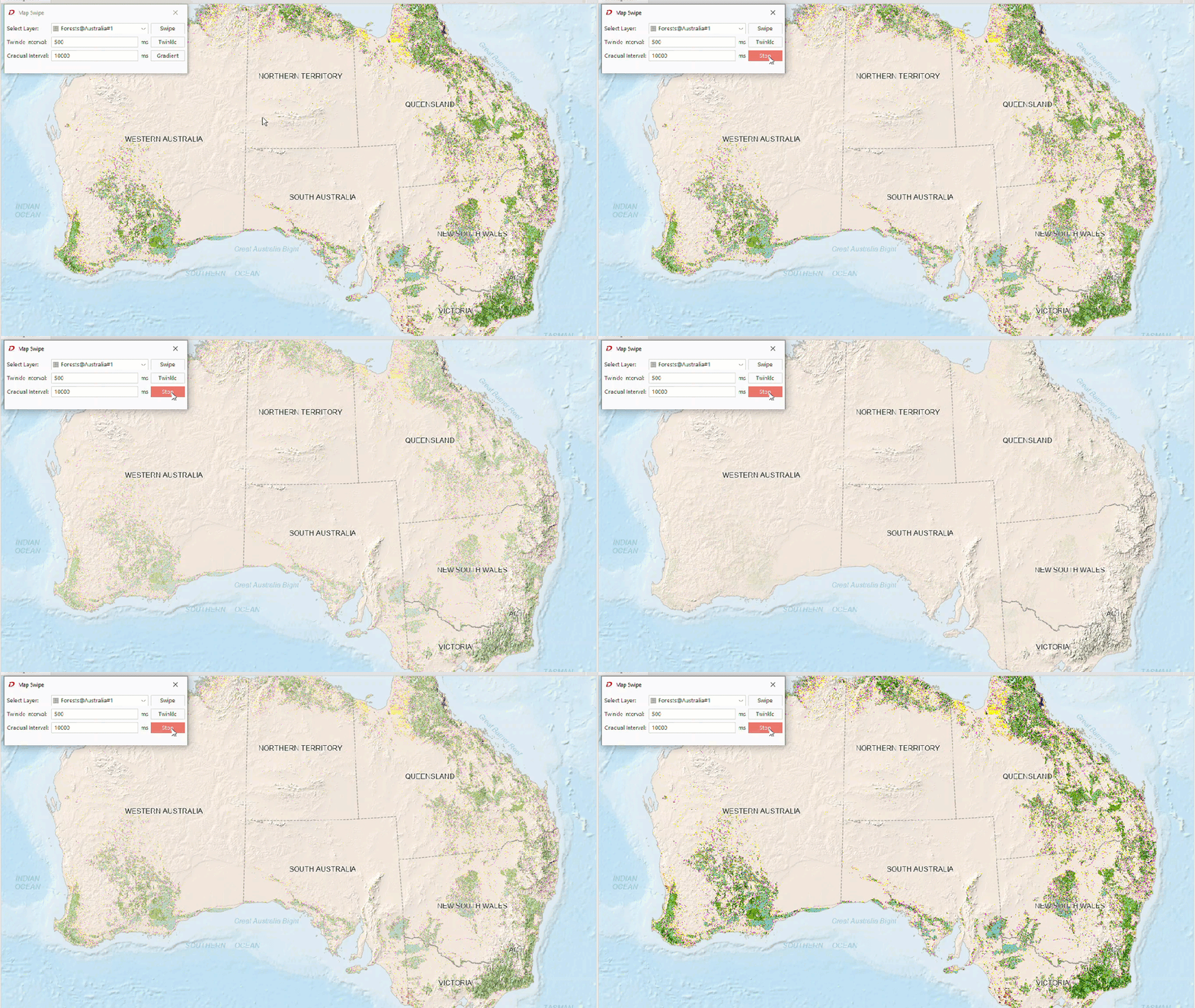
Map Swipe provides three functions: Rolling Curtain, Flicker and Gradient. The specific descriptions are as follows:
- Rolling Curtain
Map Swipe is commonly used for browsing Remote Sensing Imagery. Generally, differences between two superimposed images can be observed through rolling operations. The operational effect is as follows: by dragging the mouse vertically or horizontally on the upper image (via rolling), users simulate the action of scrolling the image up/down or left/right to reveal underlying layers. Currently, rolling operations can be applied not only to imagery but also to other map layers. For example, in the following dynamic demonstration, a Raster Layer is superimposed on a vector map, with rolling operations performed on the Raster Layer.
The layer to be rolled can be any Vector Layer, Raster Layer, Image Layer, or Cache Layer. Meanwhile, Layer Groups can also serve as rolling targets - all sublayers within the group will be rolled collectively.
Note: To optimize Map Swipe performance, the program automatically processes map layers as snapshot layers during rolling operations. Therefore, newly added layers in rolling mode cannot refresh previews in real-time. It is not recommended to add new layers during rolling operations.
- Flicker
Flicker applies to Swipe Layers. The selected layer periodically hides and reappears at set intervals, enabling comparative displays between historical data and current data.
- Gradient
Gradient applies to Swipe Layers. The shutter layer gradually fades out and in according to set time intervals. The key difference from Flicker is that Gradient uses smooth transitions, while Flicker employs abrupt changes.
Application Scenarios
- Multi-temporal Remote Sensing Imagery comparison for observing phase differences;
- Multi-version Cache comparison to identify regional differences;
- Vector Layer analysis, particularly for administrative boundary changes;
Function Access
Map-> Map Swipe-> Click the Map Swipe button.
Map Swipe Operations
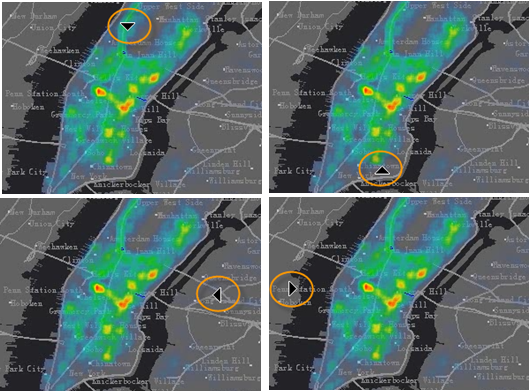 |
| Different Mouse States |
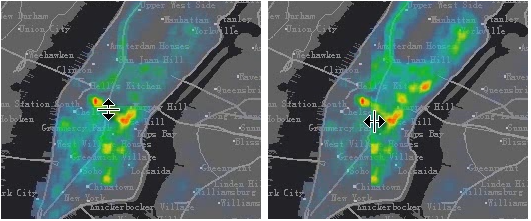 |
| Mouse State Icons |
 |
Tips
- In the Select Layer dropdown of the Map Swipe dialog, choose a Swipe Layer from current map layers. Any individual layer or sublayer within a Layer Group can be selected, but Layer Groups themselves cannot be chosen.
- Click the Rolling Curtain button to activate it. The mouse cursor will switch to an arrow state. The arrow direction changes based on mouse position, indicating rolling direction as shown:
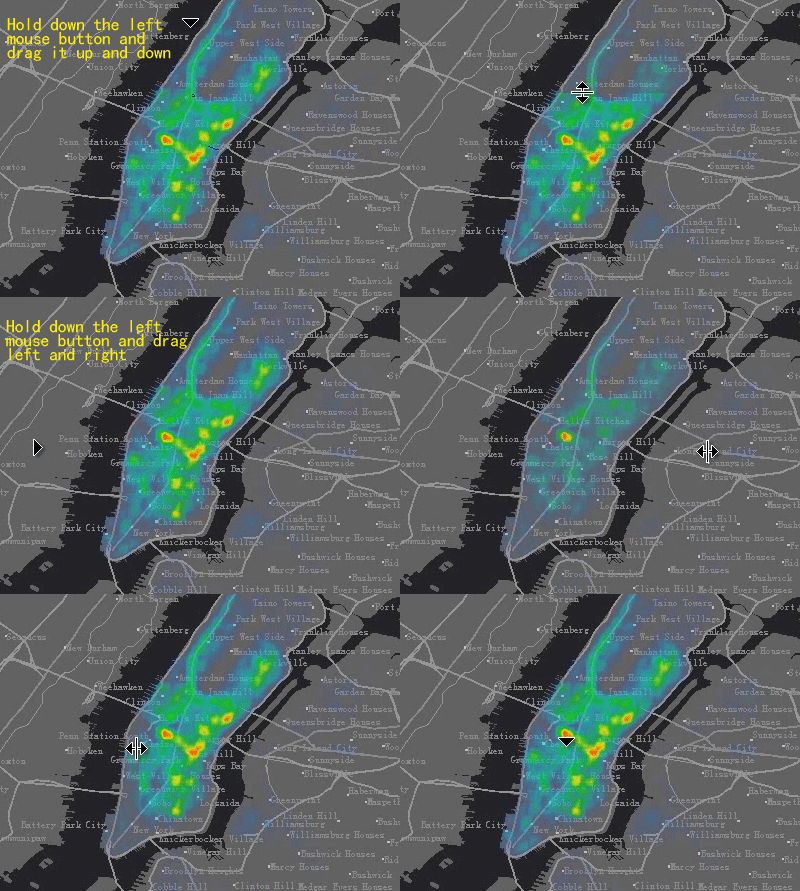
- In rolling cursor mode, hold and drag the left mouse button vertically or horizontally to roll the Swipe Layer. The cursor icon dynamically changes to indicate rolling direction.
- To exit rolling mode: Click the Stop button (deactivating it), or right-click anywhere on the map.
- Operation demonstration is shown below:
- During rolling operations, holding Shift + left-click will apply the swipe effect to both the Swipe Layer and all layers above it in the display order.
Map Flicker
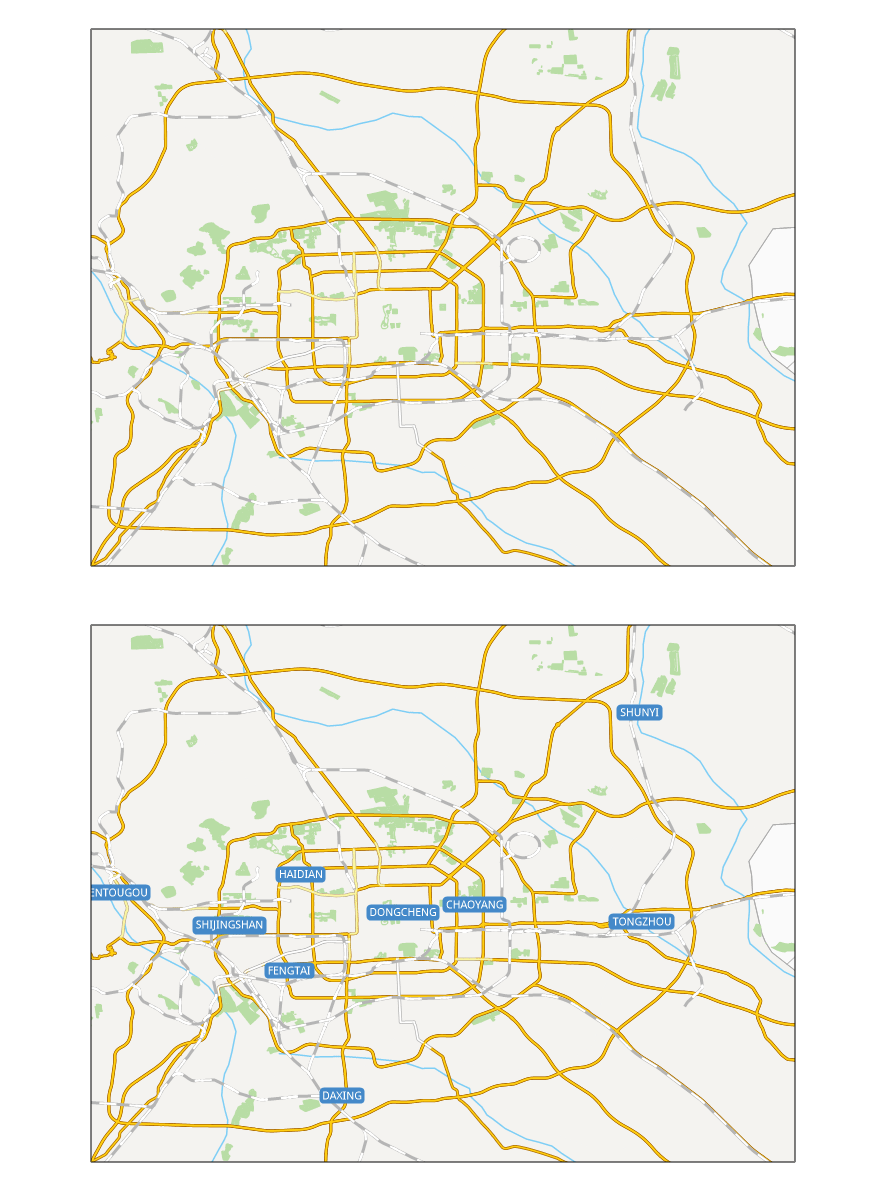 |
- In the Select Layer dropdown of the Map Swipe dialog, choose any layer (including Layer Groups and sublayers) as the flicker layer.
- Set flicker interval (hide/show timing) in milliseconds.
- Click the Flicker button to activate periodic layer visibility toggling. Demonstration:
Map Gradient
- In the Select Layer dropdown of the Map Swipe dialog, select any individual layer (excluding Layer Groups and their sublayers) as the gradient layer.
- Set gradient interval (transition timing) in milliseconds.
- Click the Gradient button to activate smooth layer transitions as shown: