



DM Database (damon database) is a relational database management system independently developed by Dameng. It provides fundamental database capabilities such as data storage, management, and transaction processing. DMSpatial Spatial Database is a spatial database built upon DM Database and integrated with the DMGEO spatial extension capabilities, designed to support the storage, management, and processing of spatial data. In SuperMap iDesktopX, you connect to a DM Database using a DMPlus datasource, and to a DMSpatial Spatial Database using a DMSpatial datasource. This document describes how to perform operations on DM and DMSpatial databases using SuperMap iDesktopX.
1. Installing the Database
Before using SuperMap iDesktopX to connect to and operate a DM Database or DMSpatial Spatial Database, ensure the database is correctly installed. You can obtain the database installation package and deployment guide through official Dameng channels (https://www.dameng.com).
After the database installation is complete, you can use the "Damon Database Configuration Assistant" to start a database instance.
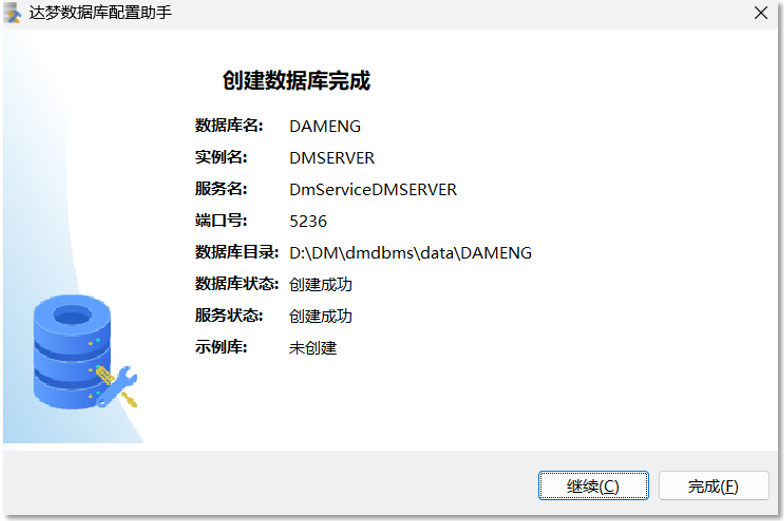
Then, if you are using a DMSpatial Spatial Database, you need to enable the DMGEO spatial extension package to support spatial data storage and processing capabilities. Currently, Damon Database provides two spatial extension packages: DMGEO1 and DMGEO2. DMGEO2 is an upgraded version based on DMGEO1, offering richer and more comprehensive spatial data processing capabilities. SuperMap iDesktopX supports both DMGEO1 and DMGEO2 spatial extension packages. It is recommended that you prioritize using DMGEO2.
Taking DM8 as an example, use the DM Database Management Tool to execute the following SQL statements in the database to check if DMGEO is enabled for the current database:
        SELECT SF_CHECK_GEO_SYS;   // Returns 1 if DMGEO1 is enabled, 0 if not.
        SELECT SF_CHECK_GEO2_SYS;  // Returns 1 if DMGEO2 is enabled, 0 if not.
If the DMGEO spatial extension package is not enabled, you can have SuperMap iDesktopX automatically enable it when creating a DMSpatial datasource. During the creation of a DMSpatial datasource, DMGEO2 will be enabled by default. Alternatively, you can enable DMGEO by executing the following SQL statements using the DM Database Management Tool:
        call SP_INIT_GEO_SYS(1);   // 1 means enable DMGEO1, 0 means disable.
        call SP_INIT_GEO2_SYS(1);  // 1 means enable DMGEO2, 0 means disable.
 Special Note:
- SuperMap iDesktopX does not support enabling both DMGEO1 and DMGEO2 simultaneously; only one spatial extension package can be enabled per database instance.
- When a database already has DMGEO1 enabled, SuperMap iDesktopX will continue to use DMGEO1 during the datasource creation process and will not automatically switch to DMGEO2. Additionally, do not switch DMGEO spatial extensions within the same database. If you have enabled DMGEO1 and started writing spatial data but need to switch to using DMGEO2, you should rebuild a new database and enable DMGEO2 in the new one.
2. Configuring the Client Dynamic Library Required for Connecting to the Database
The client dynamic library is a prerequisite for SuperMap iDesktopX to successfully connect to and normally read/write from a DM Database or DMSpatial Spatial Database. If the client dynamic library is not configured on the computer running SuperMap iDesktopX, the DMPlus and DMSpatial options will be grayed out in the "New/Open Database Datasource" window within SuperMap iDesktopX. You can obtain the required client dynamic library through official Dameng channels.
When using a DMSpatial datasource, you need to obtain the dmdpi (dmdpi.dll on Windows, dmdpi.so on Linux) provided by the database and its dependent native dynamic libraries. Copy these dynamic library files to the computer running SuperMap iDesktopX and add their file paths to the system environment variables:
        Windows: PATH=../dmdpi
        Linux: LD_LIBRARY_PATH=../dmdpi
When using a DMPlus datasource, you need to obtain the dmoci (dmoci.dll on Windows, dmoci.so on Linux) provided by the database and its dependent native dynamic libraries. Similarly, copy these dynamic library files to the computer running SuperMap iDesktopX and add their file paths to the system environment variables.
Note:It is recommended that the version of the database client dynamic library be consistent with or share the same major version number as the database server version to avoid connection or operation anomalies due to interface incompatibility.
3. Operating in SuperMap iDesktopX
After completing the database and client environment preparation, you can use SuperMap iDesktopX to create new DMPlus and DMSpatial datasources and perform subsequent operations.
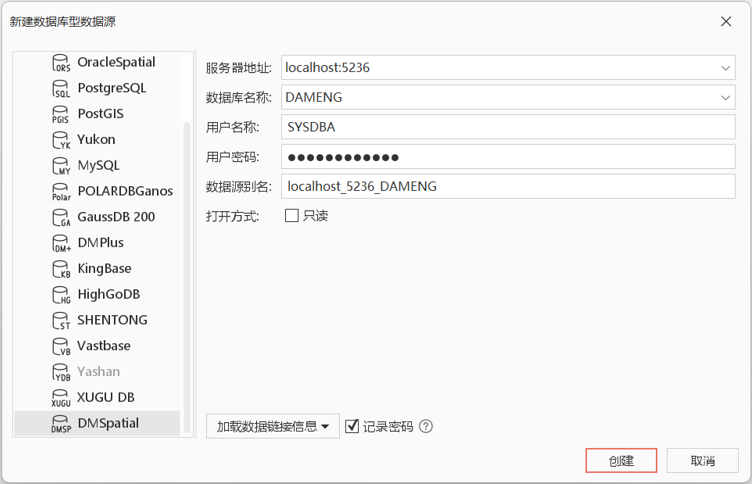
| DMPlus Datasource | DMSpatial Datasource | |
|---|---|---|
| Supported Dataset Types | Tabular, Point, Line, Region, Text, CAD, Mosaic, Grid, Image, Multi-point, Network, Route, Topology, Model, Volume. | Tabular, Point, Line, Region, Text, CAD, Mosaic, Grid, Image, Multi-point, Network. |
| Additional Features |
|
|
Related Topics