



Cull Suspended Solids
Usage
The Cull Suspended Solids function is used to delete oblique photography 3D model data within a specified spatial range. It can quickly clean up suspended fragments, noise points, and unnecessary redundant model parts in the air caused by modeling errors. This function supports flexibly defining culling areas by drawing extruded volumes or importing model objects (based on their OBB bounding boxes), importing culling areas (based on polygon objects and their extrusion height and bottom elevation fields), and can interactively adjust height ranges and buffer distances to precisely control the culling range.
Function Entry
- 3D Geographic Design tab -> Oblique Photography Data Operations group -> Cull Suspended Solids button
Operation Steps
- Create a new spherical scene. In the Workspace Manager, right-click "Scene" and select "New Spherical Scene".
- Load 3D tiles. In the Layer Manager, select "Normal Layer" and right-click "Add 3D Tile Layer", or on the Scene tab, in the Data group, click the Tiles drop-down button and select "Load Tiles..." in the pop-up drop-down menu. For specific operations, see the help document Load Tiles.
- In the Layer Manager, select the 3D tile layer, right-click Quick Locate to This Layer, and hold the mouse wheel in the scene window to adjust the camera to a perspective convenient for determining the culling area. To ensure area accuracy, it is recommended to operate from a top-down view of the scene.
- On the 3D Geographic Design tab, in the Oblique Photography Data Operations group, click the Cull Suspended Solids button. The "Cull Suspended Solids in Oblique Photography Data" panel pops up, as shown in the figure below:
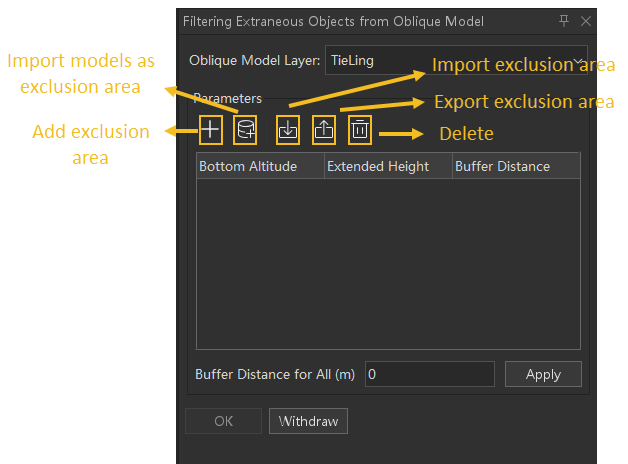
- Oblique Layer: Click the drop-down arrow of the combo box to the right of "Oblique Layer" to select the layer containing the suspended solid objects to be culled.
- Parameter Settings: In the parameter settings area, determine the culling area and set area parameters. Adding multiple culling areas is supported.
- Add Culling Area: Click the Add button in the parameter settings toolbar. After a red dot attaches to the top of the mouse, you can left-click in the scene to start drawing, right-click to finish drawing the horizontal range, and then move the mouse to determine the area height and complete the drawing. You can modify the bottom elevation, extrusion height, and buffer distance of the drawn area in the list.
- Import Model: Click the Import Model button in the parameter settings toolbar. In the "Import" dialog box, select a model dataset. The system will use the OBB bounding box of the selected model object as the culling area.
- Import Culling Area: Click the Import Culling Area button in the parameter settings toolbar. In the pop-up "Import" dialog box, select the polygon dataset specifying the culling area. The system will generate a culling area based on the selected polygon object and its bottom elevation and extrusion height, quickly completing area determination.
- Export Culling Area: Click the Export button in the parameter settings toolbar. In the "Save" dialog box, set the data source and name of the culling area polygon dataset. After export, a corresponding polygon dataset will be generated in the specified data source.
- Delete Area: After selecting an unnecessary area in the list, click the Delete button in the parameter settings toolbar to remove the corresponding culling area. For batch deletion, you can select multiple items using Ctrl or Ctrl+A, and then click the Delete button.
- Area Parameter List: The list displays the Bottom Elevation, Extrusion Height, and Buffer Distance of each culling area. You can directly edit the bottom elevation and extrusion height in the list to customize the height range of each culling area. Customize the buffer distance of each culling area in the list, in meters.
- Overall Buffer Distance Setting (m): Sets the buffer distance of all culling extrusion volumes, in meters. The default value is 0. By setting the buffer distance, the culling range can be expanded to ensure that the edge areas of suspended solids are completely removed.
- Click OK to execute the cull suspended solids operation; click Undo to undo the operation.
 Notes:
- When adding a culling area, it is recommended to view the scene from above to ensure the accuracy of drawing points.
- When importing a model to determine the culling area, the system generates an extrusion volume based on the object's OBB bounding box; please confirm that the selected object range meets the culling target.
- The extrusion volume buffer distance is used to expand the culling range. If the value is too large, valid model data may be mistakenly deleted. Please set it according to actual needs.
Related Topics