



Compression And Monomer
Instructions for use
The Compression And Monomer "function is to perform Texture Compression and singulation on Oblique Photography Model data, and Model Data can perform Texture Compression. Generate Result Data in S3M/S3MB format is supported. S3M stands for Spatial 3D Model.
Parameter Description
- SCP file: Select the model cache to be singulated.
- Compression type: Five compression types are currently supported
- WebP: a common compressed texture format for Web/PC. The total amount of data is reduced and the transmission performance is improved.
- DXT (PC device): a universal compressed texture format for PCs. Video memory usage is reduced, rendering performance is improved, but the total amount of data is increased.
- PVRTC (IOS series): PVRTC is a compressed texture format developed by Imagination Technologies for its PowerVR SGX series mobile display chips. It is also the only compressed texture type supported by Apple's iPhone, iPad, iPod Touch and other mobile devices so far, and it is the format recommended by Apple for 3D developers. PVRTC can compress images up to 16:1 and still maintain good map quality at this ratio. Due to the limited resources of mobile devices, their video memory is often shared with the memory. Using the compression ratio of PVRTC 16:1 can save a lot of memory without losing the quality of the map.
- ETC (Android series): ETC compressed texture format is a common compressed texture format on mainstream Android devices.
- PVRTC (IOS Series Devices _ Express): The PVRTC compressed texture format is a common compressed texture format on Apple iOS devices.
- Model Discret: supports oblique photography model singulation
- Datasource: Select the Datasource of the Model Dataest to be singulated.
- Dataset: Select the Model Dataest to be singulated.
- Target Field: Unique Identification of vector face singulation
- Result:
- Save Type: S3M or S3MB is supported.
- Target Path: Click the button on the right, set the path for saving Result Data in the pop-up Select dialog box, and click the Select button; you can also directly enter the folder path in the text box.
- After setting the above parameters, you can execute the Model Discret operation. The generated data is shown in the following figure:
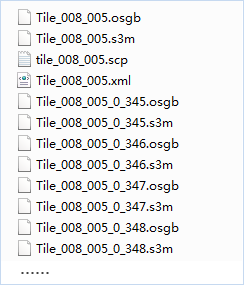
Figure: Generate Result Data