



Specify Offset
Function Description
Specify Offset indicates selecting the base point coordinates to move the object to the specified location according to the specified X offset and Y offset.
When the layer is editable, the Specify Offset function is available only after selecting the geometry.
Function Entry
- Edit Data Tab -> Object Editing Group -> General Editing -> Move and Zoom -> Specify Offset
Operation Instructions
- In the editable layer, select the geometry to be moved.
- In the Edit Data tab, from the General Editing dropdown menu, click the Specify Offset button in the Move and Zoom group.
- At this point, the mouse prompt says: “please specify the base point coordinates”. Click the mouse in the map (or switch using the Tab key and input X and Y coordinate values, press Enter to confirm input) to determine the base point coordinates for the movement.
- At this point, the mouse prompt says: “please specify target point coordinates”. Move the mouse in the map, and a preview of the object after movement (shown with a dashed line) will be displayed in real time. After clicking the left mouse button (or inputting the X offset and Y offset via the Tab key, press Enter to confirm input) to determine the target point coordinates, the selected object will be moved to the new position according to the specified offset.
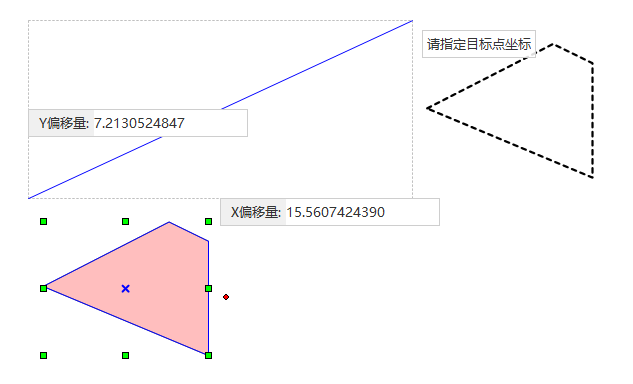
- To continue moving the object, input the base point coordinates and target point coordinates again. Press the Esc key or click the right mouse button to end the current operation.