



Add Point
Function Description
The Add Point function can add a node with a specific M value to the selected route line object; at the same time, based on the start and end M values, it can highlight the route segment between the two M values on the layer.
Function Entry
- Edit Data tab -> Object Editing group -> Route Edit -> Add Point
Operation Instructions
- Add the route data to the map window, set the layer to editable state, and select a line to which a point will be added.
- In the Route Edit drop-down menu of the Edit Data tab, click the Add Point button to open the Add the Point\Highlighted Line According to M dialog box.
- Check the Add Point checkbox to add a node with a specified M value on the route line object. There are two ways to add:
- Enter an M value in the edit box, for example, enter 100, then the point at M value 100 on the route line will be highlighted on the map. Click the Add button to add a node with M value 100 to the route line object.
- Click the Pick button to the right of the M combo box, move the mouse to the selected line, and the M value and coordinates of the mouse position will be displayed. Click the mouse at the appropriate position, then click the Add button in the dialog box to add that point to the selected line.
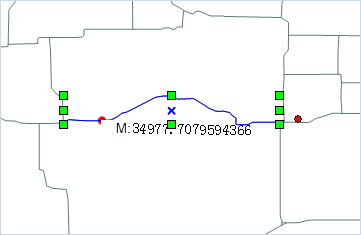
Figure: Add Point
- Check the HighlightLine checkbox, enter M values in the Start M Value and End M Value spin boxes, or click the Pick button to pick appropriate M value positions on the selected route line object in the map, which will serve as the start and end M values respectively. The route segment between these two M values will be highlighted on the map, as shown in the following figure:

Figure: Highlight Route Segment - Click the Close button to close the dialog box, completing the addition of the point or the display of the highlighted line.
 Notes:
The M value entered for adding a point must be between the minimum and maximum M values of the selected line; the range of the start M value and end M value for the highlighted line is from the minimum M value to the maximum M value of the selected line.