Line Split
Function Description
Split lines or regions using a drawn temporary split line.
The Line Split button is only available when there is an editable layer in the current map and one or more objects are selected in the layer.
When multi-layer editing is enabled, the drawn temporary split line will split all selected lines or regions in the editable layers it crosses. These objects can be located in different layers.
Function Entry
- Edit Data tab -> Object Editing group -> General editing -> Split -> Line Split
Operation Instructions
- Set the layer of objects (lines or regions) to be split in the map to an editable state.
- Click to select the line or region to be split. Alternatively, select multiple geometries by box selection or by holding the Shift key.
- In the Edit Data tab, under the General editing dropdown menu, click the Line Split button in the Split group to execute the line split operation. At this point, the operation mode in the current map is the line split mode for lines or regions.
- Draw a temporary split line, i.e., draw a temporary polyline used to split the regions. The specific operation is: move the mouse to the map to draw the split line, click the left mouse button at an appropriate position to determine the first point of the split line, move the mouse to see a temporary line segment that changes with the mouse movement, click the left mouse button at an appropriate position to determine the next point of the split line, continue clicking to draw other points of the temporary split line.
- After drawing the temporary split line (polyline), right-click the mouse to end the drawing. The split operation will then be performed, and the temporary split line disappears.
- The result of the split is: all selected lines or regions crossed by the temporary split line in all editable layers will be split into separate objects.
- To continue the next line split operation, repeat step 4 above. To add lines or regions from other data for splitting, add the data and set the corresponding layer to an editable state, then repeat step 4 above.
- To cancel the line split operation mode, simply click the Line Split button again to deselect it.
Line Split Operation Diagram:
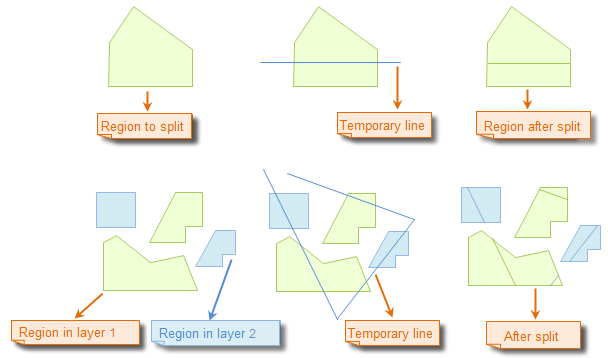 |
 Notes:
- When multi-layer editing is enabled, users can simultaneously line split lines or regions in multiple editable layers.
- Parametric objects do not support line split, such as circles, arcs, ellipses, etc.
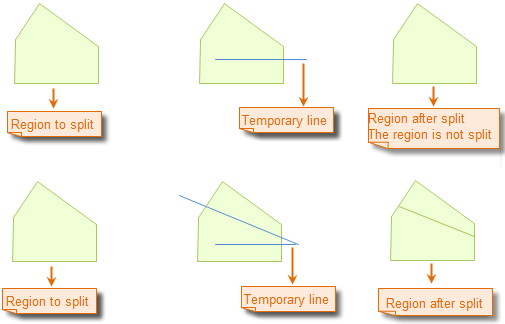
- A geometry will only be split if the temporary split line completely passes through the editable line or region, as shown in the diagram below.