Function Description
Auto-cut Polygons function is used to automatically cut intersecting parts when drawing a region object, resulting in a new object. The new object can be a single object or a complex polygon object.
- The auto-cut polygons function is applicable to polygon layers or CAD layers.
- If the newly drawn object intersects with other objects in the layer, the newly drawn object will be automatically cut, and the intersecting parts will be removed, resulting in a new object.
- If the newly drawn object does not intersect any object, auto-cut polygons will not be performed, meaning the drawn object is retained.
- If the newly drawn object crosses an existing polygon object, a complex polygon object is generated, which is a polygon with multiple sub-objects. As shown in the figure below, the newly drawn polygon (dashed rectangle) crosses another polygon (filled rectangle), resulting in a complex object containing two sub-objects.
Function Entry
- Edit Data tab->Edit the settings group->Drawing Settings drop-down menu->Auto-cut Polygons.
Operation Instructions
 |
| Figure 1 Drawing a rectangle |
 |
| Figure 2 The cut drawn rectangle |
 |
| Figure 3 Cutting result |
- In the Drawing Settings group of the Edit Data tab, click the Drawing Settings drop-down button, and select the Auto-cut Polygons option from the drop-down menu; or use the Shift+R shortcut key to enable the auto-cut polygons function. To cancel the auto-cut polygons function, click the option again.
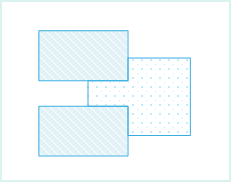
- In the current editable layer, draw a polygon object. As shown in Figure 1, draw a rectangle (indicated by a dashed line).
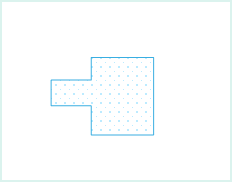
- The drawn rectangle intersects with two other rectangles in the layer. The drawn rectangle (dashed rectangle) will be cut by the other two rectangles, resulting in a new object, as shown in Figure 2.
- Move the resulting new object, as shown in Figure 3.
- To cancel the auto-cut polygons function, uncheck the Auto-cut Polygons option.




