



Feature Description
SuperMap iDesktopX supports importing *.h5 data that conforms to the S-104 data specification into a file database, database datasource (PostGIS or DMPlus), or EMS datasource. Note that the datasource for importing S-104 data cannot be a read-only datasource.
Function Entry
- Start tab -> Data Processing group -> Data Import -> Chart -> S-104.
- Datasource context menu -> Import Nautical Chart Data -> S-104.
Operation Steps
- Open or create a datasource in the workspace to store the *.h5 files.
- Select the datasource to which you want to import nautical chart data, and choose Import Nautical Chart Data -> S-104 from the context menu; or select the target datasource, go to the Start tab -> Data Processing group -> Data Import drop-down menu -> Chart -> select S-104.
- In the Import Nautical Chart Data dialog box, select one or multiple S-104 *.h5 files, and click Open.
- After selecting the files, the S-104 dialog box lists the selected files and provides the following parameters for viewing and editing:
- Source File: Displays the name of the imported *.h5 file.
- Source Data: Displays the path of the imported chart data.
- Target Datasource: Displays the name of the target datasource. You can select other datasources in the current workspace from the drop-down list.
- After setting the above parameters, click the Import button to complete the import of S-104 chart data.
Browsing Navigational Water Level Data
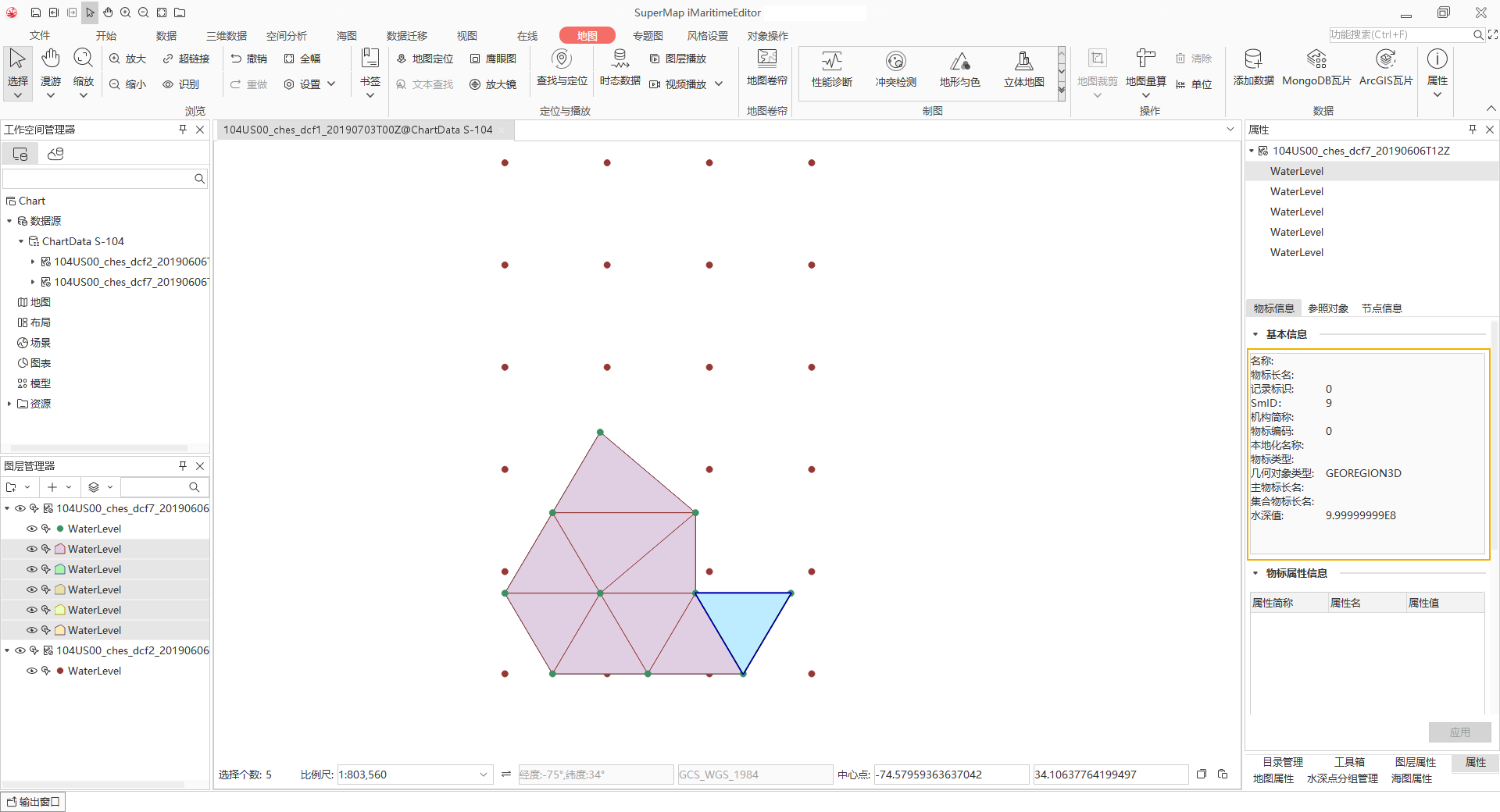
After importing the S-104 files, you can click or hold down Shift to batch select the chart groups you want to browse, and choose Add to New Map or Add to Current Map from the context menu to quickly browse the navigational water level data.
You can select navigational water level features in the map and perform attribute queries. The Basic Info, including the Water Depth Value, will be displayed in the Properties panel on the right, as shown in the figure below:
Related Topics
S-104 Navigational Water Level