


Feature Description
S-58 Electronic Chart Validation Standard (ENC Validation Checks) is a standard established by the International Hydrographic Organization (IHO). It consists of five parts: ENC Data Structure Checks, ENC Product Specification Checks, ECDIS Related Checks, ENC Object Class Usage Checks, and Special Object Class Attribute Checks. Through S-58 checks, the compatibility of ENC data with S-57 standards and product specifications can be ensured, guaranteeing consistency during data exchange.
When editing or generating new chart data, data inspection must be performed to ensure compliance with international standards and avoid data errors affecting navigation safety. Before data inspection, chain-node topology must be created. After modifying data, topological relationships also need to be rebuilt. For details, refer to: Topology Construction and Checks.
SuperMap iDesktopX validates chart data based on the S-58 standard version 4.2 issued by IHO in 2011. It provides 9 major categories and 300+ S-58 check items, including some additional necessary checks. It supports visual display of check results, making it easy to quickly locate and fix errors.
Function Entry
- Chart tab -> Data Inspection group -> Data Inspection dropdown -> Data Inspection button.
Operation Steps
Below, the specific operations of S-58 data inspection are introduced with an application example:
- Data preparation:
- Open the workspace Chart.swmu under the folder SampleData\ApplicationMap\Chart in SuperMap sample data. Convert the non-editable group GB4X0000_52000 in the Chart datasource to an editable group (see Convert to Editable Group), obtaining the GB4X0000 group.
- Data inspection:
- Open the editable chart group into the map, go to the Chart tab -> Data Inspection group -> Data Inspection dropdown, and click the Data Inspection button.
- Check the items to be inspected. By default, all check items are selected.
- Check items:
- Data Coverage: Checks the consistency of coverage between feature objects and meta-objects.
- Duplicate Objects: Detects whether feature objects of the same type have completely identical attributes and geometry (except for soundings).
- Illegal attribute value: Validates the validity of feature object attribute values.
- Illegal related objects: Checks whether a collection feature object contains at least two feature objects.
- Depth range and boundary errors: Checks if, when DEPCNT (VALDCO) is collinear with face-type DEPARE and there is no linear DEPARE, the attribute values satisfy: max DRVAL2 > VALDCO > min DRVAL1, and min DRVAL2 = VALDCO >= min DRVAL1.
- Required attribute error: Ensures all mandatory attributes are not empty.
- Master-slave relationship error: Validates the reference relationship between master and slave objects.
- Illegal feature object: Checks whether the relationship between a feature object and its spatial geometry is valid.
- Illegal sounding information: Checks the validity of sounding point information.
- Topology check:
- Illegal complex regional object: Detects whether there are multiple island polygon feature objects.
- Line object with fake nodes: Checks whether line objects have false nodes.
- Redundant node object: Detects redundant nodes.
- Self-intersecting objects: Checks self-intersections of line and polygon feature objects.
- Self-overlapping objects: Verifies that polygon feature objects of the same type do not overlap.
- Sub-object separation line object: Ensures the continuity of nodes of line feature objects.
- Check items:
- If topology check is selected, click the "..." button on the right side of the check item, and in the object selection dialog, select the objects to be checked for that item.
- After selecting check items, click OK to start the check.
- The check result will be displayed in the Data Inspection panel that pops up on the right side of the interface, including Errors, Related objects, and S-58 Information.
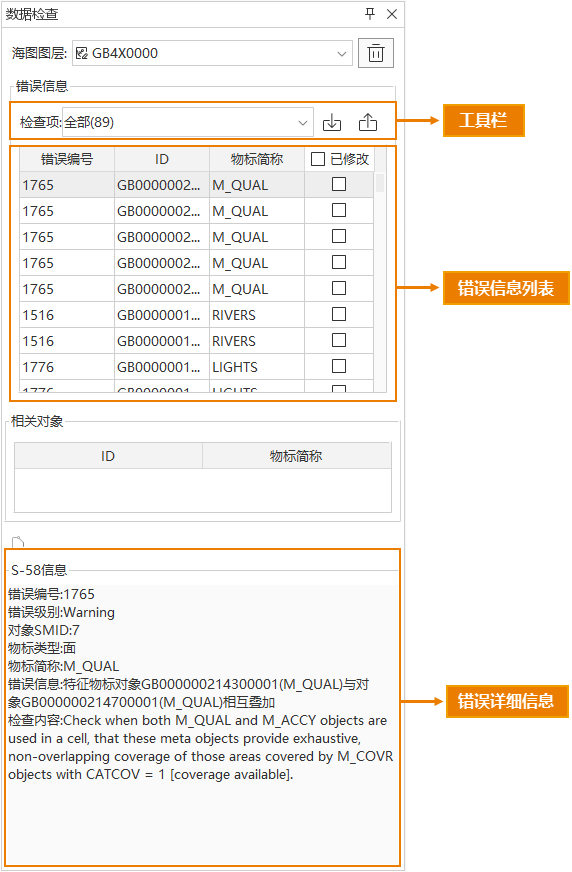
- Errors: In this example, Check Item shows a total of 89 errors. You can filter the display content of the errors list by type for subsequent modification. The error list includes Error Number, ID, Object Abbreviation, and a modification status check box. When an error is selected, the corresponding object will be highlighted and displayed in the center of the map.
- Related objects: Each error has one or more related objects. This section lists the related objects of the corresponding error item. If the check item is aimed at the object itself (e.g., illegal attribute value, illegal feature object, redundant node object, etc.), related objects are not provided. If the error is caused by the feature itself together with other related objects (e.g., self-overlapping objects, master-slave relationship error, etc.), clicking the record in the error list will list these related objects in the related objects list.
- Auto Remove Redundant Nodes: Select records in the errors list (supporting batch selection by holding Ctrl and Shift), then click this button to automatically remove redundant nodes in topology errors. After the operation, the Modified checkbox in the Errors list will be automatically checked. This button is only valid when the Check Item is Redundant node object and there is an error object.
Note: After using this function, the internal topology of chart data will change. Click the Chart tab -> Data Inspection group -> Topology Check button to rebuild topological relationships.

- S-58 Information: The error number, error level, error description, and check content information of the selected error item in the errors list.
- Export the Check Result: You can export data inspection errors to a *.xml file. Click the Export button in the toolbar to open the Export the Check Result dialog.
- Click the check item dropdown button and select the check items' results to export.
- In the save path, set the save path and file name for the exported *.xml file.
- Check the Append Export checkbox to append data checking information to an existing *.xml file.
- Import the Check Results: You can import data inspection data information into the currently opened editable group. Click the Import button in the toolbar to open the Import the Check Results dialog. In the Import Files section of the dialog, select the files to import, then click the OK button to import the data inspection errors.
- Modify the data according to the S-58 prompts until no errors remain, to ensure compliance with international standards for data exchange.
 Tip:
Tip:To view the complete S-58 check rules in SuperMap iDesktopX, you can open the file bin/Resource/Chart/S58/S58Document.xml in the root directory of the product package. You can also extend the check rules through this file. For details, refer to: S-58 Check Extension.
Related Topics
Topology Construction and Checks